FLOWIN lets you set up automatic watermarks for forwarded images, videos, PDF documents, and even audio files.

Watermark capabilities
A watermark can be text, an image, or an audio clip. Watermarks have many settings, including size, visibility, offset, and position.
In FLOWIN, a new message arrives at the destination with the watermark already added. There is no need to publish the message first and then edit or delete it. A text watermark can include information that changes, such as the message date and time.
FLOWIN lets you set up several watermarks: use them for different channels or apply them to the same original media file. The option to add watermarks to text messages lets you attach your own images or audio to forwarded messages without media.
Once set up, new messages with the selected media types will be forwarded from the source to your chat or channel with watermarks.
Text watermarks
Watermarks in FLOWIN let you add any text to forwarded videos, images, or PDF documents.
Creating a text watermark
For example, a pottery studio posts photos of its work in a channel. Let’s add the name “Pottery Studio” so that it stays on the photos when they are forwarded again.
Before you begin
Set up a forward in “Copy” mode.
Open @flow_in_bot, send the
/startcommand, and click “Control panel”.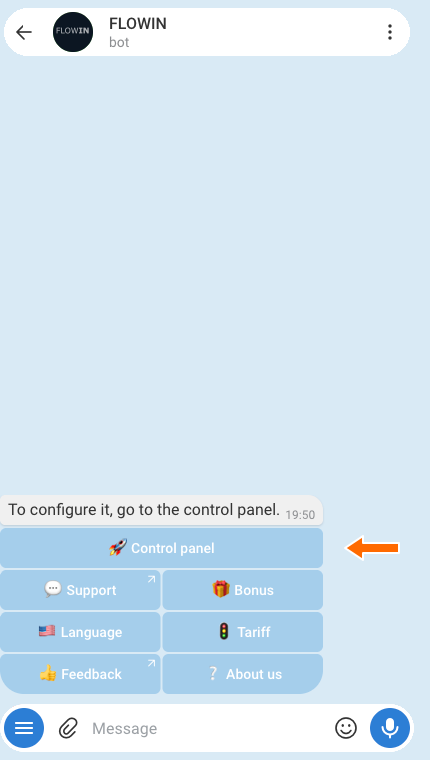

Accessing the control panel through @flow_in_bot.
Open “Menu” → “Watermarks” → “Inserting text” and click “Create”.
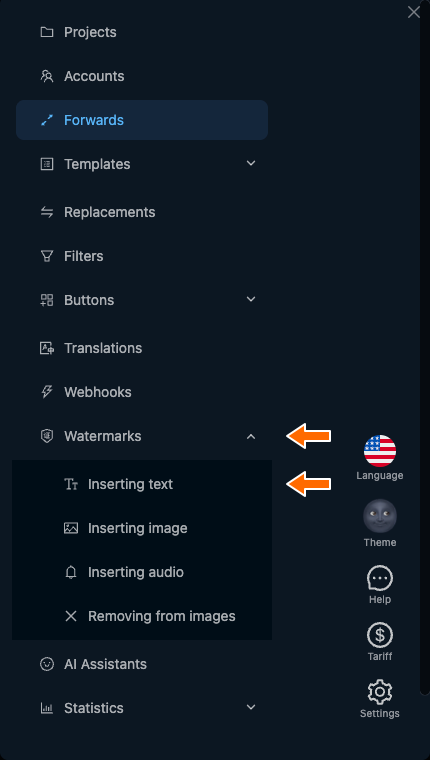
“Inserting text” in the watermarks menu. 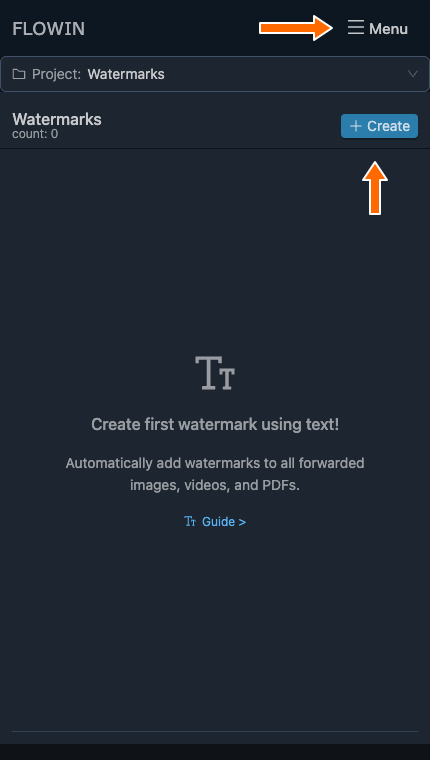
The “Menu” and “Create” buttons on the text watermarks page. In the “Text” field, enter
Pottery Studio. To make the text stand out on the photo, set “Size” to 40px and click “Create”.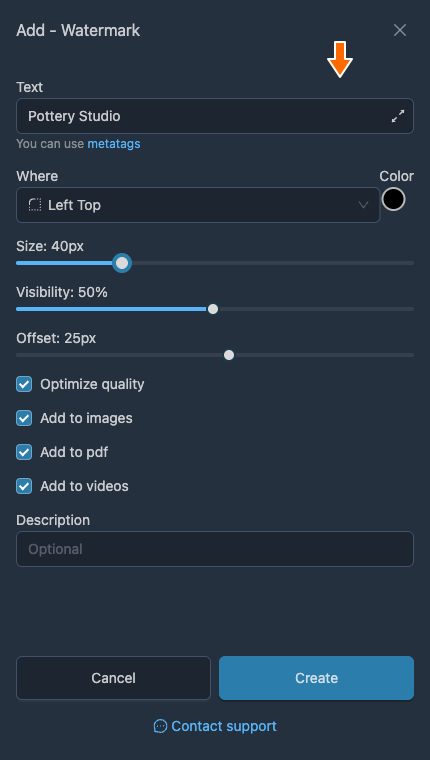
Watermark text and text size. 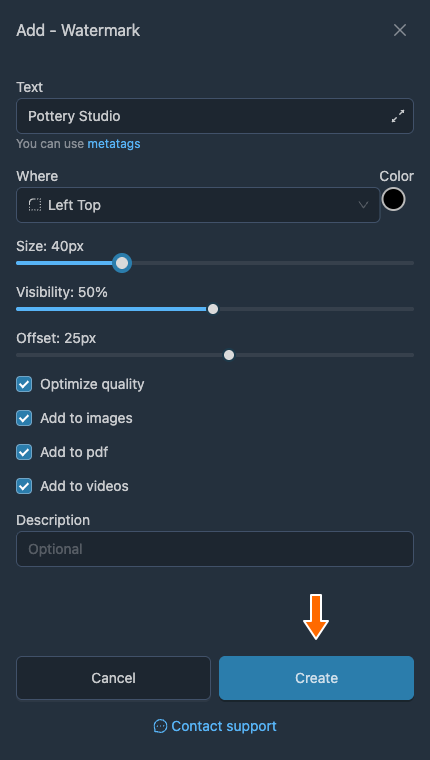
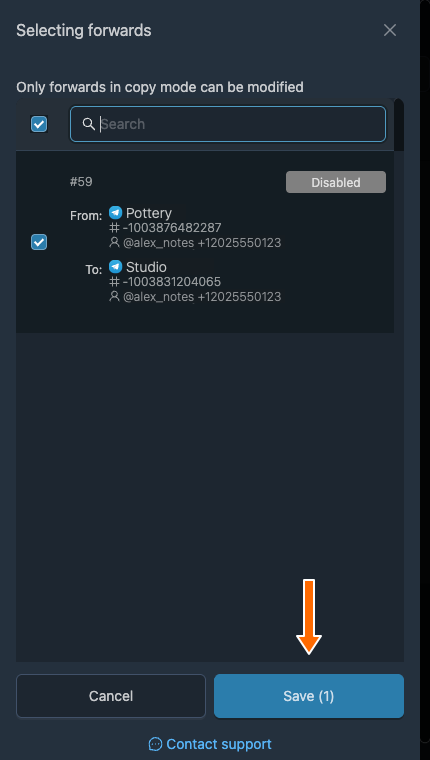
Creating the text watermark. Click “Apply” next to the watermark you created. Select the forward for the studio’s photos and click “Save”.
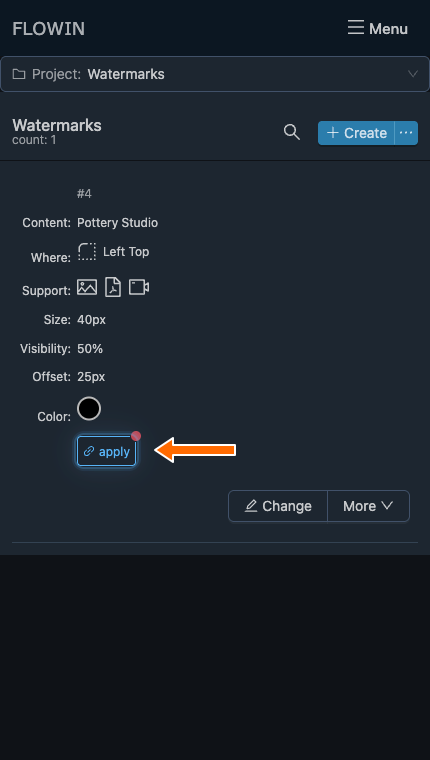
Applying the new watermark. 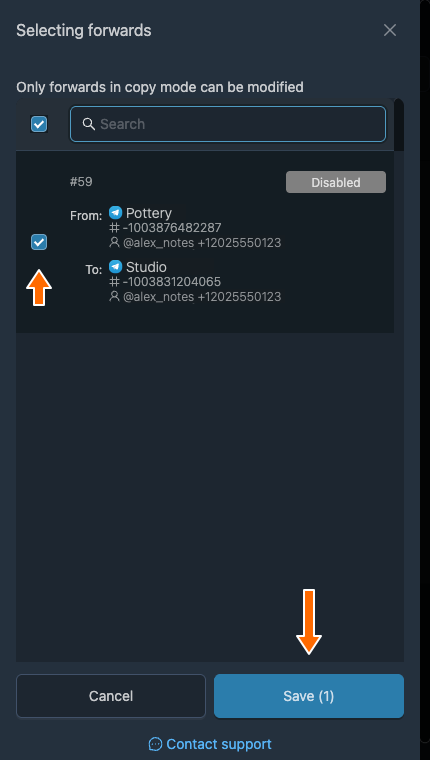
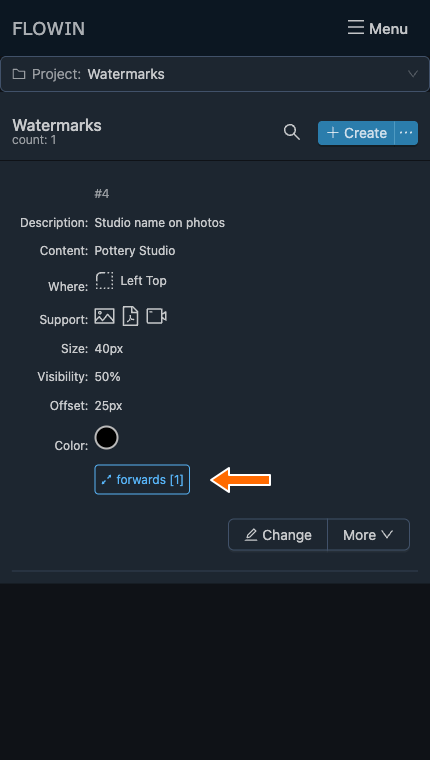
The selected forward before saving the link. “Forwards [1]” will appear in the watermark’s row. New photos in the selected forward will arrive with “Pottery Studio” on them.
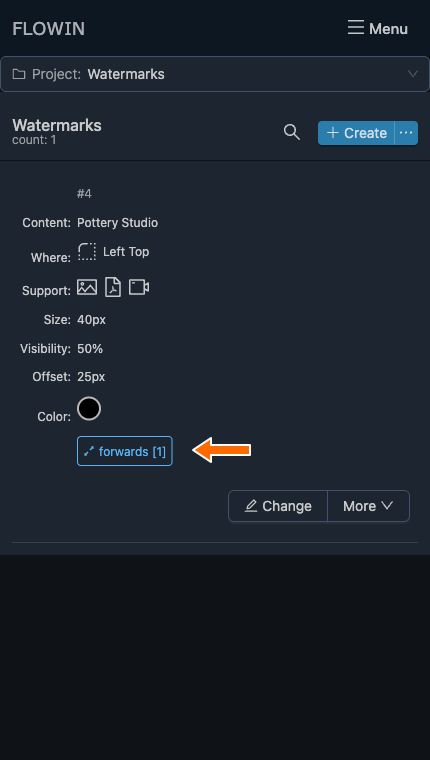
The watermark now has one linked forward. 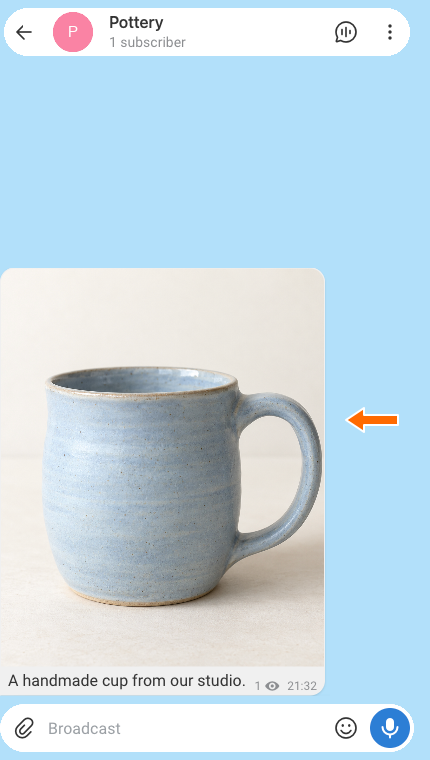
The studio’s original photo. 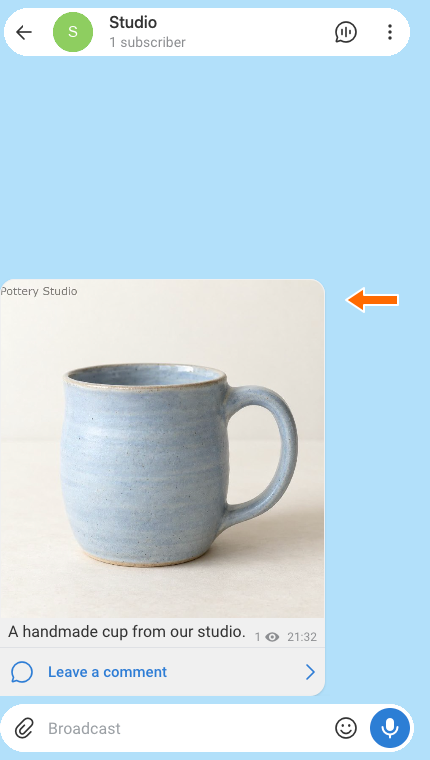
The forwarded photo with the studio’s name.
How to edit a watermark
Let’s look at the text watermark settings using the watermark we created.
Click “Change” with the pencil icon in the watermark’s row. Its settings dialog will open.
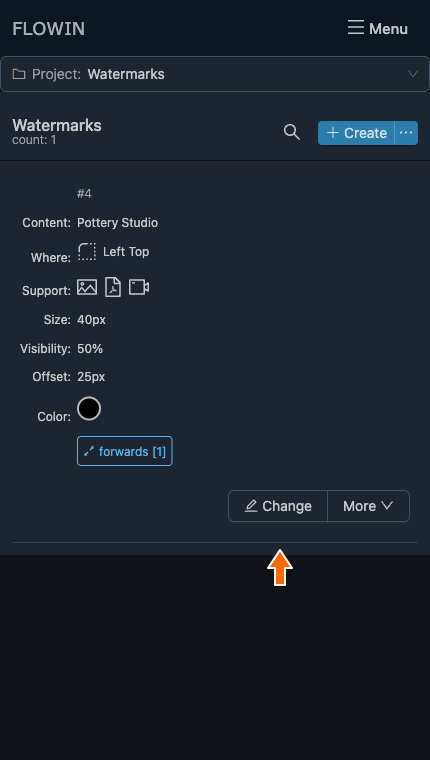
The button for editing the text watermark. Change the settings you need. For example, enter
Studio name on photosin “Description” and click “Save”. The description will appear in the watermark’s row.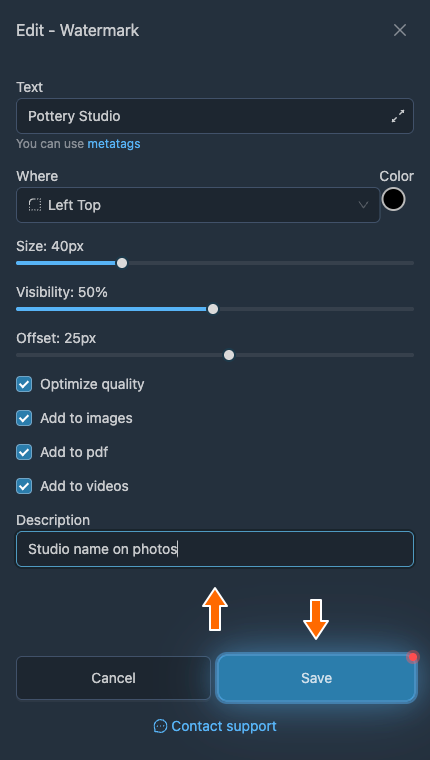
Saving the watermark’s description. 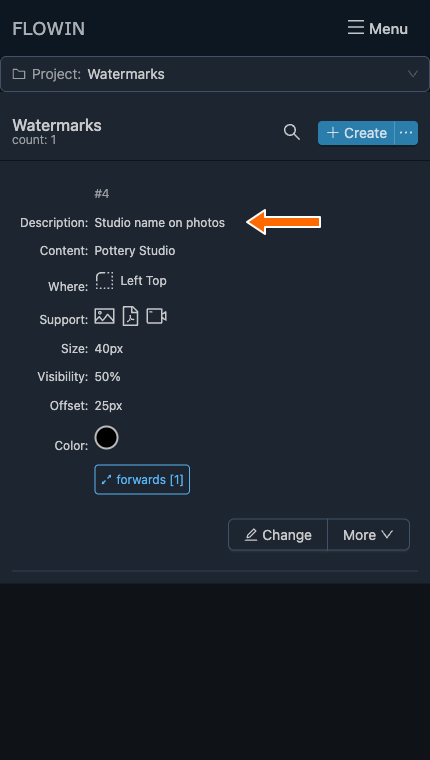
The description appears in the watermark’s row.
Text watermark settings
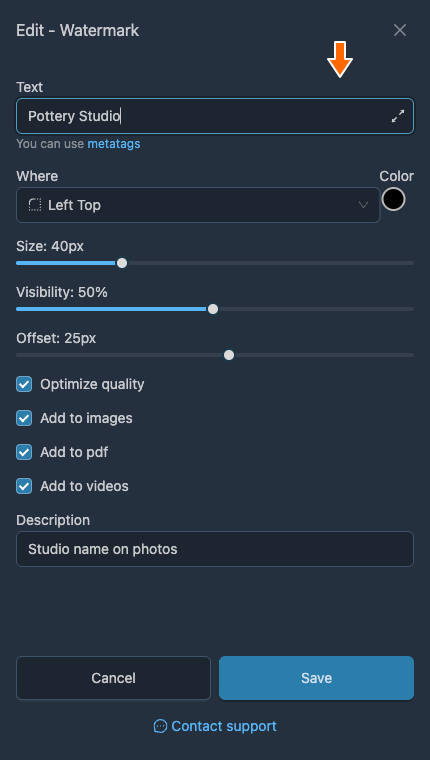
Text
The watermark content added to forwarded media files.
You can use metatags in this field.
Where
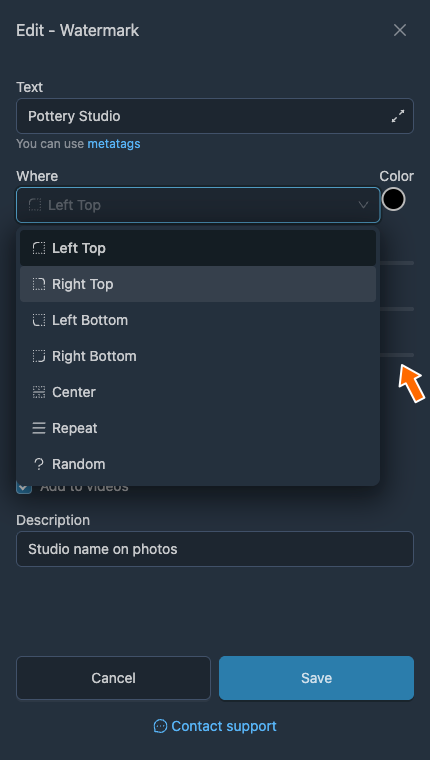
The watermark’s position on the media:
- “Left Top”, “Right Top”, “Left Bottom”, “Right Bottom”: one of the four corners.
- “Center”: the center of the image.
- “Repeat”: the watermark is repeated across the image.
- “Random”: the position is chosen randomly.
Color
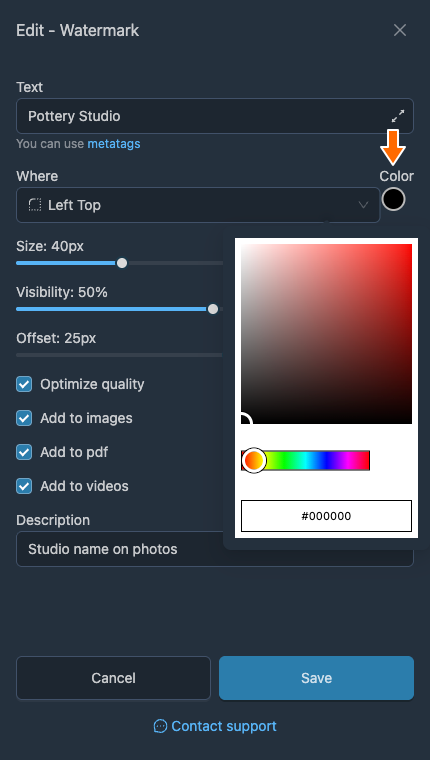
The text color. Click the colored circle next to the “Where” field and choose a color.
Size
The text size in pixels, from 8 to 128.
Visibility
The text’s visibility, from 1% to 100%. The lower the value, the more transparent the watermark.
Offset
The offset from the selected position, in pixels. A negative value adds margins to the original image, where the watermark is placed. A negative offset applies only to images and PDF documents.
Optimize quality
Reduces the resulting media file’s size and speeds up processing at the cost of a slight reduction in quality.
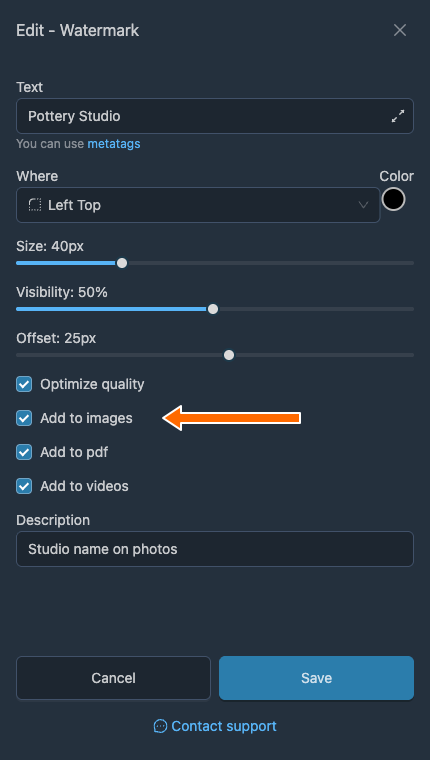
Media types
- “Add to images” enables the watermark on forwarded images.
- “Add to pdf” enables the watermark on forwarded PDF documents.
- “Add to videos” enables the watermark on forwarded videos.
Description
An optional comment for your convenience. It does not affect how the watermark works.
Metadata in a text watermark
You can use special metatags in the watermark text to add message information. The main metatags are:
- message date: <message-date>
- message time: <message-time>
- author ID: <author-id>
- author name: <author-name>
- author name as a link: <author-name-link>
- author name as a tag: <author-name-tag>
- author username: <author-username>
- message text in the source: <src-message-text>
- message ID in the source: <src-message-id>
- message link in the source: <src-message-link>
- source chat ID: <src-chat-id>
- source chat name: <src-chat-name>
- source chat username: <src-chat-username>
- source topic ID: <src-topic-id>
- source topic name: <src-topic-name>
- message text at the destination: <dst-message-text>
- destination chat ID: <dst-chat-id>
- destination chat name: <dst-chat-name>
- destination chat username: <dst-chat-username>
- destination topic ID: <dst-topic-id>
- destination topic name: <dst-topic-name>
- regular expression: <regexp>(short|sell)</regexp>
- random text: <random>1|2|3|4|5</random>
Below the “Text” field, the “metatags” tooltip has the current list. For example, Pottery Studio · <message-date> adds the original message’s date to the name. A link or author name on the image itself will be part of the watermark text; it cannot be clicked as a link.
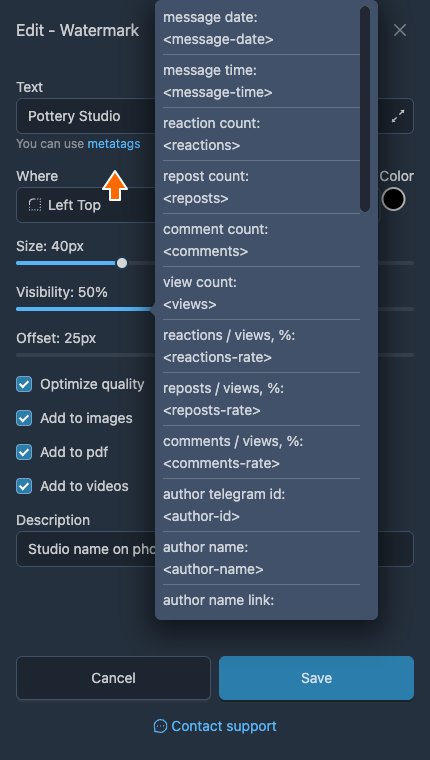
Image watermarks
FLOWIN lets you use a PNG or JPEG image as a watermark.
Creating an image watermark
For example, let’s add the studio’s image mark to the photos instead of its name. Use the forward you prepared in “Copy” mode.
Prepare the image
Remove any unwanted background and adjust the image’s transparency in advance. Use PNG for a transparent background: JPEG does not preserve transparency.
Open “Menu” → “Watermarks” → “Inserting image” and click “Create”.
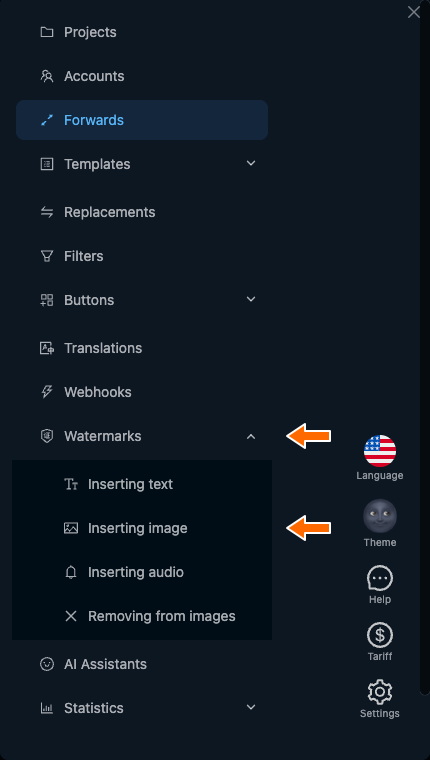
“Inserting image” in the watermarks menu. 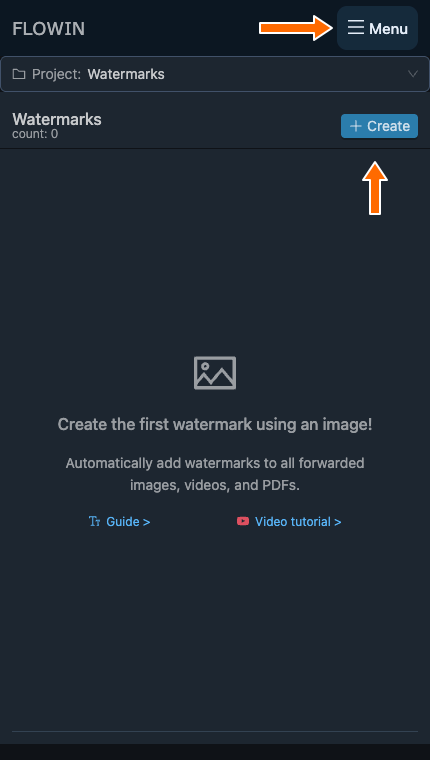
The “Menu” and “Create” buttons on the image watermarks page. Click “Upload watermark” and select the image you prepared. To make the studio’s mark clearly visible, set “Size” to 30% and click “Create”.
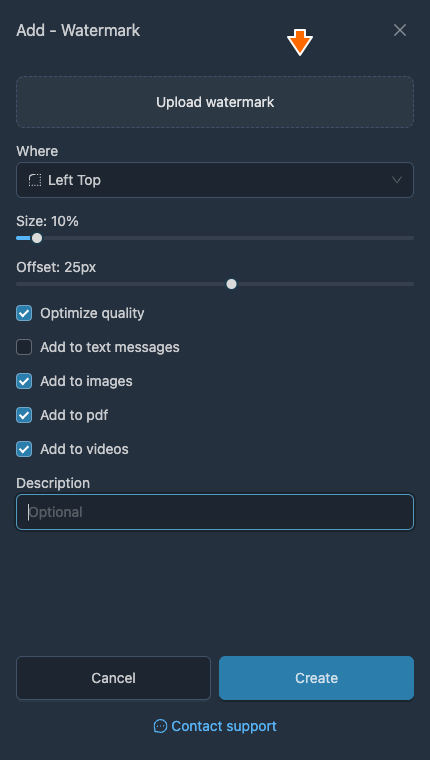
Uploading the watermark image. 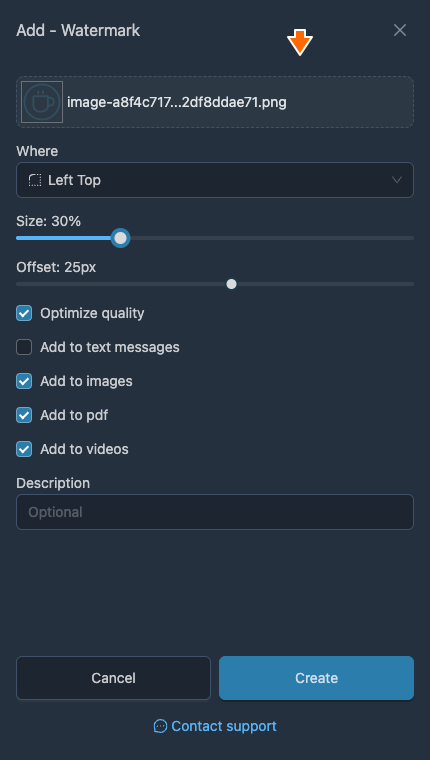
The uploaded studio mark and its size. 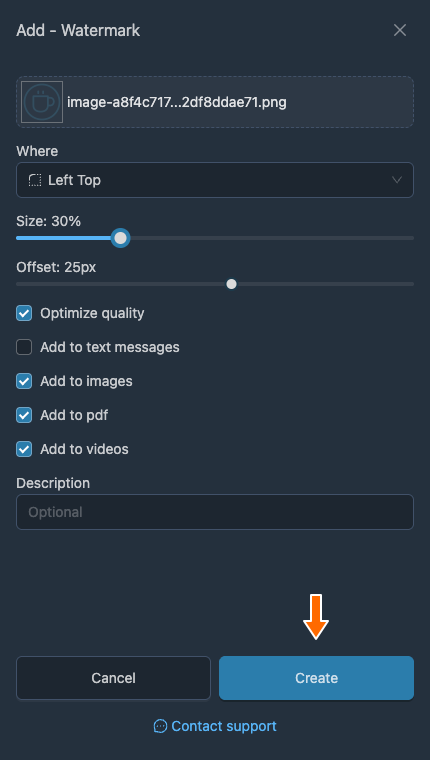
Creating the image watermark. Click “Apply” next to the new watermark and select a forward, as you did for the text watermark.
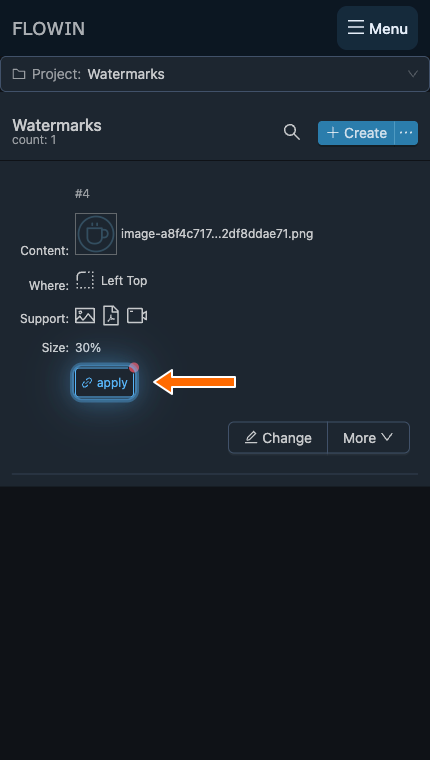
Applying the image watermark to a forward. A linked forward will appear next to the watermark. New photos will arrive with the selected image on them.
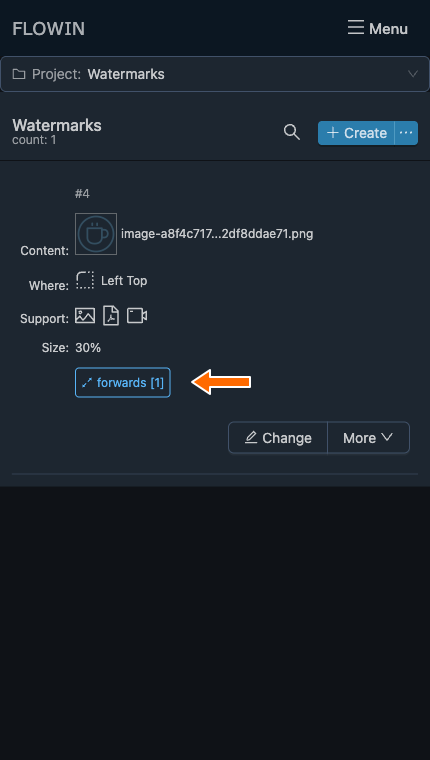
The image watermark is linked to a forward. 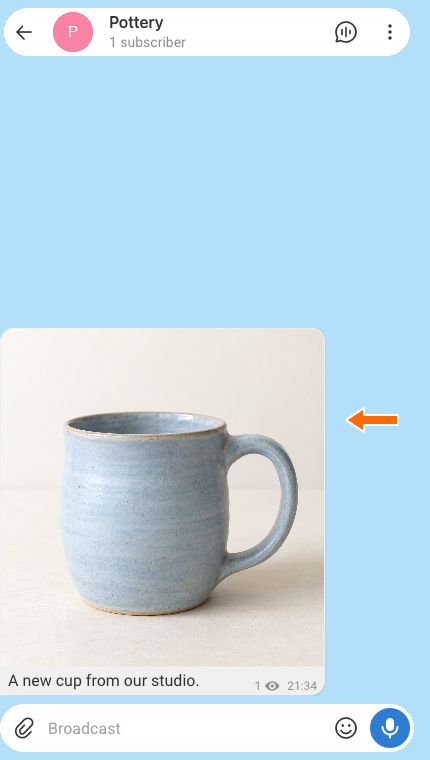
The original photo without the image watermark. 
The studio’s mark appears on the forwarded photo.
Image watermark settings
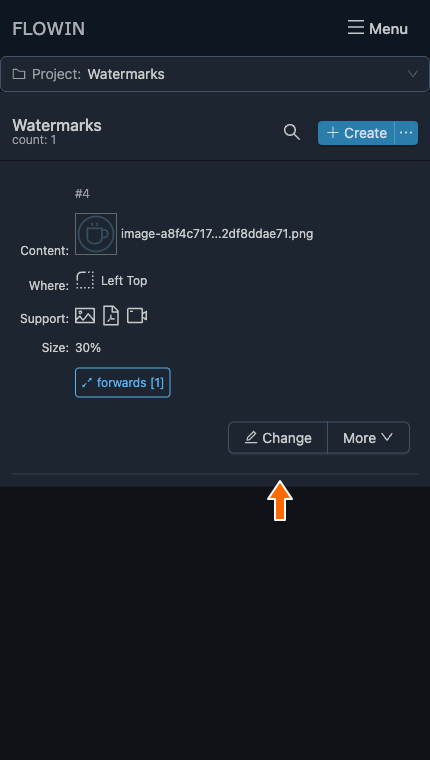
Let’s look at the settings of the image watermark we created. To edit it, click “Change” next to it.
Save changes with the “Save” button, as in the editing instructions.
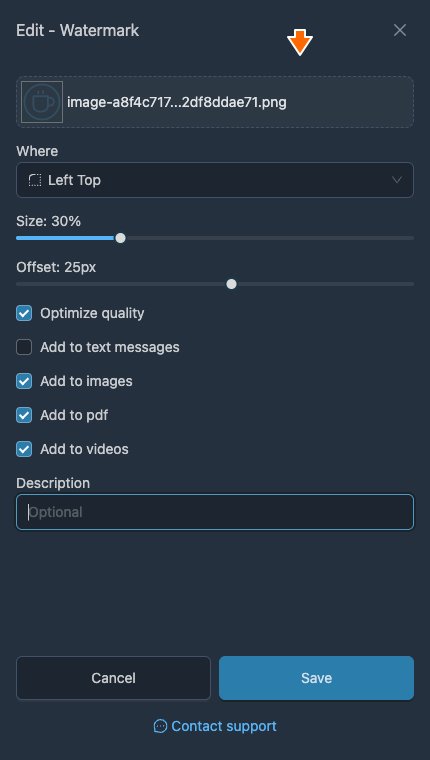
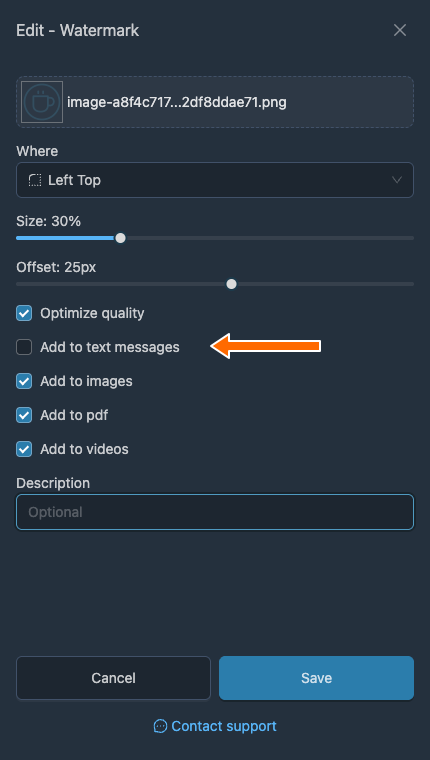
Image
The image added to forwarded media files. Click it to choose another one.
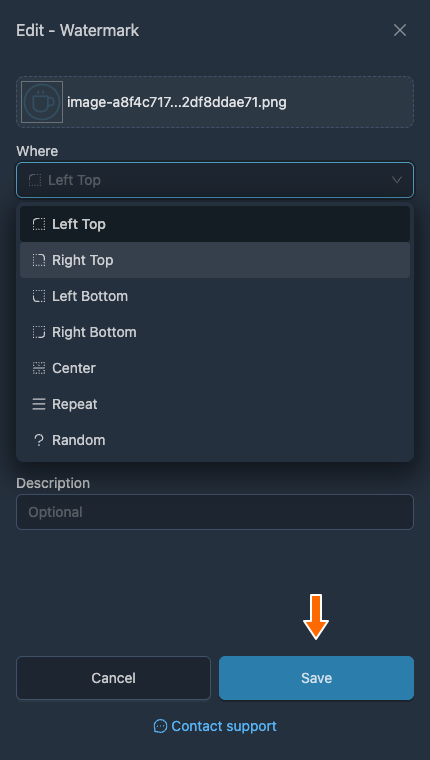
Where
The watermark’s position on the media. The same seven position options are available as for a text watermark.
Size
The image size relative to the original media, from 5% to 100%.
Offset
The offset from the selected position, in pixels. A negative value adds margins for the watermark only to images and PDF documents.
Optimize quality
Reduces the file size and speeds up processing at the cost of a slight reduction in quality, as with a text watermark.
Which messages to add it to
- “Add to text messages” attaches the selected image to forwarded messages without other media.
- “Add to images” overlays the watermark on forwarded images.
- “Add to pdf” overlays the watermark on forwarded PDF documents.
- “Add to videos” overlays the watermark on forwarded videos.
Description
An optional comment for your convenience. It does not affect how the watermark works.
Audio watermarks
FLOWIN lets you use an audio clip as a watermark: it is automatically added to forwarded voice messages or audio files.
Creating an audio watermark
For example, let’s add a short “Pottery Studio” intro at the beginning of each audio lesson. Prepare the intro in MP3 or OGG format and set up a forward in “Copy” mode for the lessons.
Open “Menu” → “Watermarks” → “Inserting audio” and click “Create”.
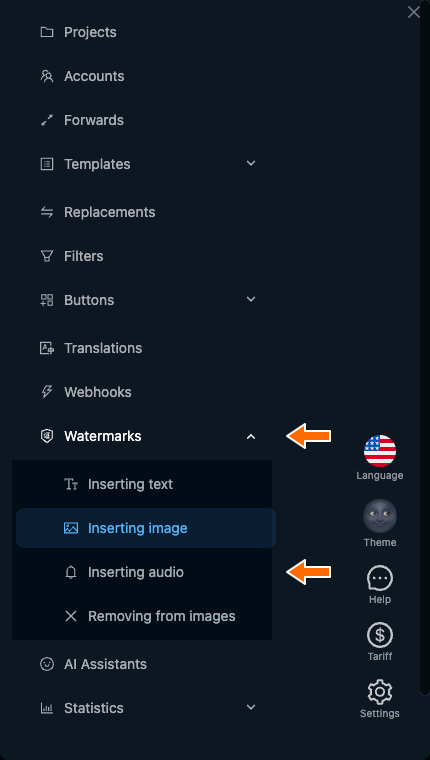
“Inserting audio” in the watermarks menu. 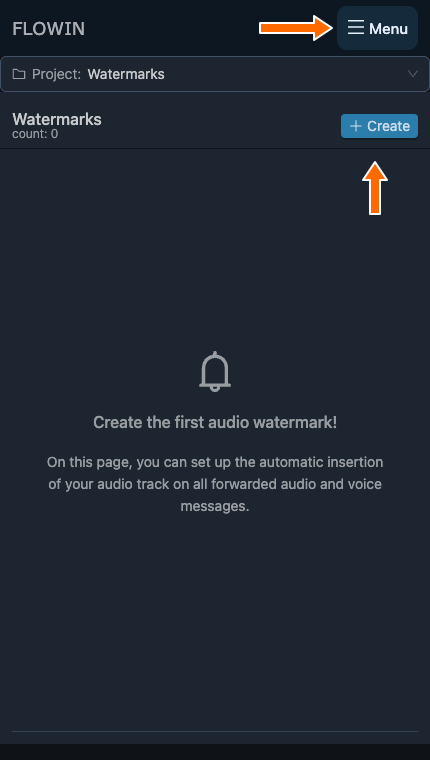
The “Menu” and “Create” buttons on the audio watermarks page. Click “Upload watermark”, select the audio intro, and click “Create”.
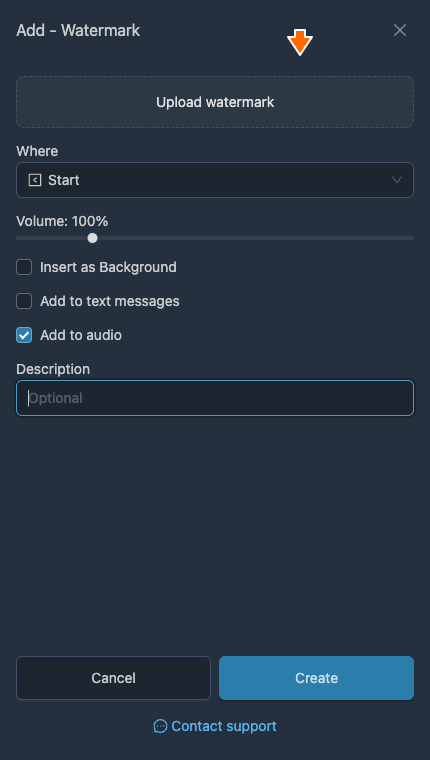
Uploading the audio clip. 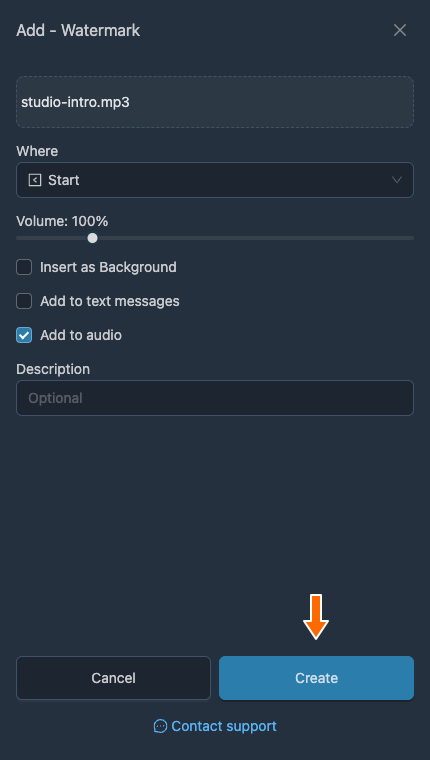
The studio’s intro before creating the watermark. Click “Apply” next to the new watermark and select the forward for the audio lessons.
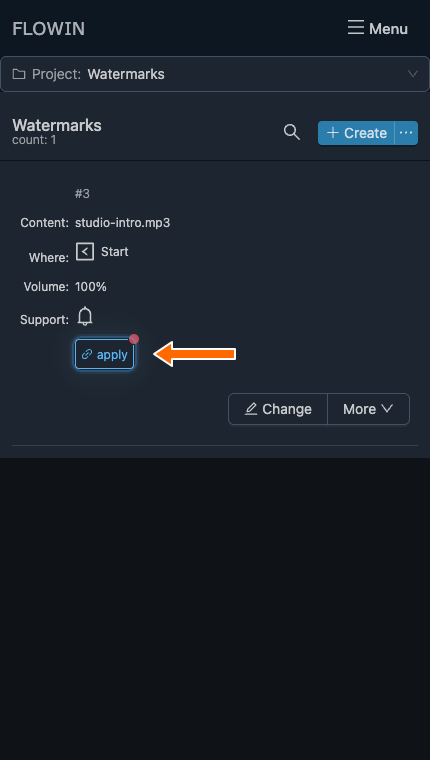
Applying the audio watermark to a forward. A linked forward will appear next to the watermark. The selected intro will play at the beginning of new forwarded audio lessons.
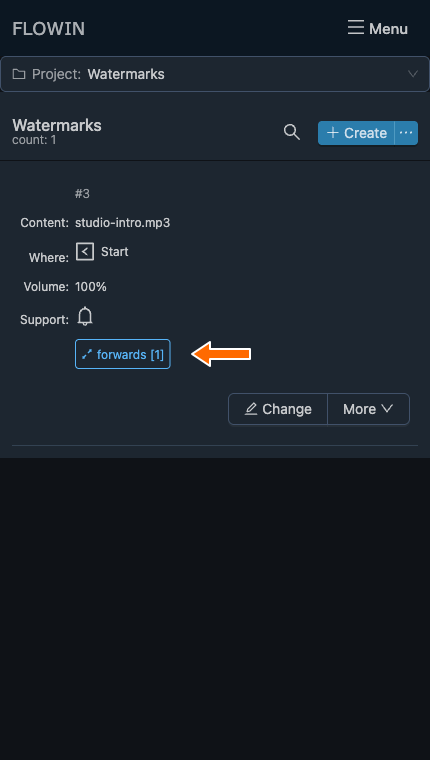
The audio watermark is linked to the lesson forward. 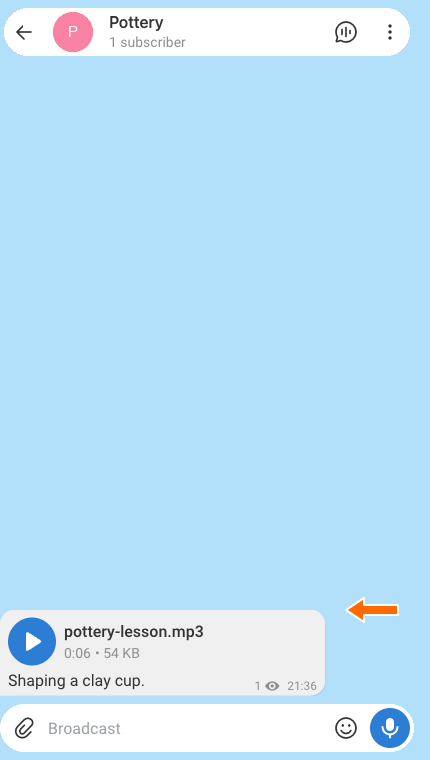
The original audio lesson. 
The forwarded audio lesson with the studio’s intro.
Audio watermark settings
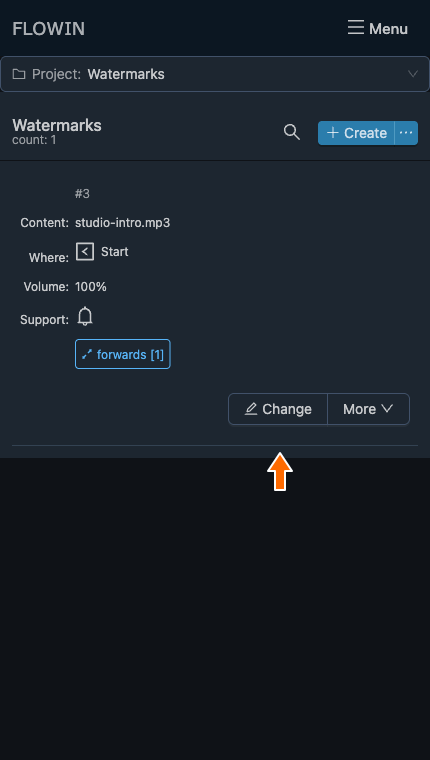
Let’s look at the settings of the audio watermark we created. To edit it, click “Change” next to it.
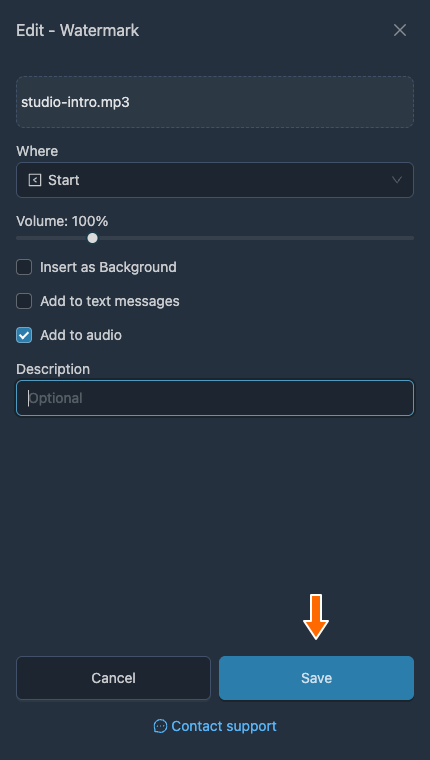
After making changes, click “Save”.
Audio
The audio clip added to forwarded audio files. Click it to choose another one.
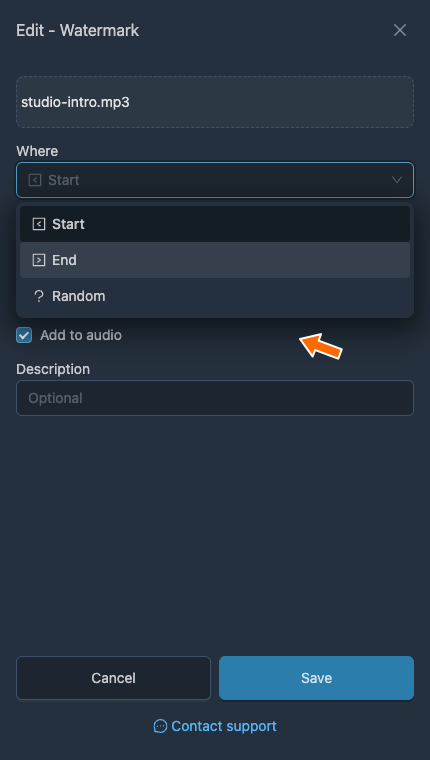
Where
Where the clip is inserted into the original audio:
- “Start”: before the original recording.
- “End”: after the original recording.
- “Random”: at a random point.
Volume
The volume of your audio clip, from 5% to 500%.
Insert as Background
Overlays your clip on the original audio as background audio.
Which messages to add it to
- “Add to text messages” attaches the selected audio to forwarded messages without other media.
- “Add to audio” enables insertion of the clip into forwarded audio recordings.
Description
An optional comment for your convenience. It does not affect how the watermark works.
Removing watermarks from images
FLOWIN lets you not only add watermarks but also automatically make them less visible on forwarded images. The feature changes the image’s contrast, brightness, and saturation, so a semi-transparent watermark may become invisible.
An important limitation
This method does not always help: it is suitable only for faint, semi-transparent watermarks.
Setting up watermark removal from images
Let’s test the setting on our own light image with faint text. Use a separate forward in “Copy” mode to adjust the settings before processing other images.
Open “Menu” → “Watermarks” → “Removing from images” and click “Create”. Confirm by clicking “Create” in the dialog that opens.
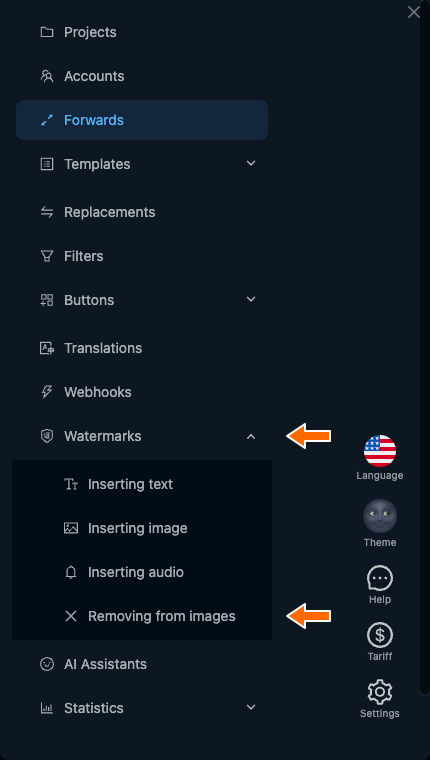
“Removing from images” in the watermarks menu. 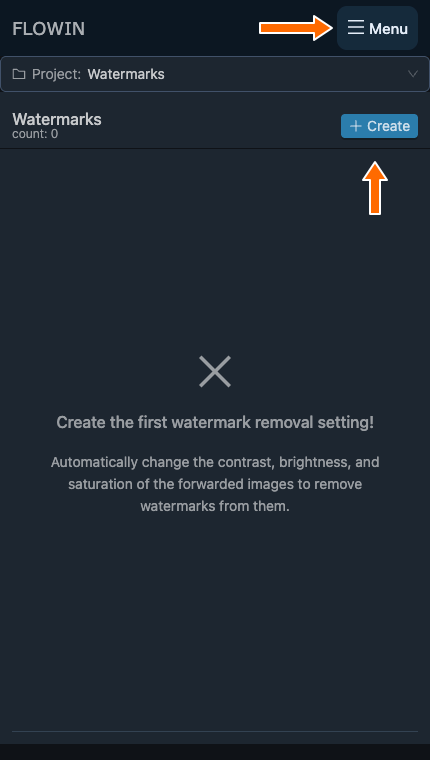
The “Menu” and “Create” buttons on the removal page. 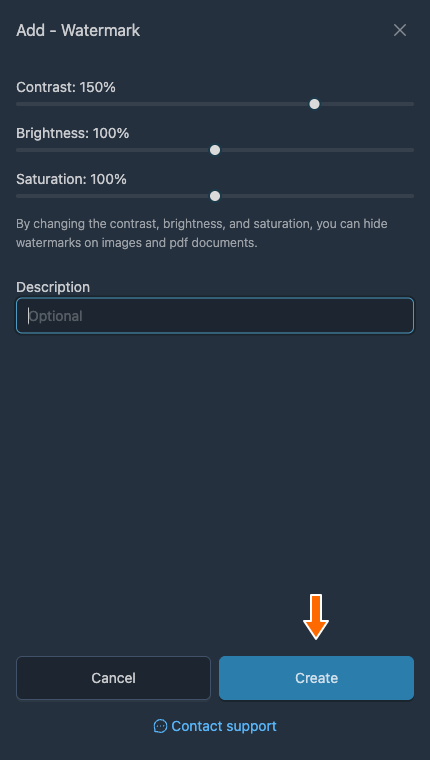
Setting up watermark removal. Click “Apply” and select the forward you prepared.
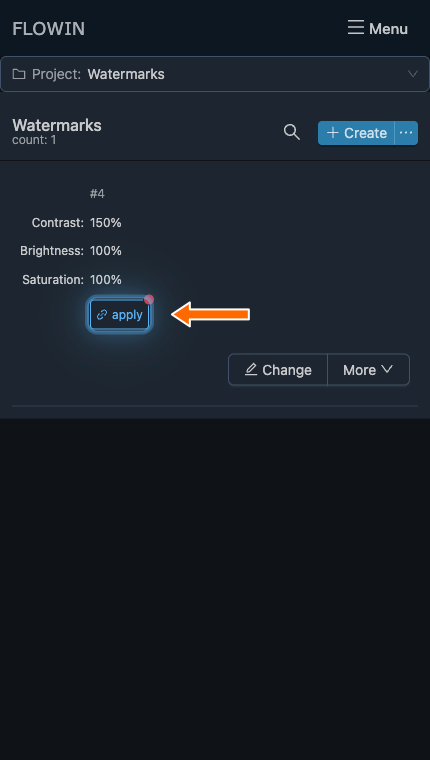
Applying watermark removal to a forward. Compare the original and forwarded images. FLOWIN will apply the selected contrast, brightness, and saturation. In this example, the faint watermark on the light background will become less visible.
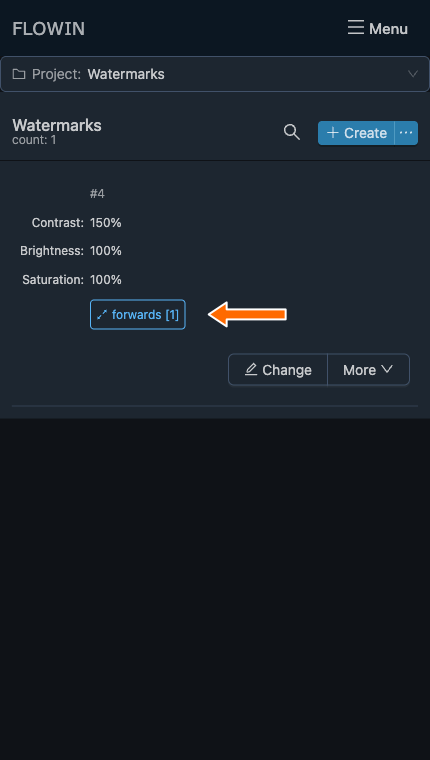
Watermark removal is applied to a forward. 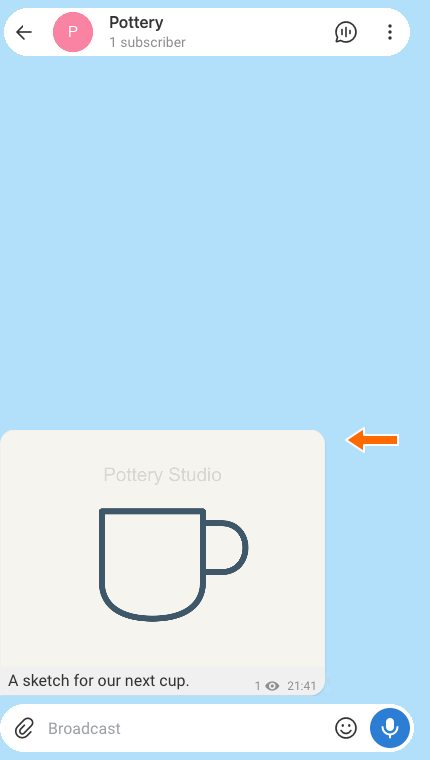
The original image with faint text. 
The faint text disappears after processing.
How to adjust removal settings
The form has “Contrast”, “Brightness”, “Saturation”, and an optional “Description”. If you are not satisfied with the result, try different values.
To adjust watermark removal, click “Change” in its row, change the settings, and click “Save”.
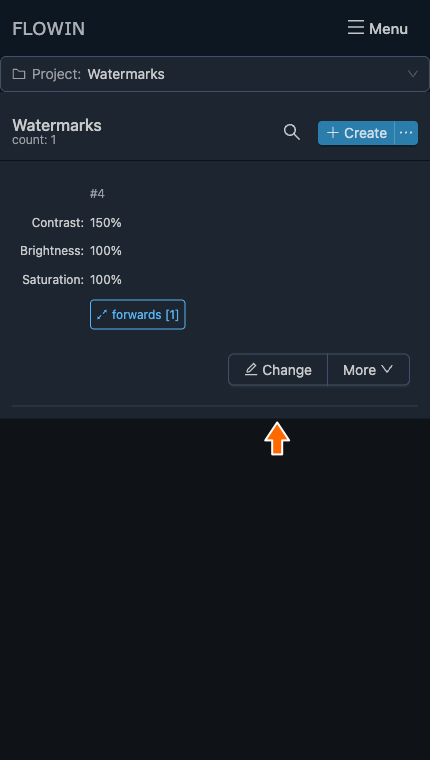
The button for editing the watermark removal settings. 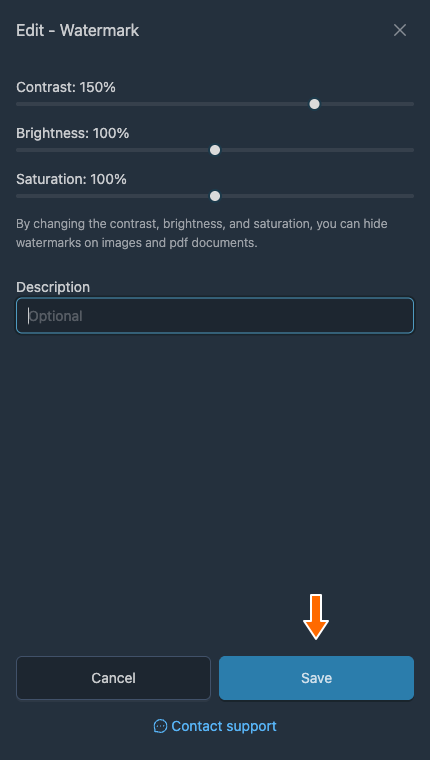
Contrast, brightness, saturation, and saving. Compare the next forwarded image with the original, as in the example above. Changing the settings will affect new processing results.
Available watermark actions
The “Change” button with the pencil icon opens the watermark’s main settings. Other actions are available in the “More” menu:
- “Apply”: select forwards for this watermark.
- “Duplicate”: create a copy of the watermark with the same settings.
- “Select project”: add the watermark to a project.
- “Delete”: delete the watermark.
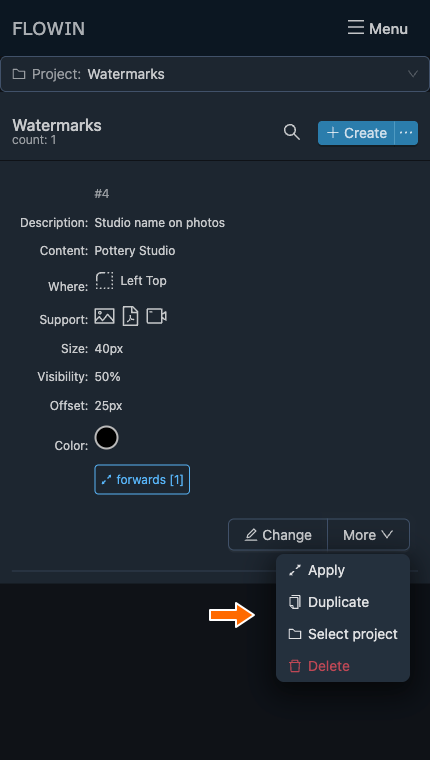
The “Forwards [number]” button shows the number of linked forwards. Click it to change the selection, then click “Save”.
Frequently asked questions
How is a watermark different from a photo caption?
The text or logo of a watermark becomes part of the image or video itself. A photo caption remains separate message text. To change the caption itself, use replacements in forwarded messages.
How do I prepare a logo with a transparent background?
Remove the unwanted background in an image editor and save the logo as a PNG with transparency. JPEG does not preserve transparency. Simply changing the file extension to PNG will not remove the background. Upload the prepared file when creating an image watermark.
How do I add a logo to a video when forwarding it in Telegram?
Create a watermark through “Inserting image”, upload the logo, and enable “Add to videos”. Once created, click “Apply”, select a forward in “Copy” mode, and save your selection. Check a new forwarded video: the logo should appear on the video itself.
Why has the watermark I created not appeared on a photo?
Creating a watermark does not automatically link it to a forward. Check that the correct forward in “Copy” mode is selected and that “Add to images” is enabled in the watermark settings. If a filter is linked to the watermark, the photo must meet its conditions. After saving, check a new photo; an image that has already been forwarded will not change when you change the setting.
Can I place a watermark outside the photo?
Yes. A negative “Offset” value adds margins to the image for the watermark. This lets you place the watermark in an added margin around a photo or PDF page. Adjust the offset and position, then compare the original and forwarded images.
Does the removal feature remove any watermark?
No. It changes the brightness, contrast, and saturation of the entire image. This can make faint, semi-transparent text less visible or remove it, but the photo itself will also change. This method does not restore the original image underneath an arbitrary logo.