You can create your own Telegram bot in a conversation with @BotFather. It registers the account and gives you a token for connecting it. We will explain how bots work, walk through registration, and show what the token is for.

What is a Telegram bot?
Telegram bots are a special type of account. Like a regular user, a bot has a name, a description, and a profile picture. You can send it a private message or add it to a group.
You cannot sign in to a Telegram app as a bot and answer messages by hand. A program controls the account, receives messages, and decides what to send back. That program defines the commands the bot understands and the tasks it can carry out.
How Telegram bots work
A Telegram bot gives people a way to interact with a program through an ordinary chat. Instead of opening a separate app with its own menus and forms, they use a familiar Telegram conversation.
For example, an editorial team might want a bot for suggestions from readers. A reader sends an idea for an article, and the program saves it and sends an acknowledgement. Another bot could send meeting reminders or run a quiz. The messages look familiar, while the programs behind them do different jobs.
The first step is to register the bot account. Your existing Telegram account is enough for that. You can set up what the bot does once registration is complete.
Creating a Telegram bot with @BotFather
@BotFather asks for two things in turn: a display name and a unique address called a username. We will use “Editorial inbox” as the display name in this example.
Where to follow along
The screenshots follow the conversation in Telegram Web. You can send the same commands to @BotFather from a Telegram app. We explain each prompt as it appears, so you can tell the requested name from the username that follows.
Search Telegram for @BotFather, open its chat, and click the name at the top to view the profile. Check the exact username @BotFather and the verification badge. A similar display name does not identify the official bot. Return to the chat. If this is your first conversation with it, click “Start”.
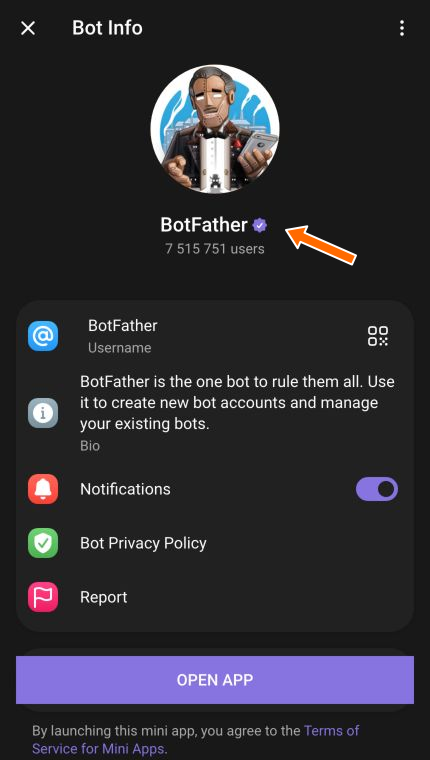

Use @BotFather to register the account. Tip
Decide on a clear name and a few possible usernames before you begin. The name should help people understand the bot’s purpose, and the username should be easy to type. A backup option helps if your first choice is taken.
Send
/newbotin the chat. @BotFather will ask you to choose a name for your new bot.Send the bot’s display name as a separate message. We use “Editorial inbox”. The name can include spaces and non-Latin letters. @BotFather will then ask for a username.
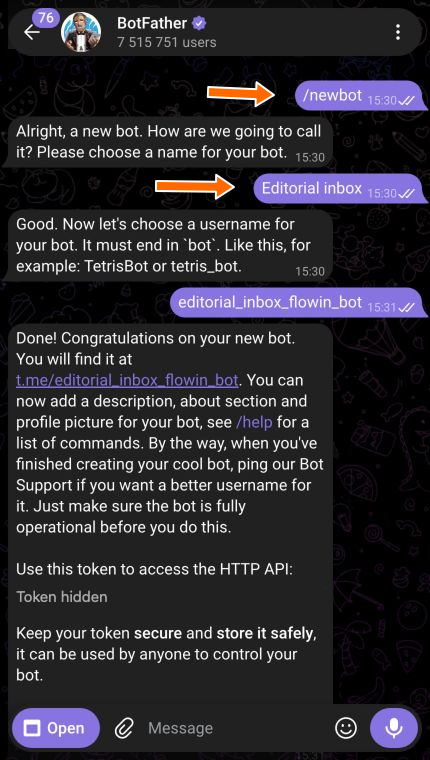
The conversation starts with /newbot, followed by the display name. Send your chosen username without the
@sign. It must contain 5 to 32 Latin letters, numbers, or underscores and end inbot. The example uses @editorial_inbox_flowin_bot; choose a different available username for your own bot. If it is taken, @BotFather will ask for another one. Once the username is accepted, the reply includes a link to your bot and its token. That confirms registration is complete.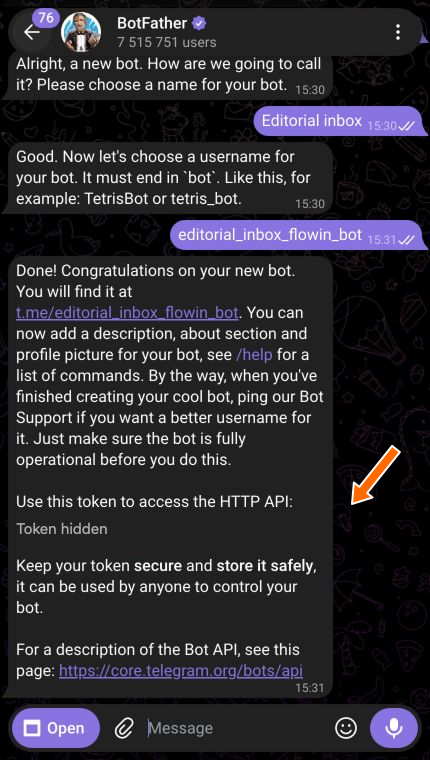
The confirmation, bot address, and token arrive in one message. The token is hidden in this image.
Your bot now has an account and an address people can use to find it. Its token is needed for the next stage: connecting a program to the bot.
Telegram bot functions
A newly created account does not perform any tasks on its own. To collect ideas from readers, send reminders, or do another job, your bot needs a program. You can write one, ask a developer to build it, or choose a service that provides the functions you need.
The token in @BotFather’s message connects that program to your bot account. The username serves a different purpose: people use it to find the chat, so you can share it with readers and customers.
If you open your new bot, click Start, and receive no reply, that does not mean registration failed. Until a program is connected, there is nothing to send an answer.
Important
Anyone with the token can control your bot. Treat it like a password and only give it to a developer or service you trust to make the connection. You can publish the bot’s username, but keep its token private.
Frequently asked questions
Do I have to get another SIM card for the bot?
No. You create it through @BotFather using your Telegram account. The bot itself does not need a separate phone number or SIM card.
Can I create a bot without programming?
Registration does not require code. You only need to follow the conversation with @BotFather. To perform tasks afterwards, the bot needs a program or a service with the functions you want.
What if @BotFather rejects my username?
Check its length, allowed characters, and bot ending against the username requirements. If the message says the username is taken, choose another one. You can keep the same display name.
Why does the bot not reply after I click Start?
The button sends a command to begin the conversation, but a program has to produce the reply. Silence is expected if no program is connected yet. See what the bot needs after registration.
Do I need a new bot if someone else gets the token?
No. You can revoke and replace the token through @BotFather. You will then need to update the key in the connected program or service. The bot account itself stays the same.