



Automatic forwarding in Telegram
One tool, many solutions
Copying and forwarding
Finding leads in Telegram
AI digests
Mini CRM in Telegram
Staged conversations
Transfer from Telegram to MAX
Copying and forwarding messages in Telegram
FLOWIN: the best Telegram bot for automatic message forwarding
No delays
Simple and convenient
Secure
Free trial
24/7 support
Knowledge base
Telegram automation to the MAX!
For chat and channel admins
For businesses
For group-buy organisers
For traders
For personal use
Features
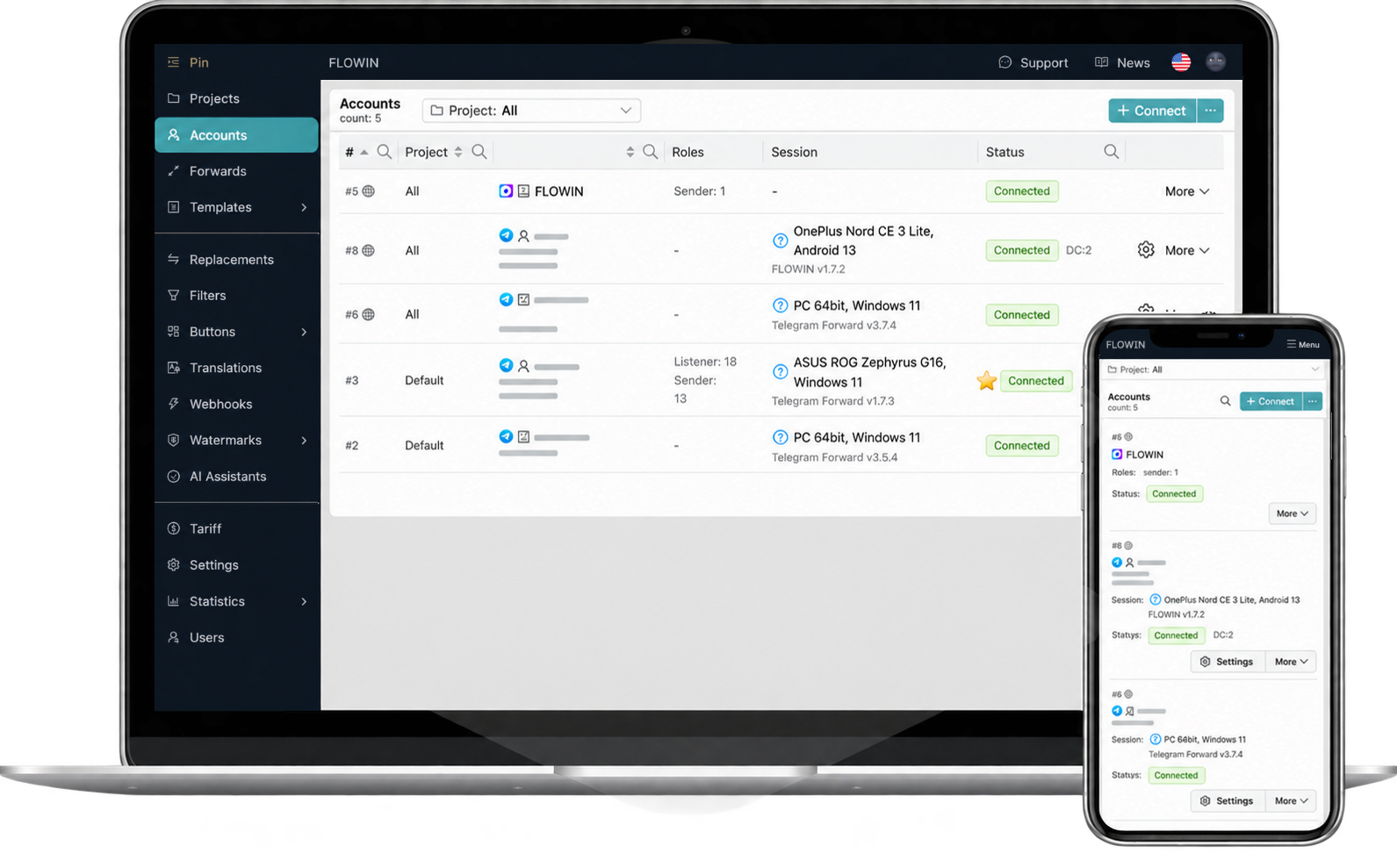
Accounts
Forwards
Filters
Replacements
Watermarks
AI processing
Translations
Callback buttons
URL buttons
Webhooks
A plan builder with flexible settings
* By paying for the services, you accept the Public Offer
* Seller contact and registration details.
Taxpayer ID (INN): 503224337480
Sole Proprietor Registration Number (OGRNIP): 325508100337390
Phone: +79166459517
email: borzovplus@yandex.ru
Frequently asked questions
What is a forward?
Forwarding is the service’s core feature, around which all its other features are built. Creating a forward means specifying where messages are copied from (sources) and where they are copied to (destination). You can apply a huge range of processing options, modifiers and settings to this configured message flow.
How do “Repost” and “Copy” modes differ?
Each forward has two modes: “Repost” and “Copy”.
The “Repost” mode, also called reposting, does exactly what happens when someone taps “Forward” on a message in the Telegram app itself. Such a message cannot be modified; this is a Telegram restriction.
The “Copy” mode copies the original message’s text and media in full, as if you were retyping the text and uploading the media manually. These messages can be modified automatically using replacements and artificial intelligence, and you can also add buttons and watermarks.
How do I copy a private Telegram channel?
To copy a Telegram channel, whether public or private, follow these steps:
1) Prepare a channel or chat to copy the source channel into.
2) Connect an account that is a member of the source channel to the service.
3) Create a forward, choosing the channel you want to copy as the source and the place you want to copy it to as the destination.
4) Gear icon next to the forward > “Old messages” > “For the period” or “By messages links”.
5) Start copying the channel and wait for the process to finish.
What if copying and forwarding from a channel are restricted?
The service makes it easy to bypass the warnings “copying and forwarding from this channel are restricted” and “copying and forwarding from this group are restricted”. How do you copy when it is restricted? Simply create a forward in “Copy” mode, and the service will do it for you automatically.
How do I copy a Telegram group with topics?
Copying a Telegram group together with all its topics is very easy! First, prepare your own group to copy into. Create it and enable “Topics” in the group settings. When you create a forward, you will now have the option to synchronise all topics with the original source group. The necessary topics will be created automatically, and messages will be sorted into them exactly as in the source group.
How do I add buttons to a Telegram channel?
To add buttons to a Telegram channel, you need to connect a bot account to the service using its token, because only bots can send messages with buttons. Then create a draft channel and select it as the source when creating a forward. As the destination, select your final channel where you want to add buttons. After creating the forward, configure URL buttons or callback buttons to suit your needs. As a result, all messages sent to the draft channel will be copied automatically to your final destination channel, with the buttons you configured.