Before you start using the service, connect at least one account. The service will carry out the tasks you configure on behalf of that account.

Account connection details
You can connect two types of Telegram account to the service:
- Bot accounts (connected using a token).
- User accounts (connected by phone number).
This article covers connecting a bot account using a token. User accounts are covered in Connecting an account by phone.
For a detailed explanation of Telegram bots and how to create them, see How to create a Telegram bot.
Differences in capabilities and limitations
Different account types have different capabilities and limitations. Depending on your tasks, a bot account, a user account, or both may be suitable.
Bot accounts can send messages with buttons.
However, bot accounts have several limitations:
- Bots cannot join other people’s channels or groups on their own. To forward messages from them, an administrator must add the bot.
- The owner’s Telegram Premium subscription does not give the bot Premium account capabilities.
- By default, bots cannot see messages from other bots.
- Bots cannot send scheduled messages using Telegram’s own scheduling feature.
When you need a user account
If these limitations prevent you from completing your task, use a user account connected by phone number.
Connecting a bot using a token
Before connecting, create a bot and get its token as described in How to create a Telegram bot.
Keep the token safe
The token gives you control over your bot. Keep it secret. For FLOWIN, use a bot that is not used by other services.
Follow these steps to connect:
Open @flow_in_bot, send the
/startcommand, and click “Control panel”.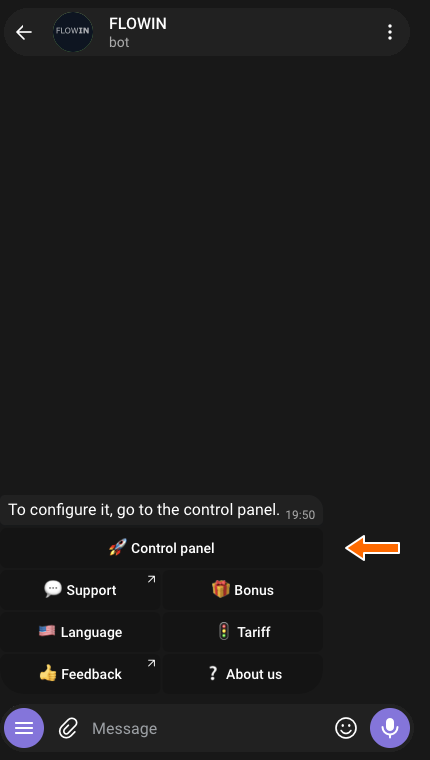

Accessing the control panel through @flow_in_bot. Go to the “Accounts” page. On a phone, open “Menu” first.
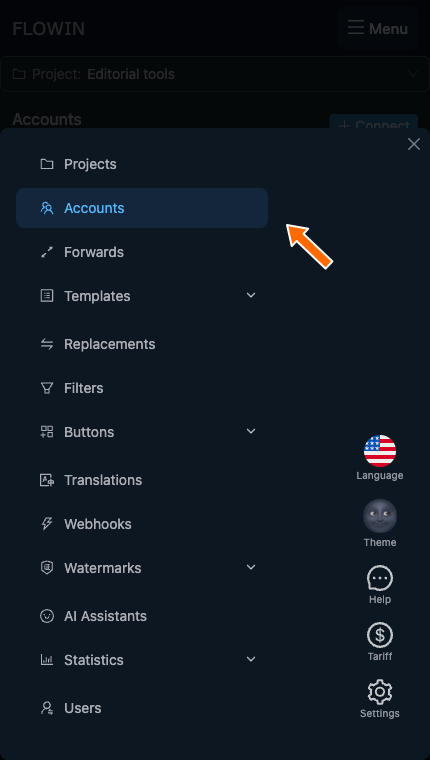
The “Accounts” section. 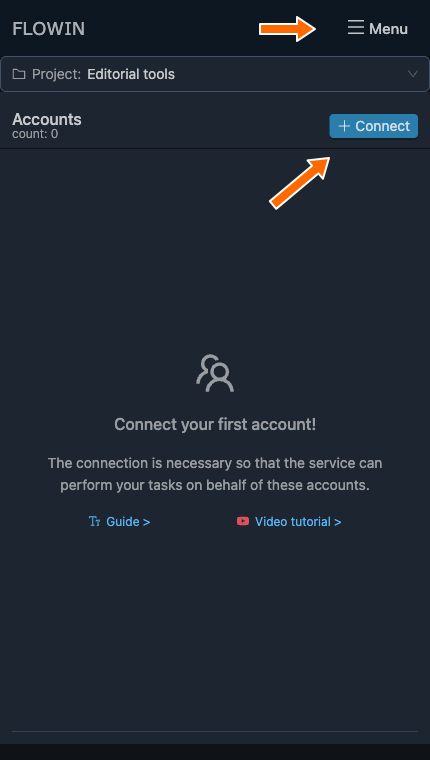
The “Accounts” page. Click “Connect” and choose “Bot Token”.
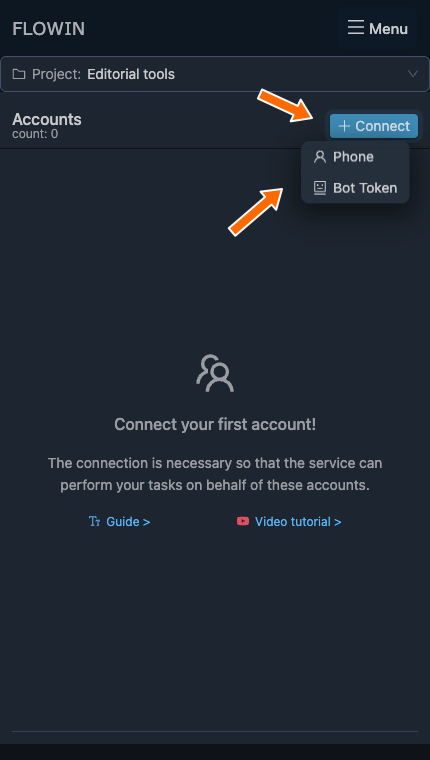
Connecting with a token. In the “Bot connection” dialog that appears, paste the token into the “Bot Token” field.
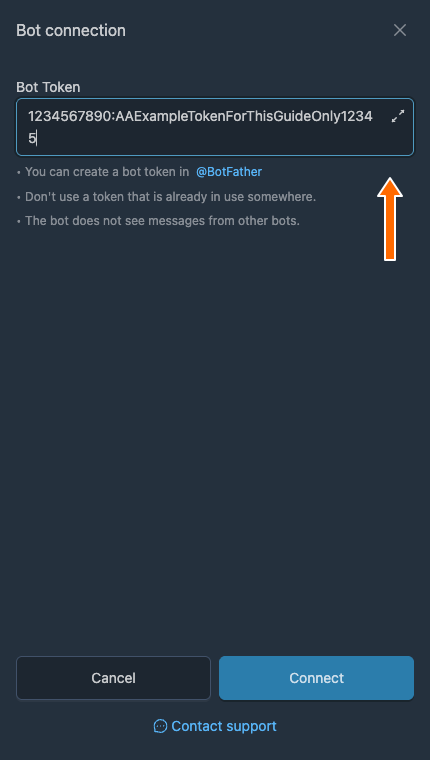
The “Bot Token” field. The token shown is a fictional example. Click “Connect” at the bottom of the dialog.
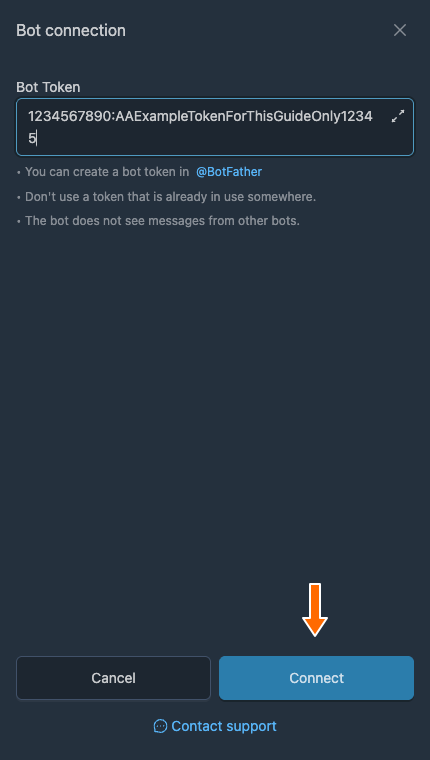
Confirming the connection.
Once connected successfully, the bot account will appear in the list with a green “Connected” status.
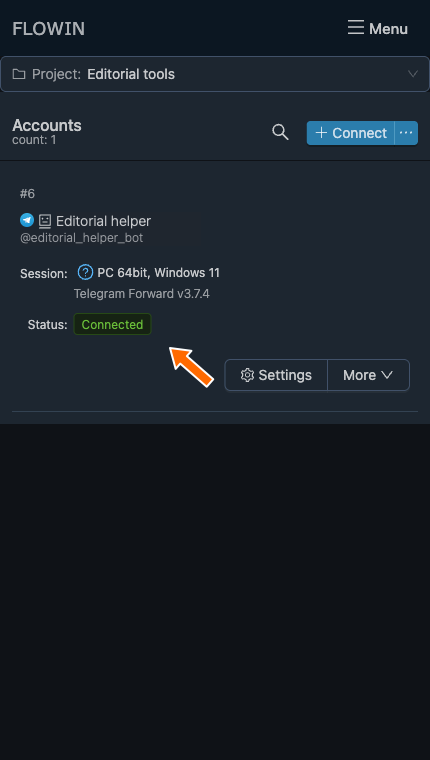
Connection complete
You can now select the bot as the listener or sender when setting up forwarding.
Connected bot account settings
To change the connected bot’s settings:
In the FLOWIN control panel, go to the “Accounts” page.
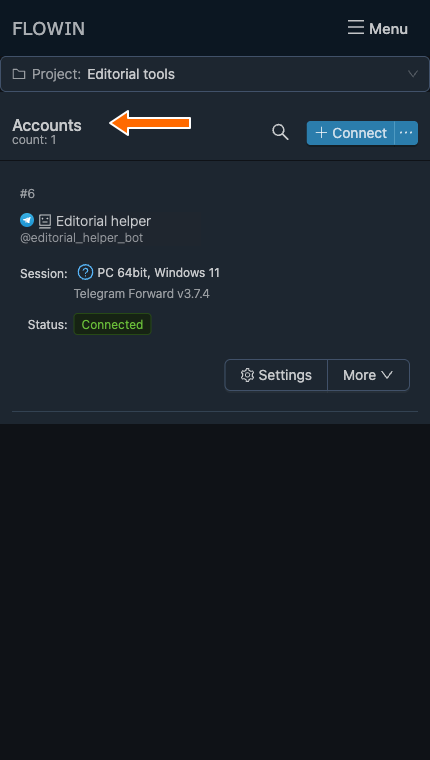
The “Accounts” page. Next to the account you want to edit, click the gear-shaped “Settings” button.
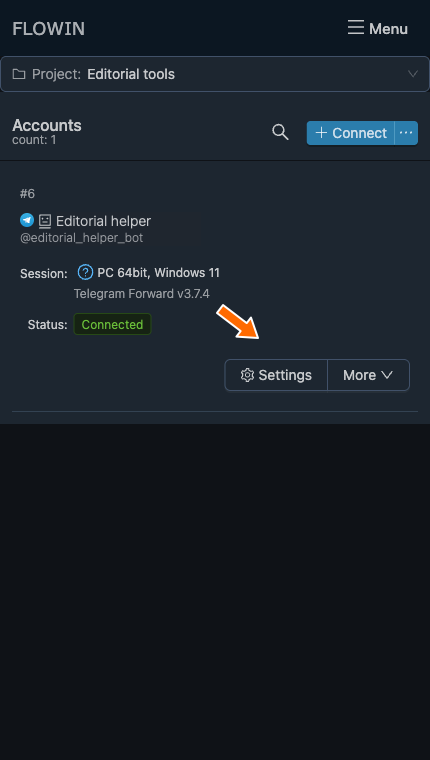
The account settings button.
The dialog that opens shows the available bot settings:
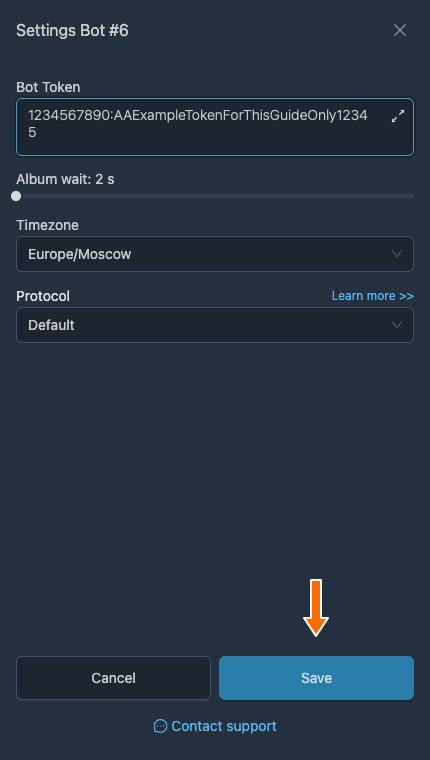
- “Bot Token”. You can replace the token here, for example after generating a new one in @BotFather.
- “Album wait”. The number of seconds the service waits for the remaining parts of an album before processing it: 2 to 60. Increase the interval if photos arrive with a delay and the album is split up.
- “Timezone”. Affects settings that use message dates and times.
- “Protocol”. The method used to exchange data with Telegram. Leave “Default” selected unless support recommends a different value.
After changing the settings, click “Save”.
Available bot account actions
On the “Accounts” page, there is a “Settings” button and a “More” menu next to the bot. The menu offers the following actions:
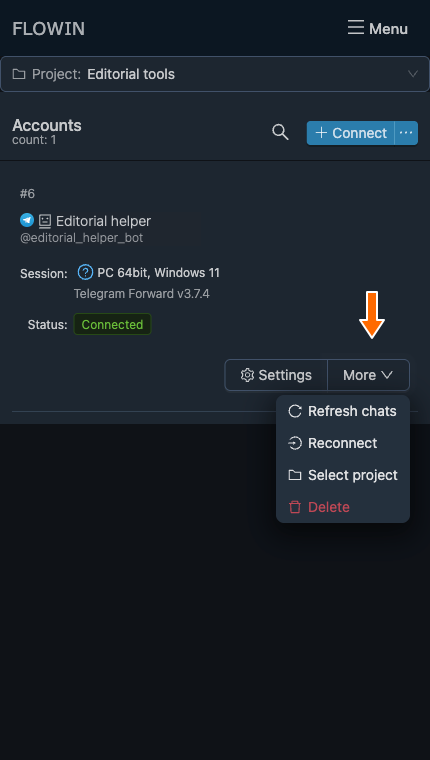
- “Refresh chats” updates the account’s list of chats.
- “Reconnect” reconnects the account to FLOWIN without requiring you to enter the token again.
- “Select project” groups accounts into projects to make them easier to manage.
- “Delete” disconnects the bot from FLOWIN. First remove it from any forwards that use it. The bot itself will remain in Telegram.
Frequently asked questions
Can I enter the bot’s username or just the digits from the token?
No. Connecting requires the complete token from @BotFather: the digits before the colon and the entire part after it. The username with the @ symbol is used to find the bot and does not replace the token.
How can I get my bot’s token if I have lost the message from BotFather?
For an existing bot, you can get a new token from @BotFather using the /token command. You do not need to create another bot. If the bot is already connected to FLOWIN, replace the token in its settings.
Where do I replace the token after generating a new one?
On the “Accounts” page, open “Settings” for the bot, replace the value in the “Bot Token” field, and click “Save”. FLOWIN will authorise the account again with the new token. Then check that its status has changed to “Connected”.
Why are messages still not being forwarded after the status changes to “Connected”?
The status confirms that FLOWIN has connected to the account. Forwarding itself must be configured separately: choose a source and destination, specify the accounts for reading and sending, then check a new message. The full process is described in Setting up message forwarding in Telegram.
Can I use a bot to read someone else’s private channel?
Only if an administrator adds the bot to that channel. The bot cannot join on its own, even if its owner has access to the channel. If the bot cannot be added, use a user account connected by phone number for a channel you have access to.