This article takes a detailed look at connecting a user account by phone number.

Article contents
Account connection details
Before you start using FLOWIN, you need to connect at least one account. This enables the service to carry out the tasks you configure on behalf of that account.
You can connect two types of account to the service:
- User accounts (connected by phone number).
- Bot accounts (connected using a token).
Choose an account type
Before connecting, compare account capabilities and limitations to choose the right type for your tasks.
In the service’s control panel, you can connect any number of accounts of either type. In other words, you can use one account to access the control panel and connect a different account or several other accounts to the service.
Bot accounts are covered in the article “Connecting a bot account using a token”.
Differences in capabilities and limitations
Different account types have different capabilities and limitations. Depending on your tasks, a user account alone, a bot account alone, or both types may be suitable.
Below, we look at how user account capabilities differ from those of bot accounts.
The main capabilities of user accounts:
- Joining other people’s channels and groups, which allows you to set up forwarding from them.
- Having Telegram Premium, which allows you to forward messages with premium emoji and large media files.
- Interacting with bots, which allows you to set up forwarding of messages sent by bots.
- Sending scheduled messages. Scheduling lets you view and moderate messages scheduled to be sent in the future using Telegram’s own features.
Messages with buttons
However, user accounts connected by phone number cannot send messages with buttons.
Privacy and security
Connecting a Telegram user account involves authorising access to it by entering a phone number, confirming it with a one-time code, and entering a password if you have set one. Connecting creates a new active session for your Telegram account within our FLOWIN service.
We pay particular attention to security and privacy:
- The passwords and codes you enter are not stored on our side. They are sent directly to Telegram once over secure connections.
- Account sessions are stored in encrypted form on secure servers and cannot be accessed by anyone other than the service itself.
- At any time, you can remove your account from the service or end the active session directly in the Telegram app. FLOWIN will then lose access to your account.
The process of connecting an account by phone
Connecting a Telegram user account to FLOWIN is very simple and similar to signing in to a Telegram app as usual.
The steps below describe the entire process of connecting an account by phone number in detail:
Open @flow_in_bot, send the
/startcommand, and click “Control panel”.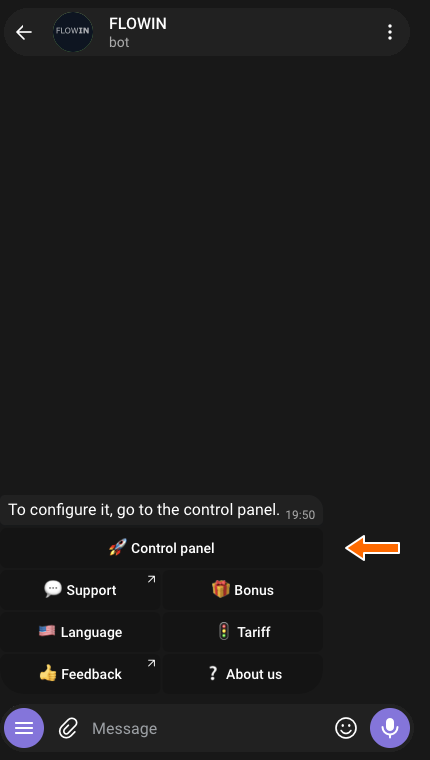

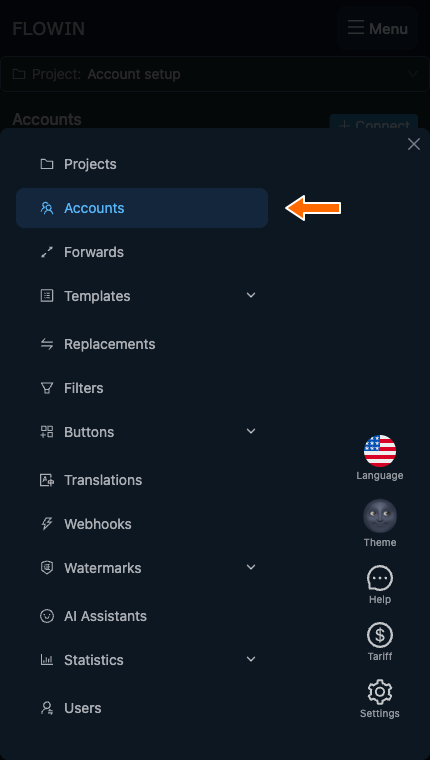
Accessing the control panel through @flow_in_bot. Open the “Accounts” page.
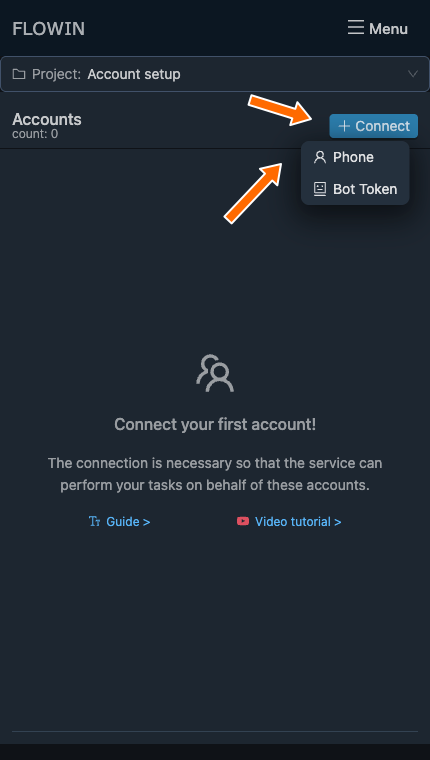
The “Accounts” section. Click “Connect” and choose “Phone”.
Connecting by phone. Enter the account’s phone number in the dialog that appears and click “Next”.
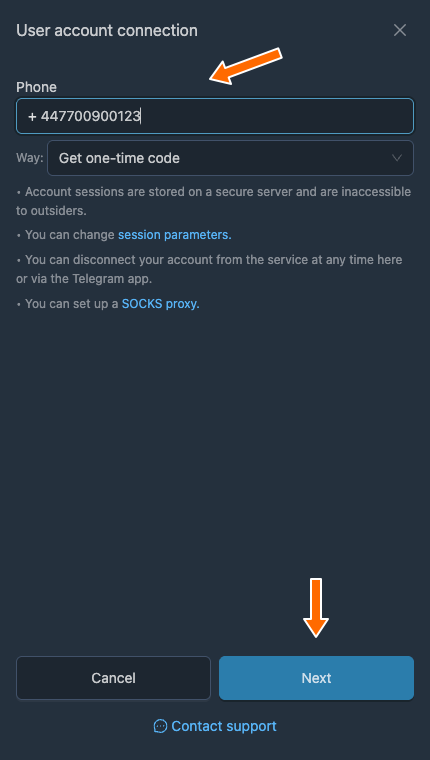
The number with the country code. Wait for the one-time code to arrive in the Telegram app and enter it in the next dialog, then click “Next”.
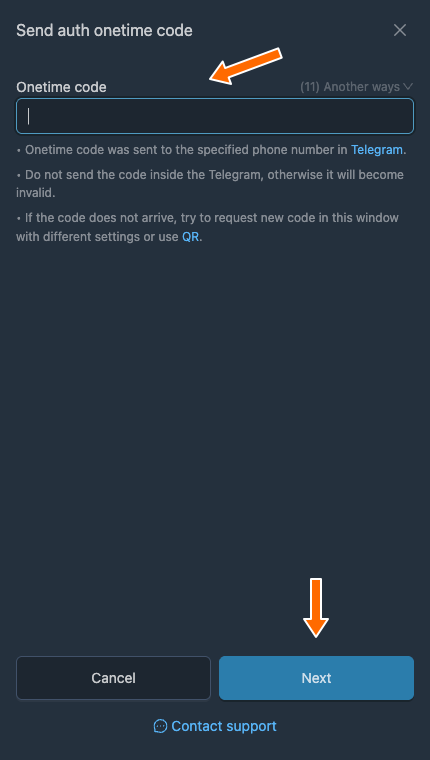
Entering the code from Telegram. If you previously set a password in the Telegram app, another dialog will appear where you need to enter your password and click “Connect”.
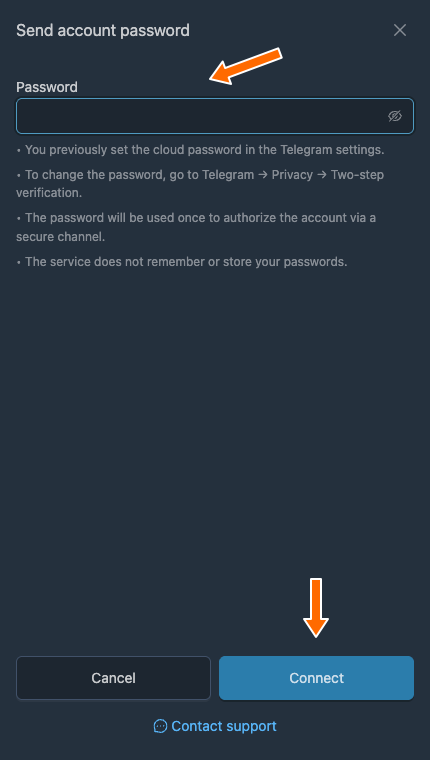
Confirming the cloud password. Check that the account has appeared in the list with a green “Connected” status.
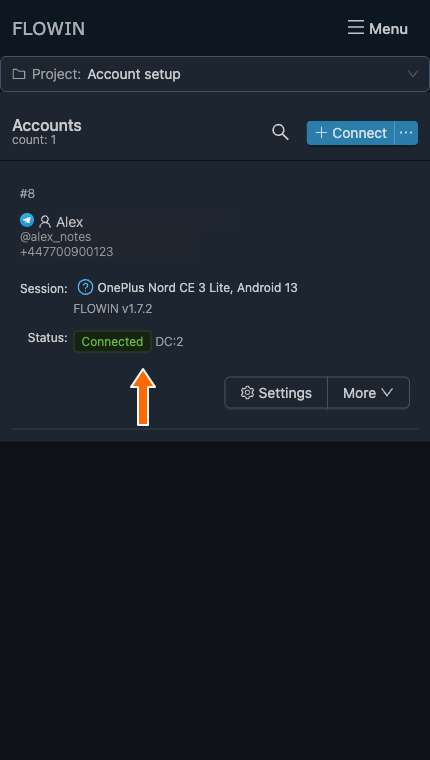
The account is connected.
Telegram session parameters for the account
When an account is connected, Telegram receives information about the device and application making the authorisation request. This information will appear in the session name.
FLOWIN automatically generates a random device name and uses its own application. If necessary, however, you can replace these details with your own.
Session parameters
Session parameters are quite important, so changing them unnecessarily is not recommended. It is best to consult support before making changes.
You can change the details for a future session when connecting a new account. To do so, after clicking “Connect”, follow these steps:
In the phone number dialog, click “session parameters”.
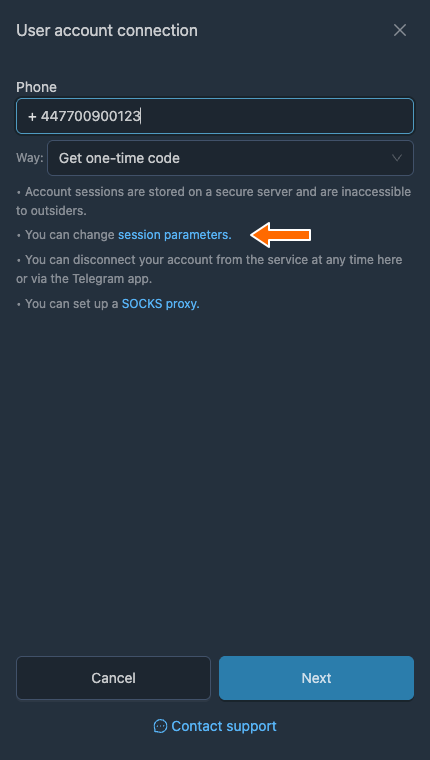
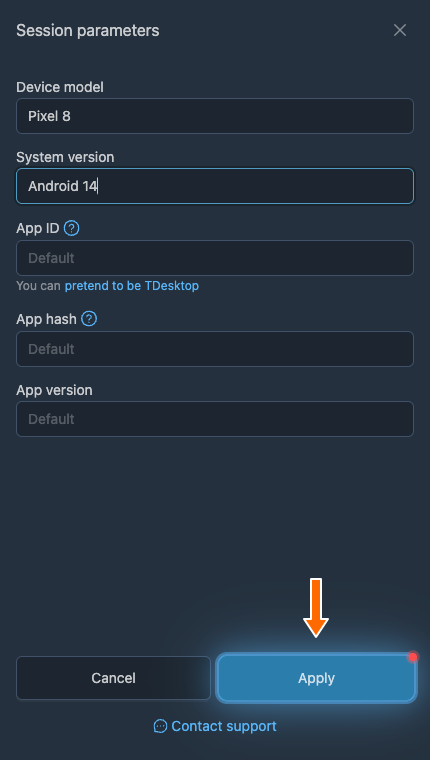
In the dialog that opens, fill in the fields in order.
- In the “Device model” field, enter a specific device model.
- In the “System version” field, enter the name of the operating system.
- In the “App ID” field, enter the app ID, which you can obtain by registering your own application at my.telegram.org. If you leave this field blank, FLOWIN will use its own ID.
- In the “App hash” field, enter the app hash, which is also provided when you register the application. If you left the application ID field blank, you must leave this field blank too.
- In the “App version” field, enter any numeric value containing a dot (
1.3,3.6.5, etc.).
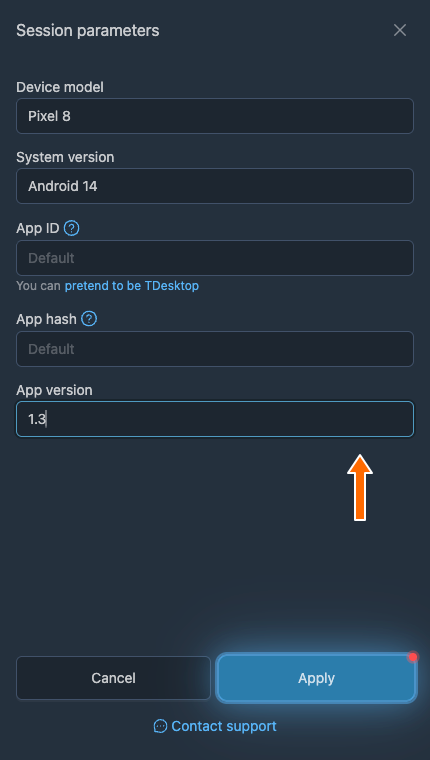
Device and application details. Click “Apply”.
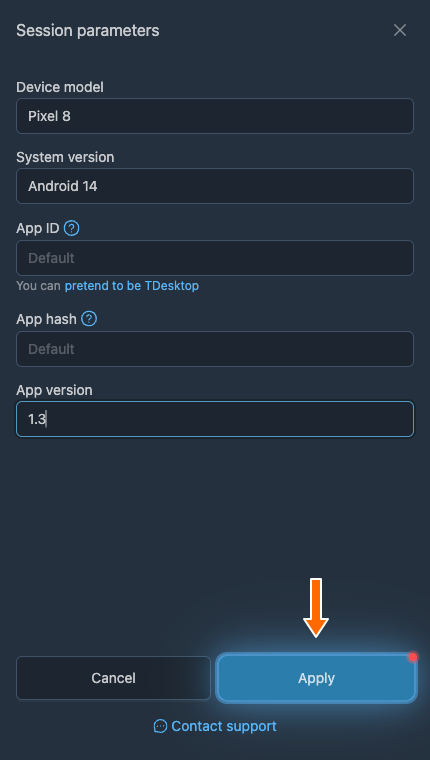
Continue connecting the account by following the steps described earlier.
You can also change the session details for an account that is already connected. To do so, follow these steps:
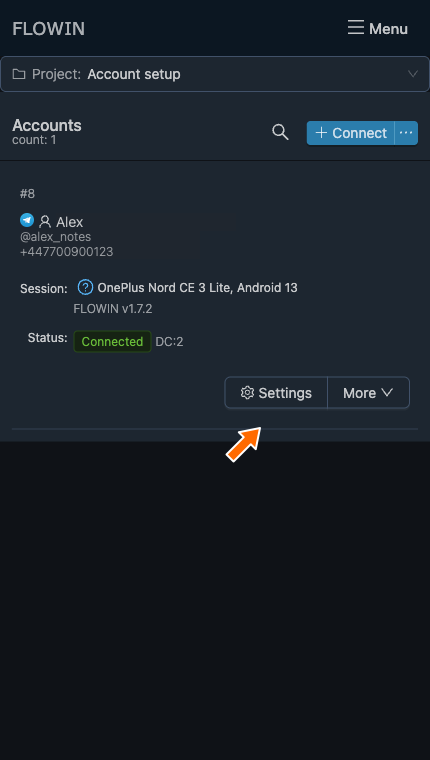
In the FLOWIN control panel, go to the “Accounts” page.
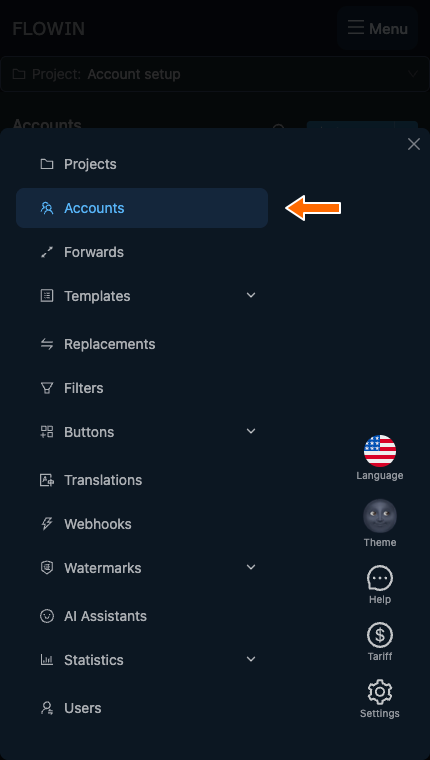
Next to the account you want to edit, click the gear-shaped “Settings” button.
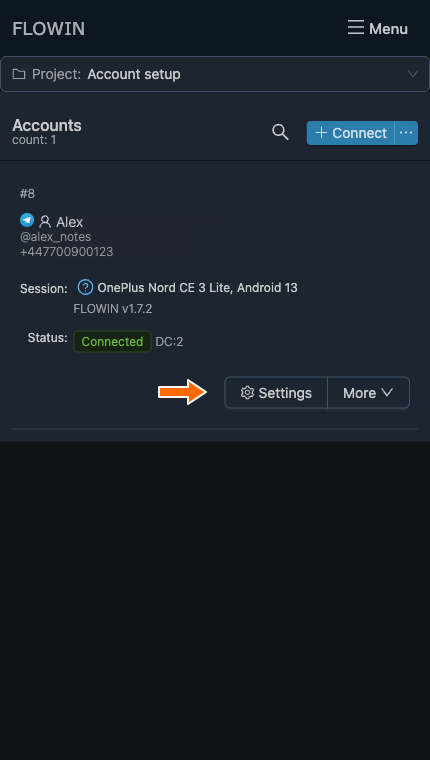
In the dialog that opens, click the session name.
Account settings. 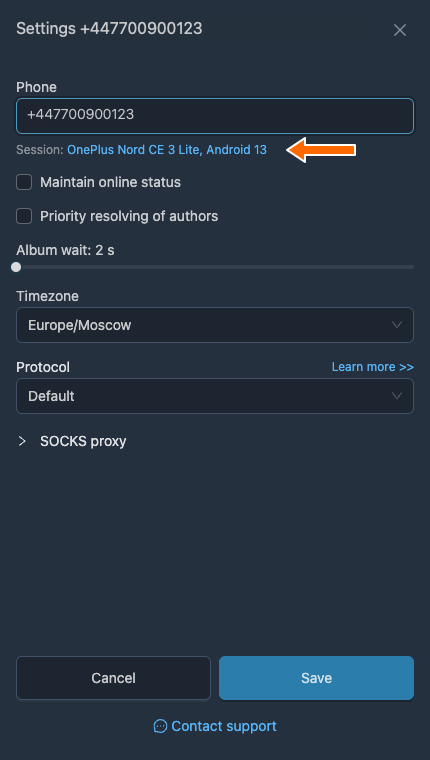
Opening the session details. In the dialog that opens, fill in the fields as described above and click “Apply”.
Click “Save”. After changing the session details, you need to authorise the account again.
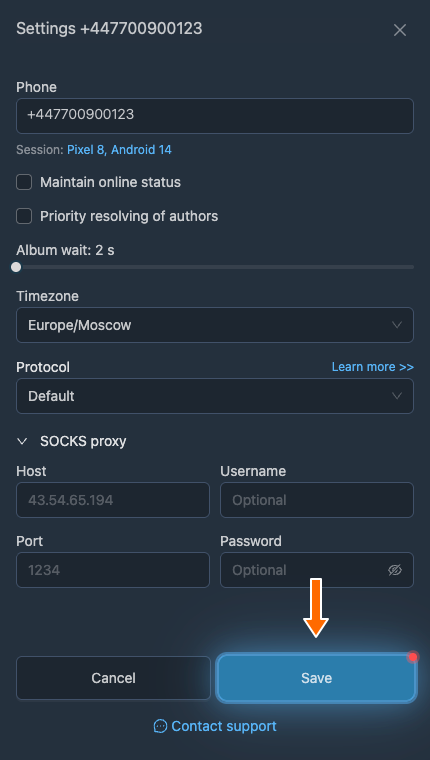
As a result, the Telegram account will be connected on behalf of the application you specified, and the session name will contain the exact details you entered. Our FLOWIN service will continue to manage this active session.
Additional account settings
Accounts connected to the service have other settings you can change in addition to the session parameters. To do so, follow these steps:
In the FLOWIN control panel, go to the “Accounts” page.
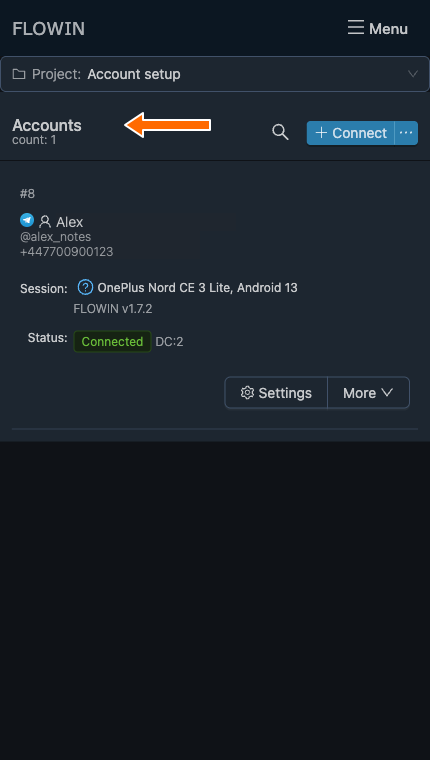
Next to the account you want to edit, click the gear-shaped “Settings” button.
The dialog that appears shows the available account settings:
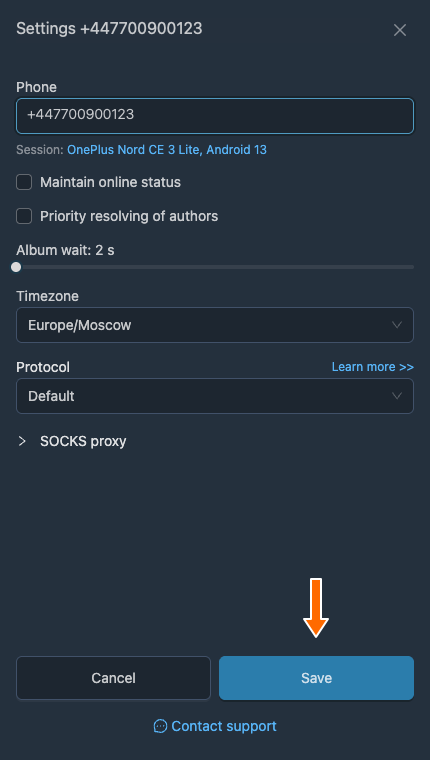
- “Phone”: use this if you need to switch to a different account or update the phone number for the connected account.
- “Session”: session parameters, including the device name, operating system and details of a third-party Telegram application. Changing these is not recommended.
- “Maintain online status”: keeps the account’s status set to “online” while the service is running.
- “Priority resolving of authors”: retrieves additional information about all users who send messages to chats and groups that the connected account belongs to. This feature places a heavy load on the account. Enabling it is recommended only when you need to collect leads from chats where messages are deleted quickly.
- “Album wait”: the time to wait for the remaining parts of a media group, from 2 to 60 seconds.
- “Timezone”: the time zone the account is in. This option affects settings that use message dates and times. By default, all accounts use the UTC+3 time zone.
- “Protocol”: the protocol used to exchange data with Telegram. You can read more about protocols in Telegram’s official documentation. Changing this option without consulting support is not recommended.
- “SOCKS proxy”: if you are connecting many accounts or want their IP addresses to match the country of the phone number each account was registered with, you can use proxies.
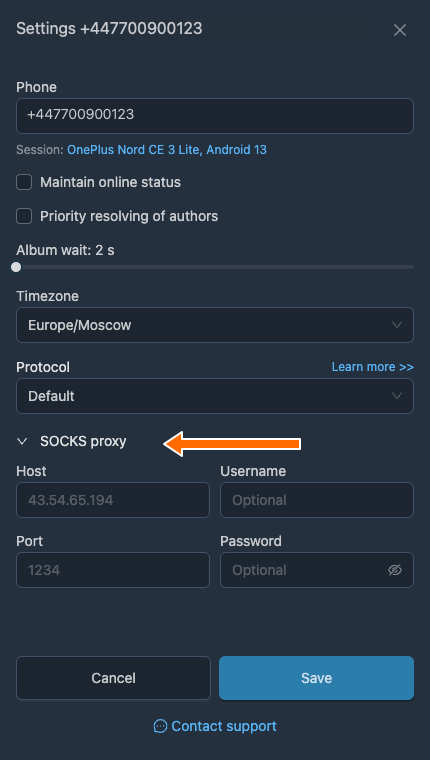
After changing the settings you need, click “Save”. If the phone number or session was changed, you will need to authorise the account again.
Disconnecting an account from FLOWIN
To disconnect an account from the service, follow these steps:
First, delete any forwards that use the account you are disconnecting.
In the FLOWIN control panel, go to the “Accounts” page.
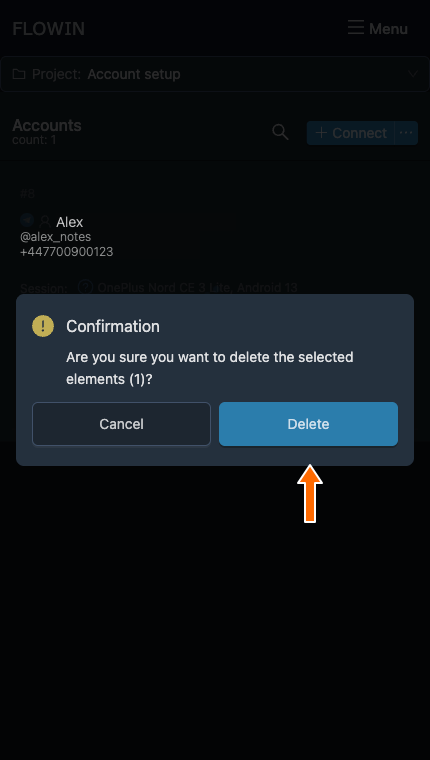
Next to the account you want to disconnect, open the “More” menu and click “Delete”.
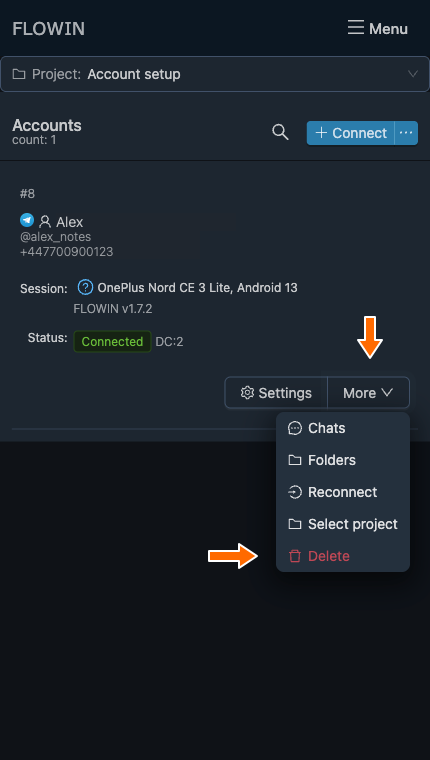
Disconnecting from FLOWIN. Confirm the deletion.
You can use the official Telegram app to check that the account is indeed disconnected and FLOWIN no longer has access to it. To do so, follow these steps:
Open the official Telegram app.
Go to settings.
Open the “Devices” section. In some Telegram apps, it is under “Privacy” and is called “Active Sessions”.
Check that only your devices appear in the list of active sessions. If there are any others, click them and end the session.
Other account actions
On the “Accounts” page in the FLOWIN control panel, the “Settings” button and “More” menu are available next to the connected account, with the following actions:
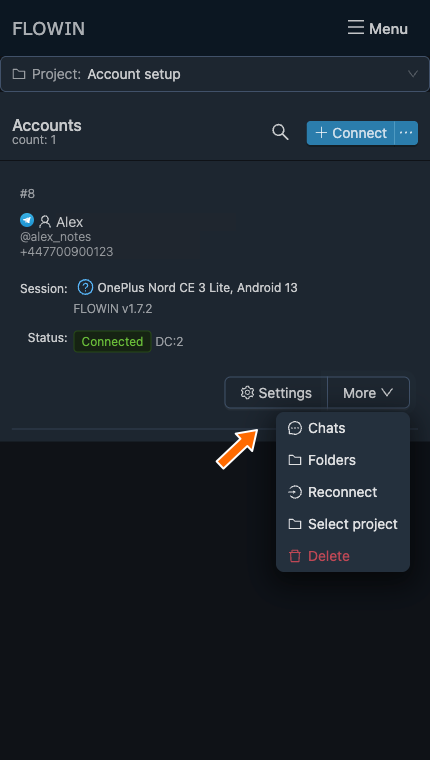
- “Chats”: opens the list of chats available to the account.
- “Folders”: opens the account’s Telegram folders.
- “Settings”: the connected account settings described earlier, such as session details, phone number, time zone and proxies.
- “Reconnect”: quickly reconnects the account to FLOWIN without requiring you to authorise it again.
- “Select project”: assigns the account to a project within FLOWIN to make it easier to group multiple accounts in the interface.
- “Delete”: the process of disconnecting an account from FLOWIN described above.
Frequently asked questions
Can I use one account to access the control panel and connect another?
Yes. The account used to access the control panel and the account FLOWIN uses to carry out tasks can be different. Connect an account that has access to the channels, groups or bots you need.
Why is the connection code not arriving by SMS?
Telegram may send the code to the official Telegram service chat on a device where you are already signed in to this account. Check that chat and the phone number you entered, including its country code. If the code has not arrived, other ways to sign in are available in the code entry dialog, including a QR code.
What is the Telegram cloud password, and why is it needed when connecting?
The cloud password protects access to your account in addition to the one-time code. If you set one in Telegram’s settings, FLOWIN will ask for it after you enter the code. Use your Telegram password: the code from the message and passwords for other services will not work here.
Can I connect a Telegram account to FLOWIN using a QR code?
Yes. The one-time code dialog in FLOWIN offers a QR code sign-in option. To confirm, you need Telegram on a device where you are already signed in to the account you are connecting. Confirm the new connection using that device.
When will I need to authorise the account again?
After changing the phone number or session details in FLOWIN’s settings, you need to authorise the account again. Changing only the proxy does not require this. It is best to keep the device and application details unchanged unless there is a specific reason to change them.
How do I end an active Telegram session and revoke FLOWIN’s access?
In Telegram’s settings, open “Devices” or “Active Sessions”, select the session created when you connected to FLOWIN, and end it. The service will lose access to the account, while the Telegram account itself will remain.