Conversations contain agreements, photos and documents that you may want to save separately. In Telegram, there are two ways to do this: download an archive to your computer or forward messages to another chat. This article shows how to export a chat through Telegram Desktop and copy it using FLOWIN.

Which way to save a conversation should you choose?
Choose where you want to keep the conversation:
- On your computer. Exporting through Telegram Desktop saves messages and attachments to a folder. You can then read the conversation in a browser without logging in to Telegram.
- In another Telegram chat. FLOWIN can help you copy old messages to a separate chat or channel and automatically forward new ones there.
Where export is available
Export requires Telegram Desktop; Telegram Lite also works on macOS. This feature is not available in the mobile or web version of Telegram.
How to download a conversation to your computer
Log in to Telegram Desktop with the account that contains the conversation you need.
Open the private chat and select “Export chat history” from the ⋮ menu.
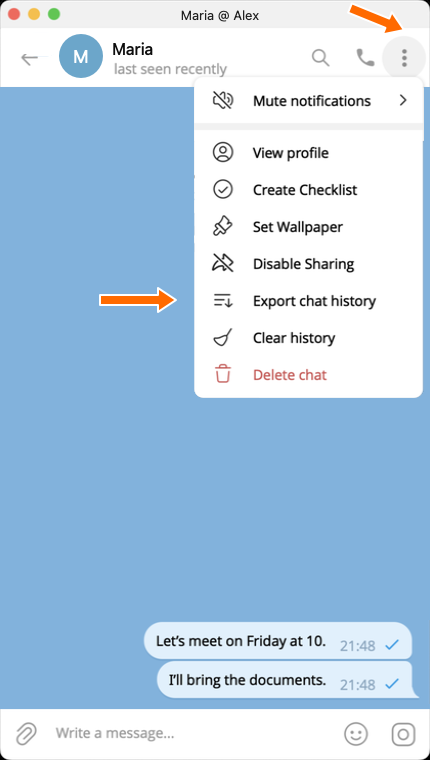

The chat menu and export command. Select the attachments you need, such as “Photos”, “Videos” or “Files”. Check the “Size limit”: attachments larger than the selected value will not be saved. If you only need the text, clear all the checkboxes.
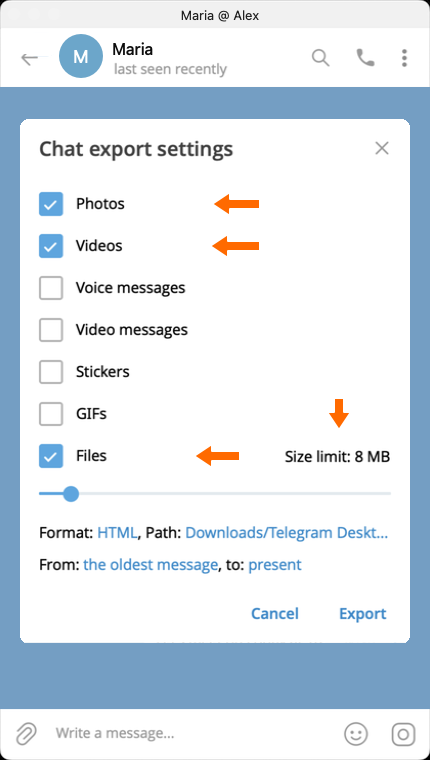
Choosing attachments and a file size limit. In the “Format” row, select “Human-readable HTML” and click “Save”. Set the download path and dates: you can download the entire history or the conversation from a specific period. Click “Export”.
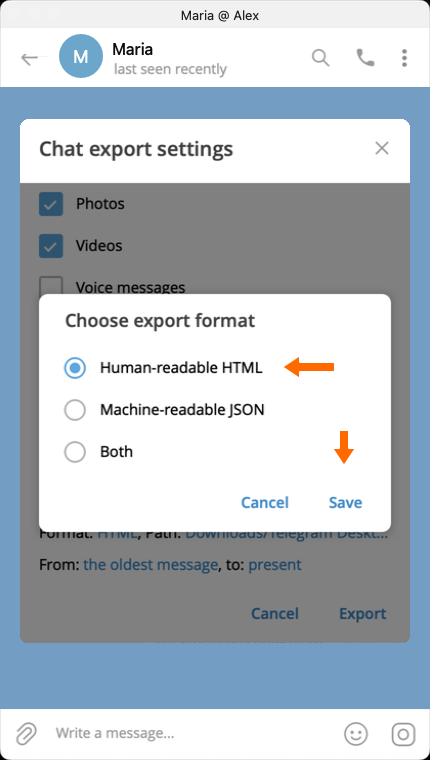
HTML is suitable for reading a conversation. 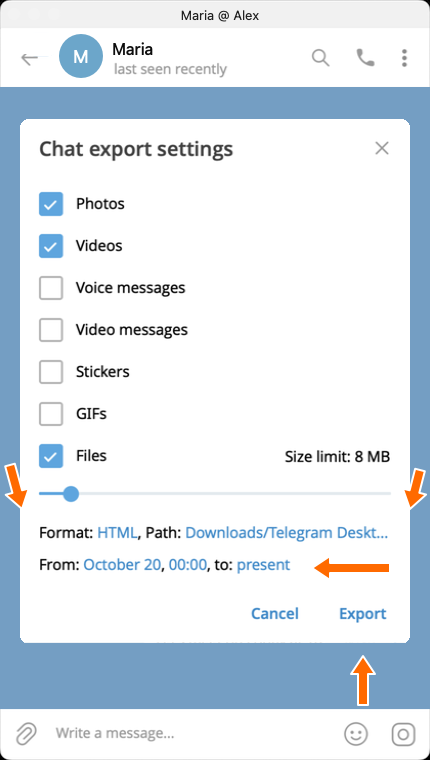
The format, folder, date range and export button. Once the export is complete, click “Show my data”. In the folder that opens, find
messages.htmland open it in a browser. Check that the messages you need have been saved and that the attachments open.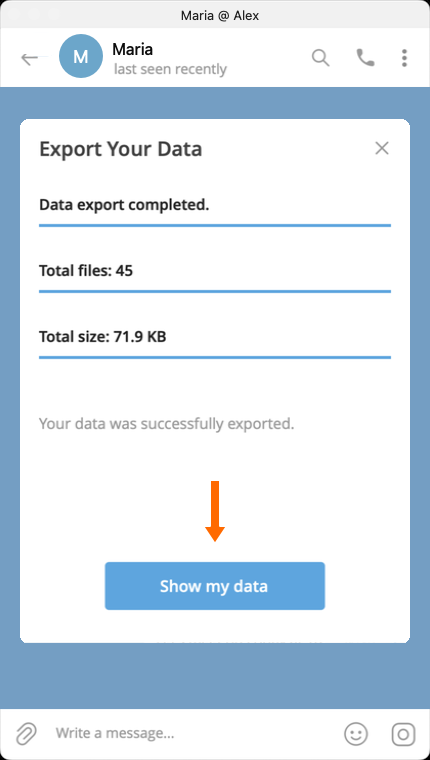
The export is complete. You can open the folder. 
The saved conversation in messages.html.
How to store the archive
Keep the entire archive folder so that photos and other attachments open alongside the conversation. To share it as a single file, compress the folder into a ZIP archive.
How to copy a conversation to another chat
FLOWIN has two forwarding modes:
- “Copy” sends messages on behalf of the selected account. You can change their text, for example by adding signatures.
- “Repost” forwards messages with a label identifying the original author. Their content cannot be edited; this mode works if forwarding is allowed in the source chat.
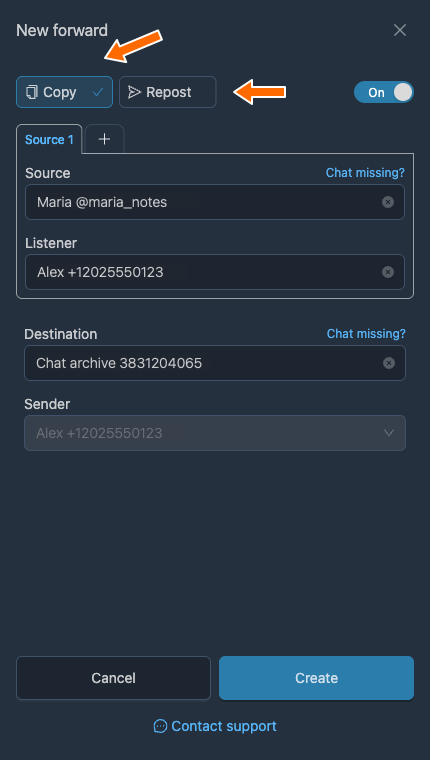
Before you begin, connect the Telegram account that contains the conversation you need to FLOWIN, and prepare a chat or channel for the copies. In this example, we copy a conversation with Maria to a private channel called “Chat archive” in “Copy” mode.
The original message’s author and time
In “Copy” mode, you can add the author’s name and the original date and time to the message text using “Replacements”. The copy itself will still have a new send time in Telegram.
Open @flow_in_bot, send the
/startcommand, and click “Control panel”.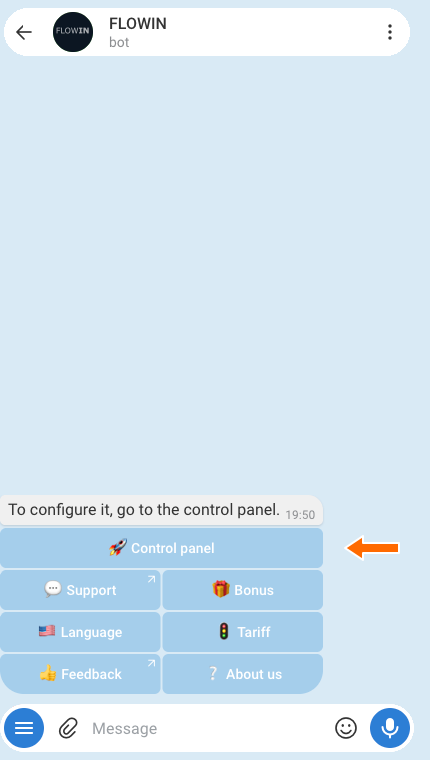
Accessing the control panel through @flow_in_bot. In the control panel, open “Menu” → “Forwards” and click “Create”.
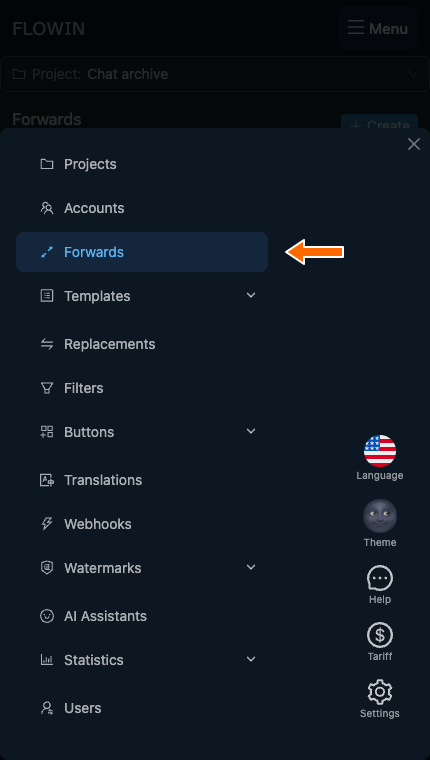
The “Forwards” section in the control panel menu. 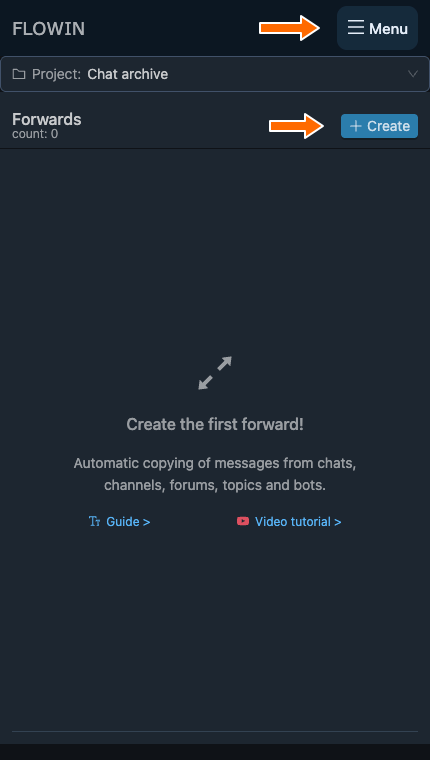
Creating a new forward. In “Source”, select the private chat you need, and in “Destination”, select a chat or channel for the copies. If additional fields appear, select the account with the conversation in “Listener”, and select an account that can write to the chosen chat in “Sender”. Click “Create”. New messages will now be copied automatically.
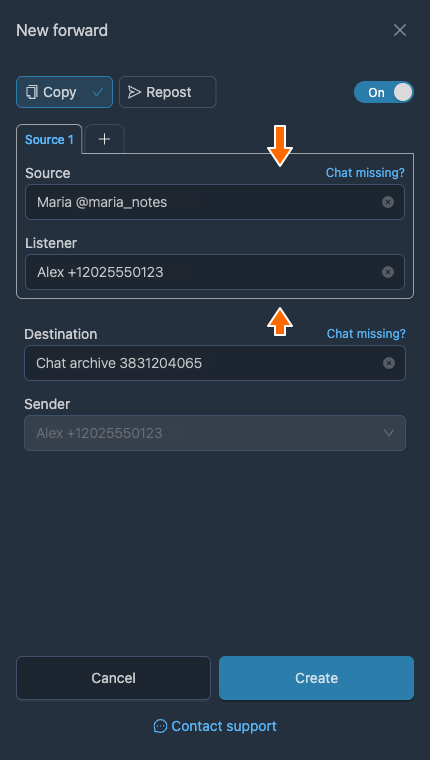
The private chat and an account with access to it. 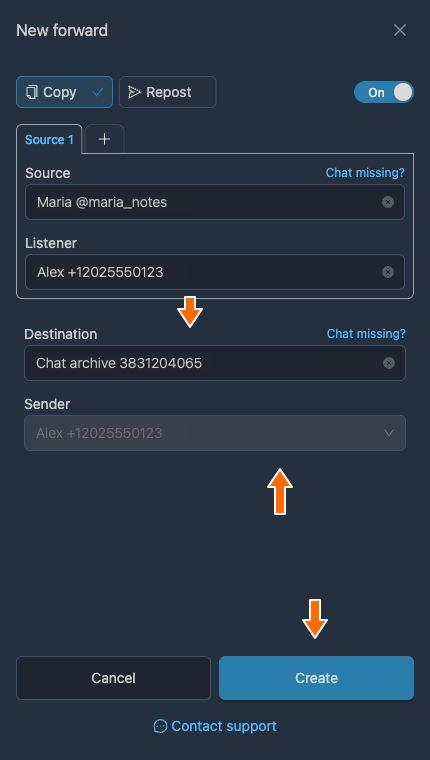
The channel for copies and the sender account. To copy old messages, open “More” → “Old messages” → “For the period” in the row for the forward you created.
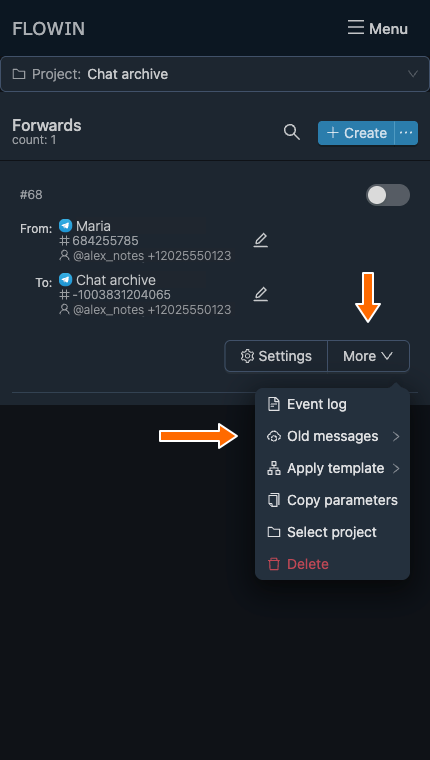
Starting to copy old messages. 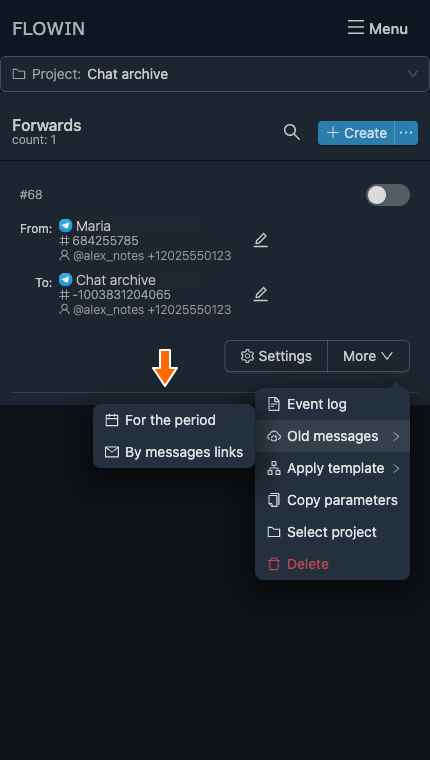
Copying messages from a date range. Set the period in “Start date” and “End date”, then click “Start”. For the entire conversation, choose a period from the first message to today. Wait for copying to finish.
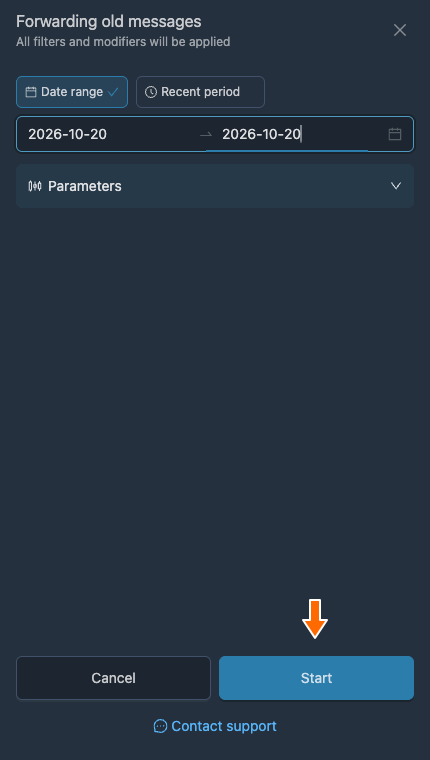
The date range for copying the conversation. Open the chat containing the copies in Telegram and check that the messages and attachments you need have been copied. If you only need to copy the existing messages once, turn off the forward using the “Active” switch.
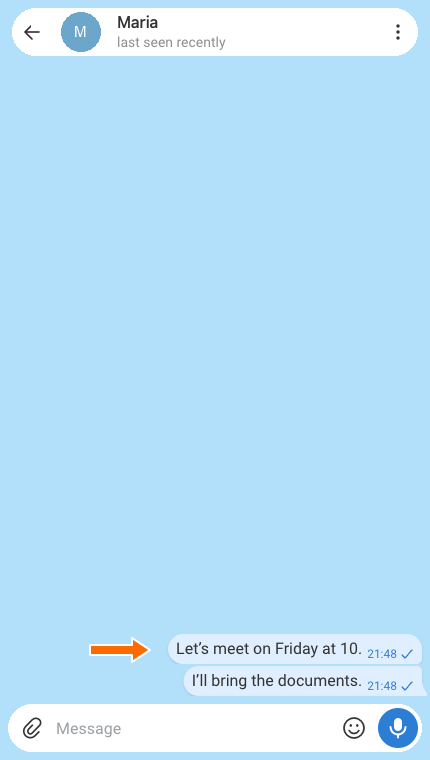
The original conversation with Maria. 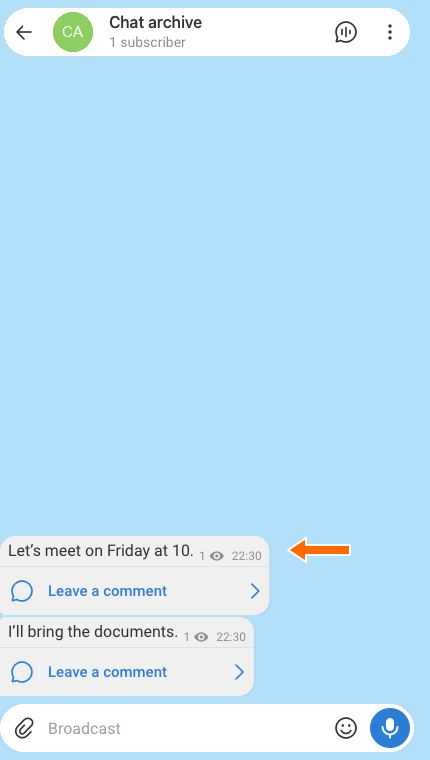
Copies of the messages in the “Chat archive” channel. 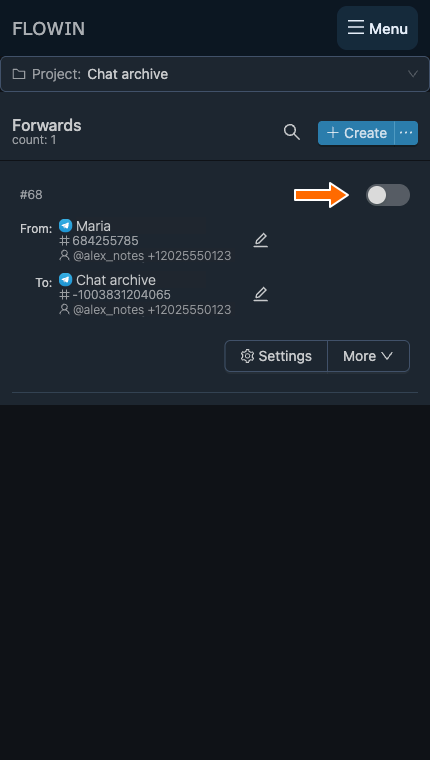
Turning off automatic forwarding of new messages.
Limitations to keep in mind
You can only save conversations that you have access to. Deleted messages cannot be recovered. These methods do not work with secret chats, and content protection may restrict copying.
An HTML archive is for reading: you cannot upload it back into Telegram to restore the original chat.
Frequently asked questions
Should I export to my computer or copy to another chat?
To read a conversation without logging in to Telegram, use an HTML archive on your computer. If you need the messages in another Telegram chat or channel, copy them using FLOWIN. This creates new messages in the selected chat, without a separate archive on your computer.
Can I export a Telegram chat from my phone?
The export feature described here is available in Telegram Desktop and, on macOS, in Telegram Lite. It is not available in the mobile or web version of Telegram. To download the conversation, log in to the same account in a suitable desktop app and export the chat history.
Why does the archive contain text but not all attachments?
Export saves the selected attachment types within the file size limit and date range you set. Check the attachment settings and export dates. If the files were downloaded but no longer open after you move the archive, make sure you moved the entire folder, rather than just messages.html.
Can I upload the HTML archive back and restore the original chat?
The HTML archive described here is for reading in a browser. It does not restore the original Telegram chat. Copying through FLOWIN also creates new messages in the selected chat, rather than putting the old messages back where they were.
Will copying preserve the author and original time?
In “Copy” mode, messages are sent on behalf of the selected account and receive a new send time. You can add the original author’s name, date and time to the text using replacements. This label does not change the author or system timestamp of the copy itself.
Can these methods recover a conversation that has already been deleted?
No. Exporting and copying work with messages that are still available to your account. These methods do not recover messages that have already been deleted. If you saved an archive beforehand, it will retain the conversation you previously exported.
How does exporting Telegram data differ from exporting one chat?
Exporting Telegram data lets you choose account information and conversations to save. Exporting the history from a particular chat’s menu saves that conversation. If you only need one chat, use the method described in this article.