


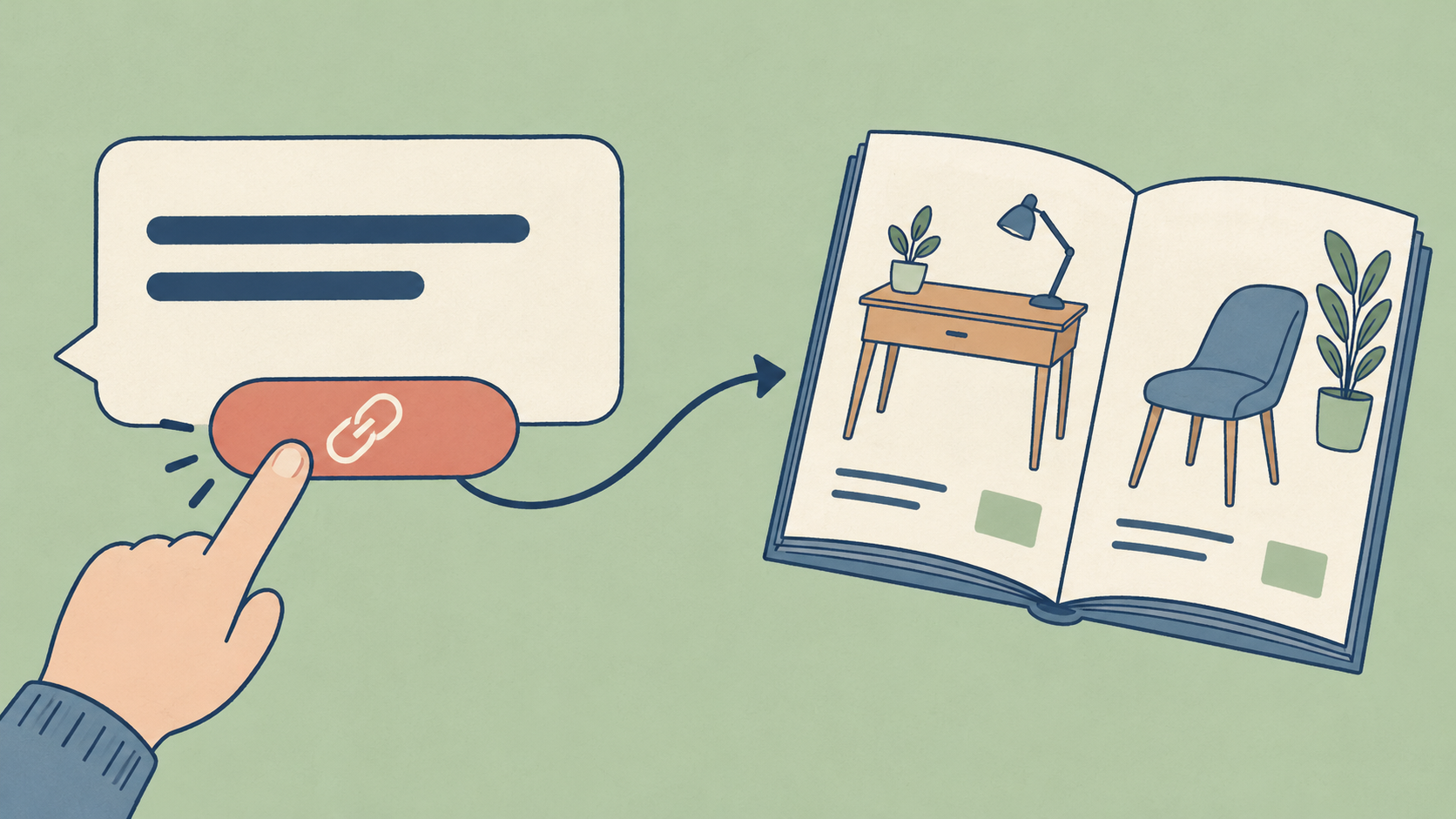
URL buttons in Telegram are ordinary links displayed as buttons beneath messages and posts. Clicking a button opens the specified address.
What URL buttons can do
FLOWIN can automatically add URL buttons to all forwarded messages and posts or only to selected ones. This supports the following scenarios:
- Automatically forwarding messages from one chat to another and adding URL buttons.
- Forwarding messages that already have URL buttons.
For a new button, you set its label and link, then choose the forwards where it is needed. FLOWIN adds it beneath the message when sending it to the destination. Readers see the link as a separate button, such as “Furniture catalogue”.
Album limitation
New URL buttons are not added to standard albums containing multiple photos or videos.
Creating a URL button
Before creating a button, you need a configured and enabled forward. It must use “Copy” mode, and its sender must be a bot account connected using a token.
The bot as sender
The bot sends the message with the button to the destination. A user account can read the source, but this task requires a bot as the sender. In a channel, the bot must have permission to post messages.
In this example, we will add a “Furniture catalogue” button. Replace the example address https://example.com/catalog with a link to your own catalogue.
Open @flow_in_bot, send the
/startcommand, and click “Control panel”.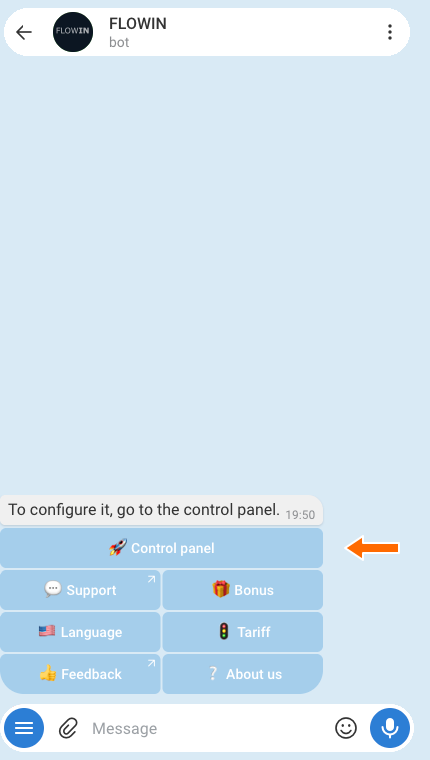

Accessing the control panel through @flow_in_bot. Open “Menu” → “Buttons” → “Url buttons” and click “Create”.
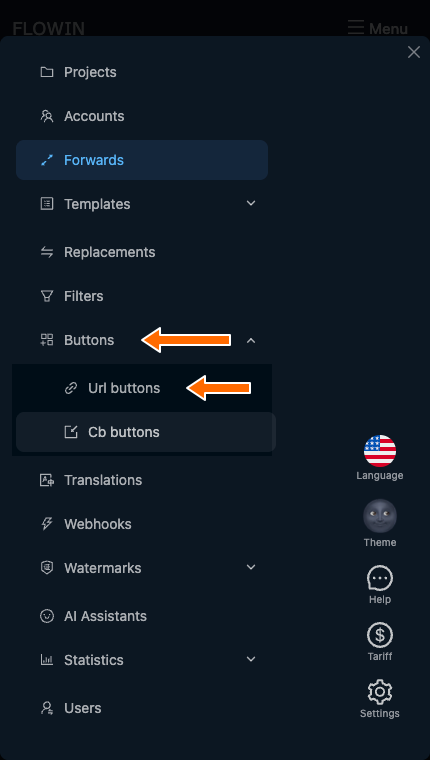
The “Url buttons” section in the FLOWIN menu. 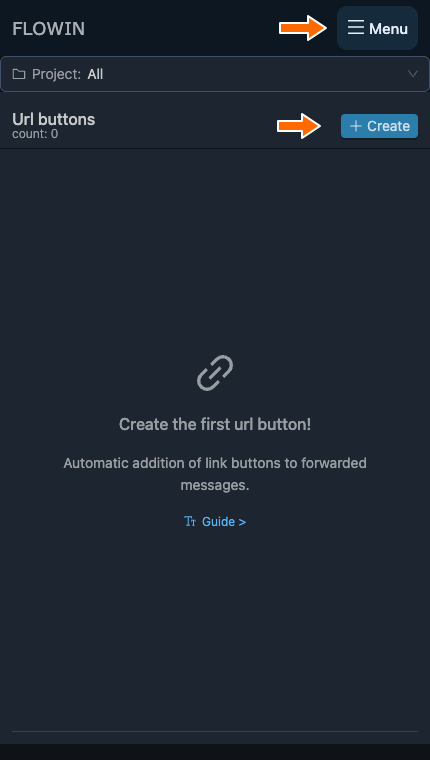
Creating a new URL button. In the “Label” field, enter the text readers will see on the button, such as “Furniture catalogue”. In the “URL” field, enter the full page address, starting with
https://. Click “Create”.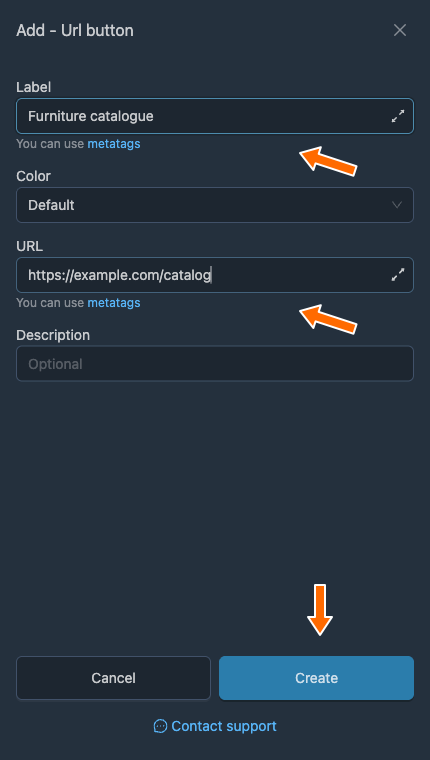
The label and address for the new button. Click “Apply” next to the button you created. In the “Selecting forwards” window, select the forward you need and click “Save”.
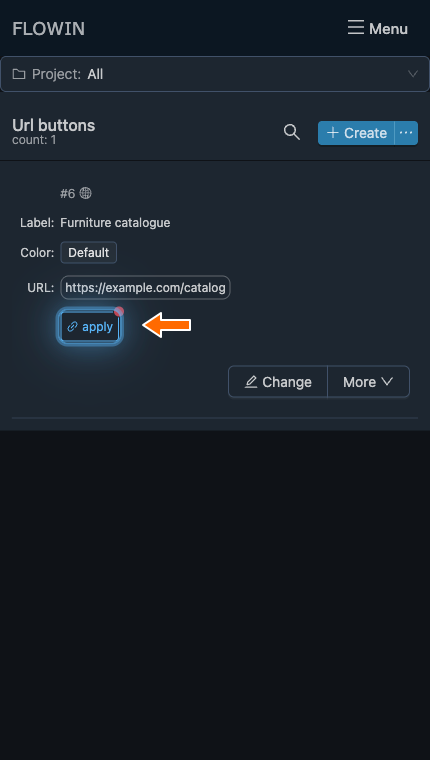
The new button needs to be applied to a forward. 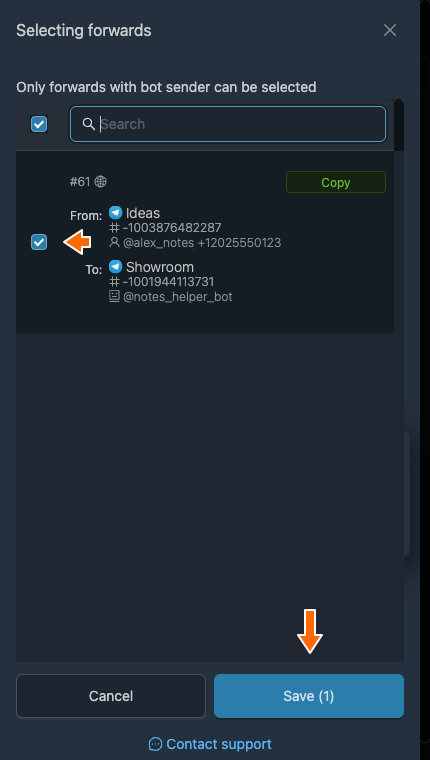
Selecting a forward with a bot as the sender. Send a new message to the source and check it in the destination. A button with the specified label and link should appear beneath the forwarded message. FLOWIN will now add it to new messages in the selected forwards.
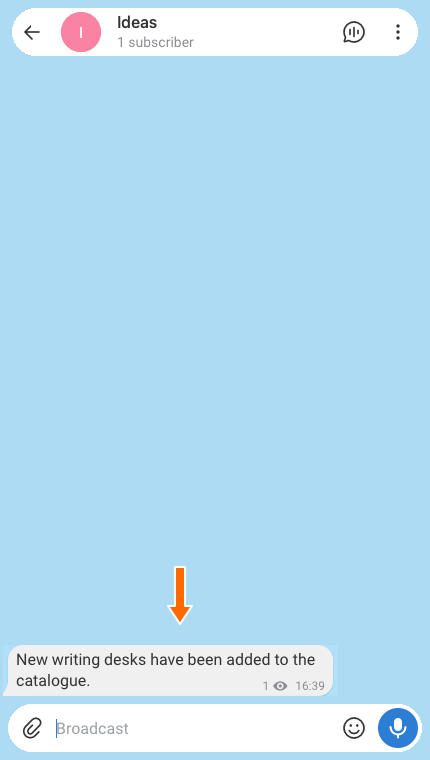
The message in the source before forwarding. 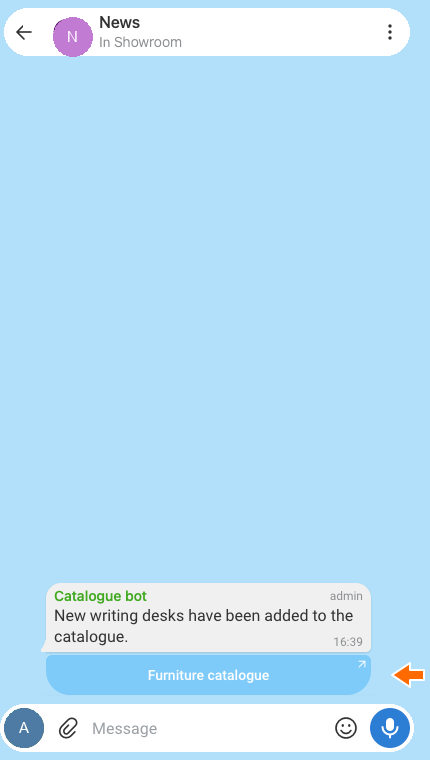
The message with a button in the destination.
How to edit a URL button
You can edit an existing button’s settings in the same list. The settings are explained in the “URL button settings” section.
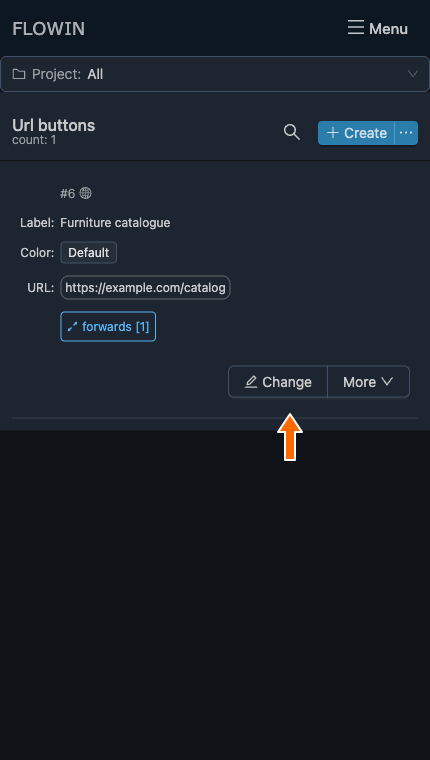
Click “Change” next to the button you want to edit.
“Change” opens the settings. Edit the fields you need and click “Save”. For example, fill in “Description” to make the button easier to find. Once the window closes, check the updated details in the list.
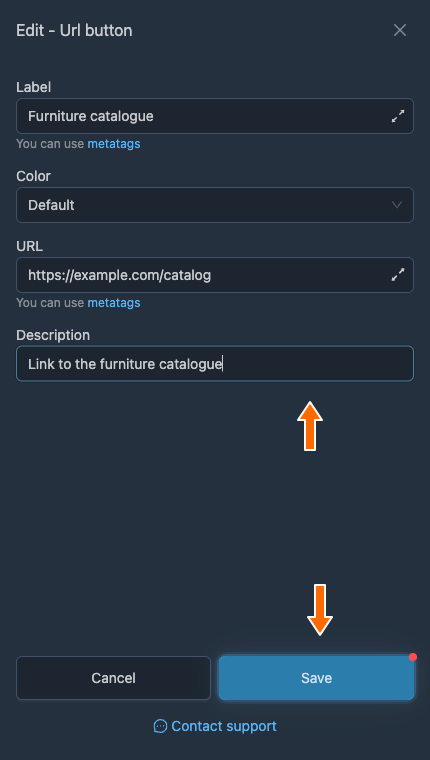
Saving the updated settings. 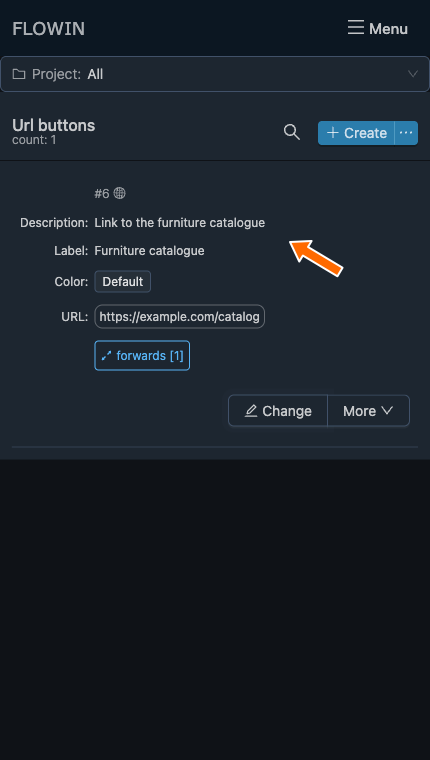
The description helps you identify the button in the list.
URL button settings
All the main settings are in the window opened by clicking “Change”. The label and URL are required; the colour and description let you customise the button further.
Label
“Label” is the text on the button.
You can use meta tags: special placeholders that FLOWIN replaces with data from the specific message. For example, <src-chat-name> inserts the name of the source chat.
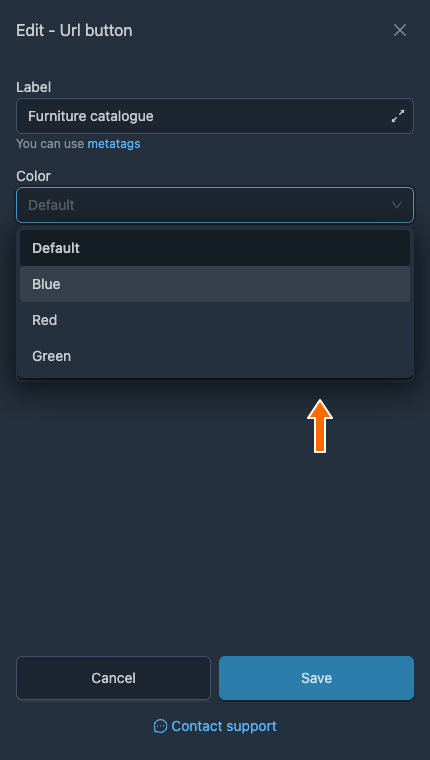
Color
“Color” sets the button’s appearance. The options are “Default”, “Blue”, “Red” and “Green”. “Default” uses Telegram’s standard appearance; the other options apply the selected colour.
URL
“URL” sets the link that opens when the button is clicked. For a fixed address, enter the full link, including https:// or http://.
The address can also depend on the message. This field supports two types of substitution:
<src-message-link>inserts a link to the original message. If the source is private, the reader needs access to it.<regexp>…</regexp>extracts a link from the text using a regular expression, which is a search pattern. If the substitution does not produce a valid link, the button is not added.
Description
“Description” is for your own notes about the button and does not affect how it works. You can leave this field empty.
How to add a button only to selected messages
By default, the button is added to all eligible messages in the selected forwards. You can limit when it is added by attaching a filter to the URL button itself. For example, a filter can allow the button only for text containing the word “catalogue”.
The filter checks the message and determines whether to add the button. If the condition is not met, the message is forwarded without this button. Attaching a filter to a forward has a different effect: it can stop the message itself from being forwarded. For more on creating a filter and choosing where to attach it, see the filter guide.
Available actions for URL buttons
Next to each button, “Change” opens the main settings and “More” provides additional actions:
- “Apply” opens the selection of forwards where the button is needed.
- “Duplicate” creates a copy of the button’s settings.
- “Select project” adds the button to a project.
- “Delete” deletes the button.
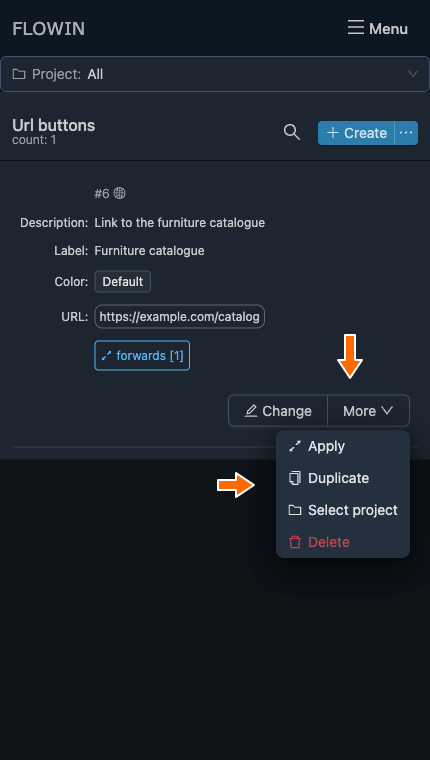
Once the button is applied, “Apply” in the row is replaced by “Forwards” and the number of attached forwards, such as “Forwards [1]”. This control also opens the forward selection window. There, you can select or deselect forwards and then save your changes.
Frequently asked questions
Why is the button not appearing beneath a Telegram post?
Check that the button is applied to the correct forward, and that the forward itself is enabled and uses “Copy” mode. The sender must be a bot connected using a token; it needs the appropriate permissions to post in a channel. If a filter is attached to the button, the message must meet its conditions. If the address depends on the message text, check that the substitution produces a valid link.
Can a URL button be added to an album of multiple photos or videos?
No. FLOWIN does not add new URL buttons to standard albums containing multiple photos or videos. This limitation applies even when the button is correctly attached to the forward.
How do I create a button that links to the original post?
Enter <src-message-link> in the “URL” field. FLOWIN will insert a link to the original message, so each forwarded post will have its own address. If the source is private, only readers with access to it will be able to open the message.
What happens if the regular expression finds no link?
If the entire address is specified using <regexp>…</regexp> and there is no match, the button will not be added because the substitution produces an empty string. If the template also contains a fixed part of the address, the result depends on the final link. FLOWIN will add the button only if all substitutions together produce a valid address.
Will a button linking to a bot start it automatically for the reader?
No, FLOWIN only adds a link beneath the message. The reader clicks it and opens the bot themselves. When the bot is first opened, Telegram shows a start button; if it appears, the reader needs to click it. FLOWIN does not do this on their behalf.