


The FLOWIN service offers extensive options for filtering forwarded messages. Filters automatically block or allow messages to be forwarded based on specific criteria: words in the text, the author's name, the media type and format, the time of the original message, the FWD header, the message ID, and much more.

Filtering capabilities
Filters are useful in the following scenarios:
- Scanning chats, groups, and channels for potential customers (leads) relevant to your business. You can set up monitoring for a vast number of topic-specific chats, and all relevant enquiries and requests from users will automatically be forwarded to you in real time. All you need to do is reply to a hot lead's message.
- Blocking advertising posts from sources if you run a news aggregator.
- Collecting information only on a specific topic.
- Copying only specific users' conversations from groups.
- Simulating a conversation between different accounts in a group using a prepared script.
Creating a filter
Suppose you collect programmer vacancies from topic-specific chats in a separate channel. Let's set up a filter that allows messages containing “programmer” or “developer”. Messages without these words will not be forwarded.
Before you begin
Before creating a filter, make sure you already have a forward set up.
The filter is configured in the FLOWIN control panel.
Open @flow_in_bot, send the
/startcommand, and click “Control panel”.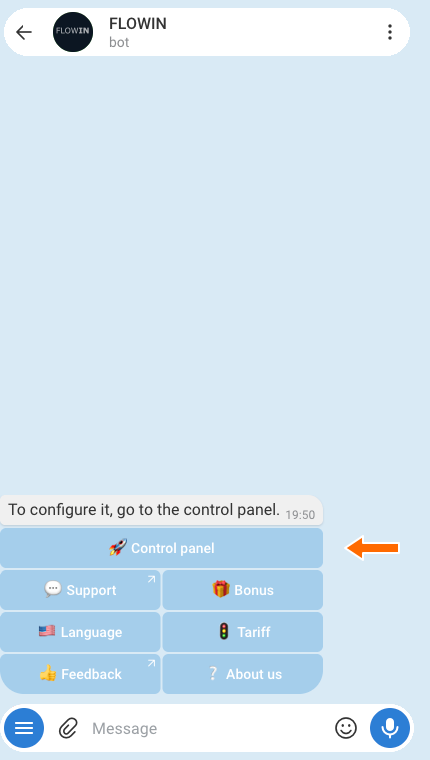

Accessing the control panel through @flow_in_bot.
Open “Menu” → “Filters” in the control panel and click “Create”.
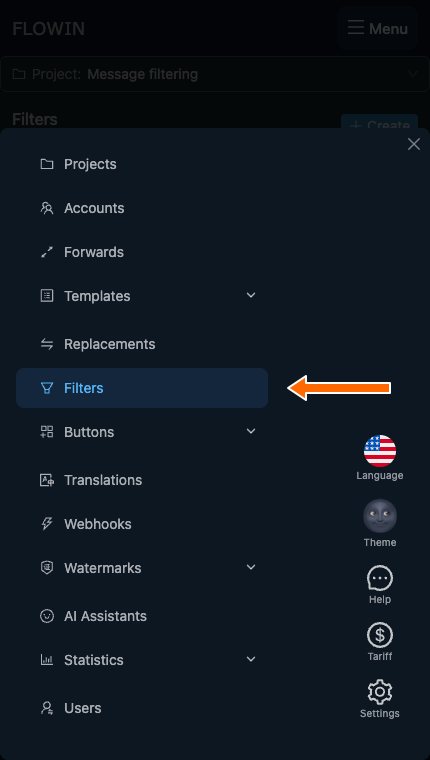
The “Filters” section in the menu. 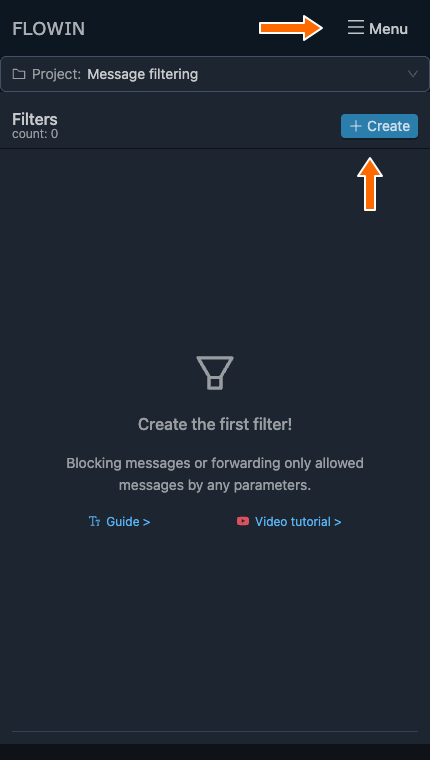
The “Menu” and “Create” buttons on the filters page. Select “List” mode. In the “Search” field, enter
programmer, developerseparated by a comma, select “Allow”, and click “Create”.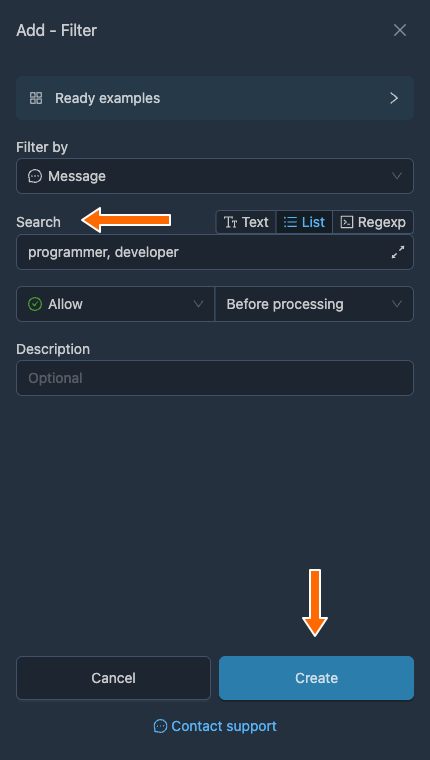
The filter allows messages containing “programmer” or “developer”. For the new filter, click the blinking “Apply” button → “Forwards”. Select the forward you need and click “Save”. The number on the button shows how many forwards are selected.
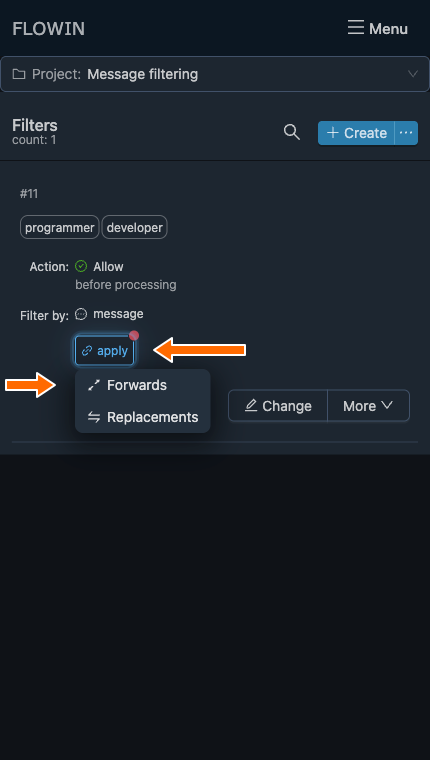
Selecting “Forwards” in the Apply menu. 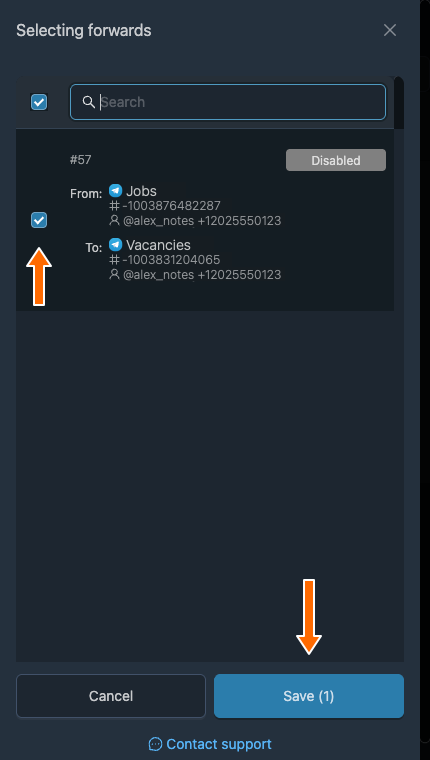
The selected forward before saving the link. The filter will appear in the list with its linked forward. From now on, only new messages containing “programmer” or “developer” will be forwarded from its sources.
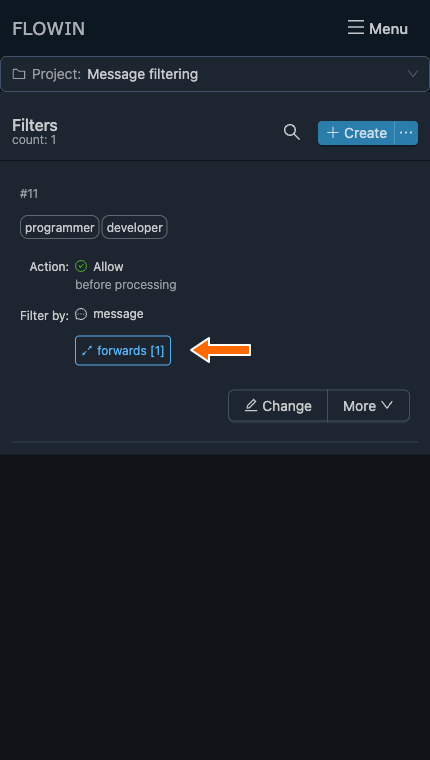
The created filter and its linked forward. 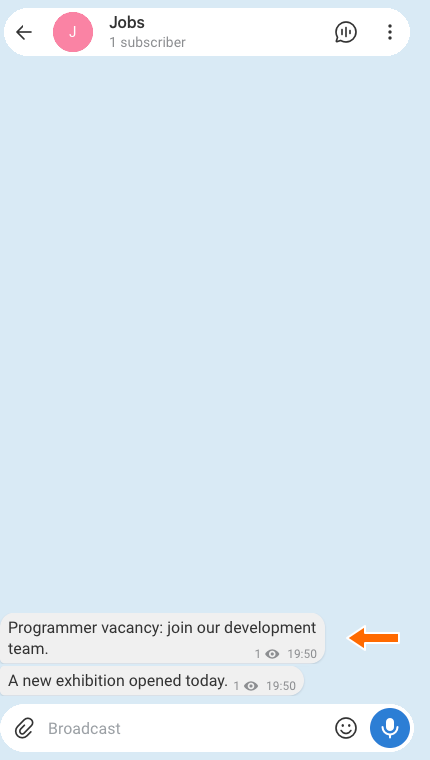
Two messages have been posted in the source. 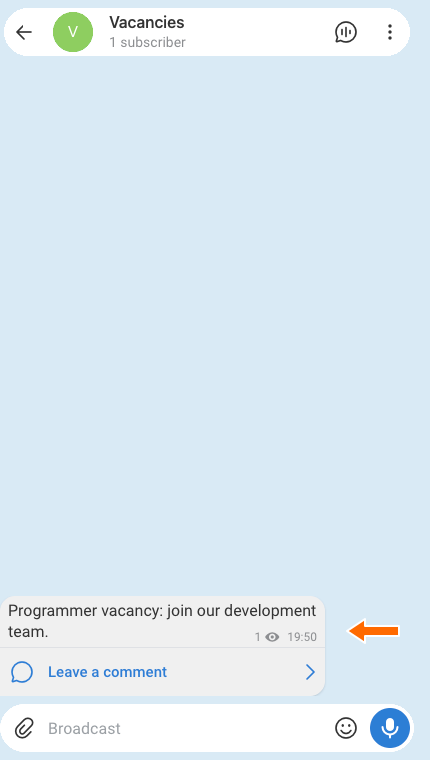
The programmer vacancy reached the destination.
Filter settings
Let's look at the settings and capabilities using the filter we created.
How to edit a filter
Click the “Change” button with the pencil icon next to the filter. Its settings window will open.
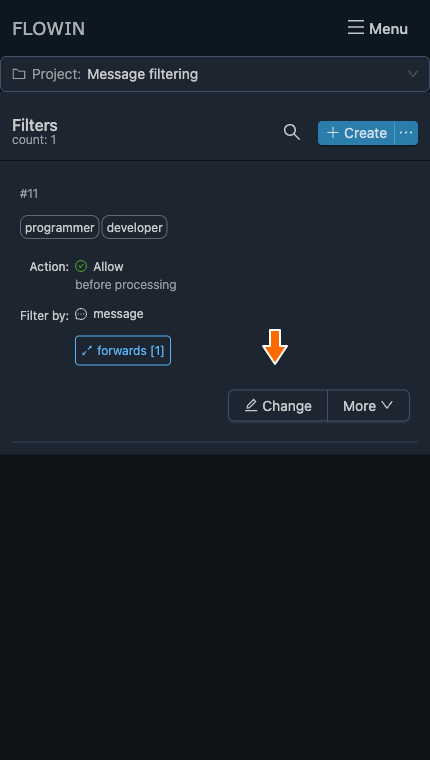
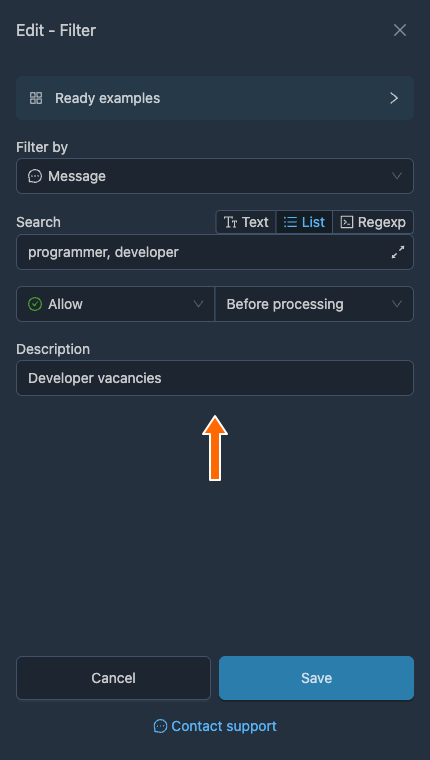
The filter's “Change” button. Change the settings you need and click “Save”. For example, enter “Developer vacancies” in the “Description” field. The new description will appear in the filter's row.
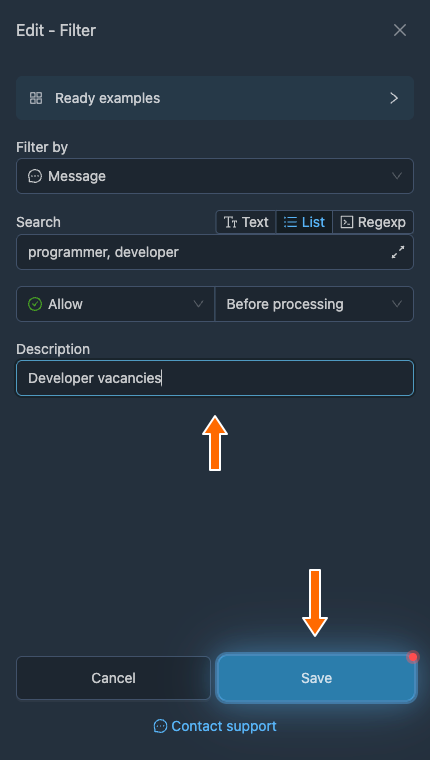
Saving the filter's new description. 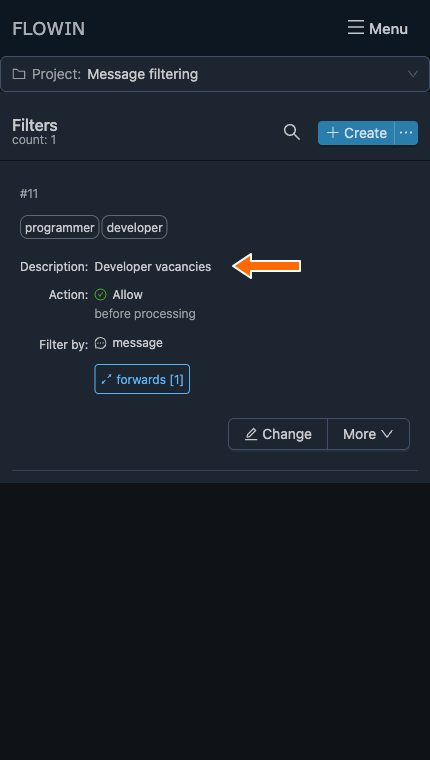
The new description in the filter's row.
Ready examples
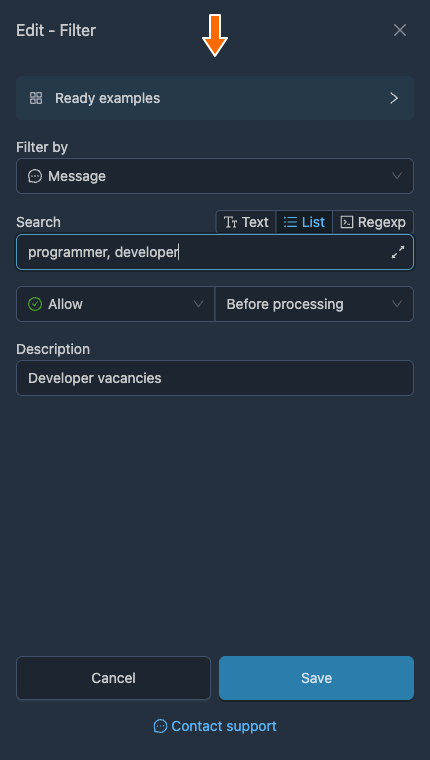
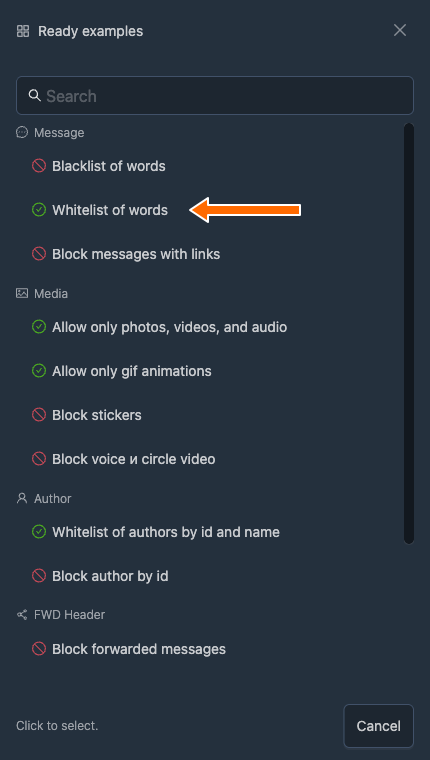
The ready examples include word blacklists and whitelists, blocking by author, blocking stickers, and other scenarios. Click “Ready examples” in the filter window and choose an option. Its values will populate the fields; edit them to suit your needs.
Filter by
This determines where the filter looks for its search content. The following options are available:
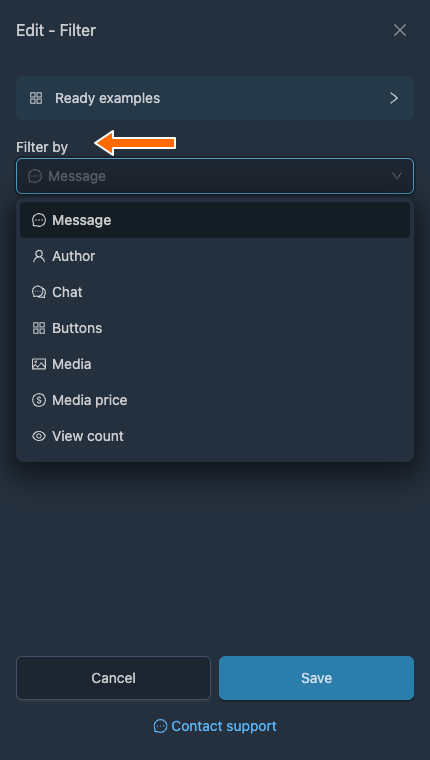
- “Message”: The message text, the content of hidden links and buttons, quoted text, and the question and answer options in a poll.
- “Author”: the name, username, and ID of the original message's author.
- “Chat”: the name, username, and ID of the message's source (a chat, channel, or group).
- “Buttons”: The labels, text, and links of the message's buttons.
- “Media”: the format, type, and name of the media in the original message.
- “Media price”: The cost of paid media in Telegram Stars. For a message without paid media, the value is 0.
- “View count”: The number of views of the original message.
- “Reposts / views, %”: The ratio of reposts to views of the original message.
- “Reactions / views, %”: The ratio of reactions to views of the original message.
- “Comments / views, %”: The ratio of comments to views of the original message.
- “Date and time”: The date and time of the original message. The full format is
2006-01-02 15:04:05. You can specify a date, a date range, or hours, for example09:00-18:00. - “Message ID”: the numeric ID of the original message.
- “Reply ID”: the numeric ID of the message that the original message replies to.
- “FWD Header”: The name of the person or source in a repost's header, which Telegram displays next to “Forwarded from”.
- “Topic ID”: The numeric ID of the topic if the source is in a group with topics. In a link such as
t.me/c/1234567890/25/48, the topic ID is25, and the message ID is48. - “Message ping (seconds)”: the time in seconds between the original message being sent and the listener account's session receiving it.
- “Group message number”: the media item's position in an album.
Search
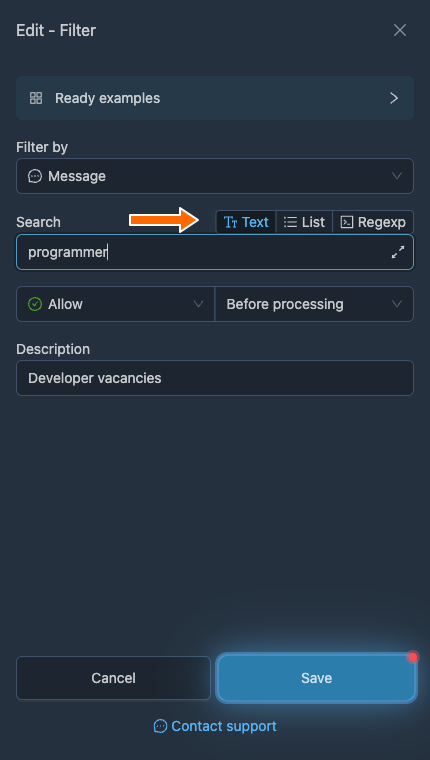
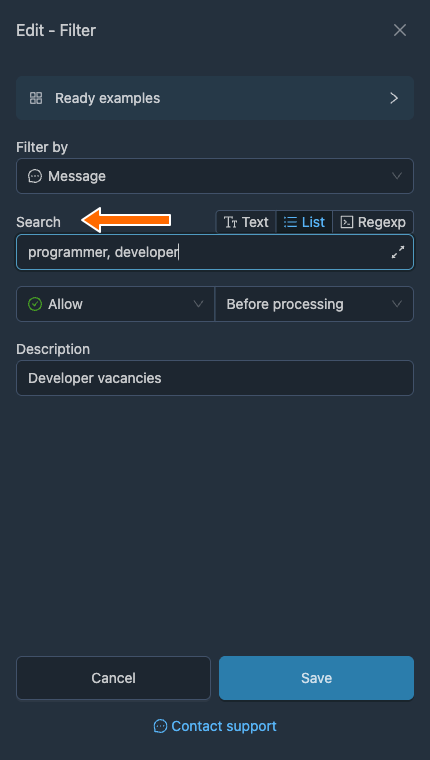
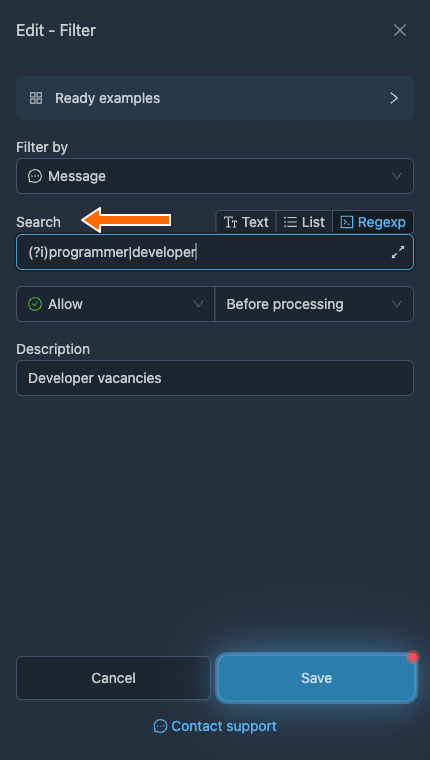
This field defines the filter's search content. There are three search modes next to it:
- Text: the exact sequence of entered characters, including all spaces, indentation, brackets, and so on. Letter case does not matter.
- List: search alternatives separated by commas or new lines. One match is enough. Letter case does not matter.
- Regexp: a regular expression search. Read more about the syntax in the article “Regular expressions in filters and replacements”.
Important detail
“Text” and “List” also find character sequences within words: programmer will match “Programmer” and “programmers”. The message's meaning is not considered, so a discussion of the profession will also pass the filter if it contains the search word.
For numeric criteria, “Text” and “List” modes support exact numbers, ranges, and comparisons: 10, 10-20, >=1000. For ratios, you can enter >=2%.
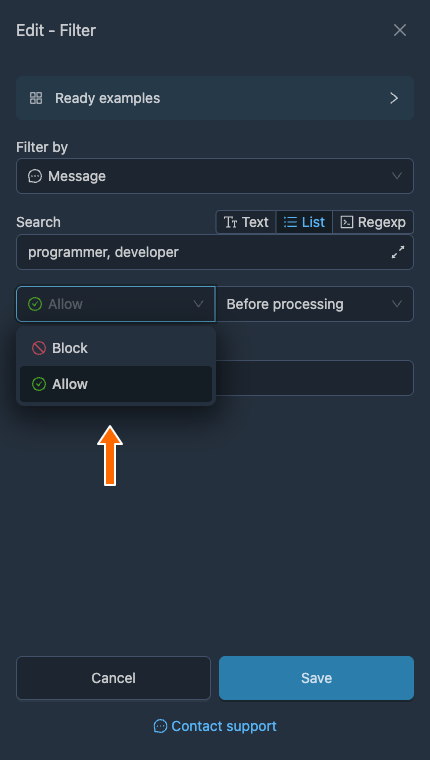
Block or allow
- “Block” prevents messages containing the content of the “Search” field from being forwarded.
- “Allow” forwards only messages containing this content and blocks the rest.
Tip
If several filters are linked directly to one forward, a message must pass every one of them. For example, you can add a second allow filter with the text vacanc alongside the filter containing programmer, developer: a message will be forwarded only if it meets both conditions.
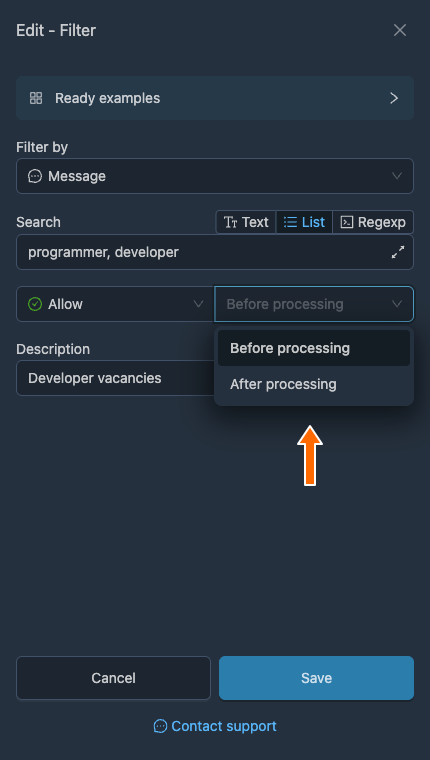
Before or after processing
- “Before processing” checks the original message before translations, AI assistants, watermarks, merging, and subsequent filters and replacements.
- “After processing” checks the message after the main transformations, but before replacements set to “After processing”.
“After processing” is available for the “Message”, “Buttons”, and “Media price” criteria. The other criteria are checked before processing, and the switch is unavailable for them.
Description
Description: an optional comment for your convenience. It does not affect how the filter works.
Filtering media
To filter messages with media, select “Media” in the “Filter by” field. The service will search for the specified content in the attached media's name, type, and extension.
You can use the following types:
- photo: all photographs and images
- document: documents
- poll: polls
- geo: location
- video: videos
- voice: voice messages
- audio: audio
- round: round video messages
- sticker: stickers
- webpreview: web previews
Filtering senders
FLOWIN lets you link filters not only to forwards, but also to sender accounts, so you can choose who forwards a message containing the specified content.
Filters can be linked to sender accounts under the following conditions:
- The filter's action is set to “Allow”.
- The filter is set to “Before processing”.
- The filter is linked to a forward whose sender is set to “Senders rotation”.
- To choose between accounts, you need two or more connected senders with access to the destination.
For example, delivery and payment requests arrive from one source in a work group. Members distinguish the two streams by the sender: the “Alex” account posts requests labelled “Delivery:”, while the “Payment helper” bot posts those labelled “Payment:”. Other topics do not reach this group. We use example order numbers below.
On the “Forwards” page, open the destination settings for the forward you need. In the “Sender” field, select “Senders rotation” and save the change.
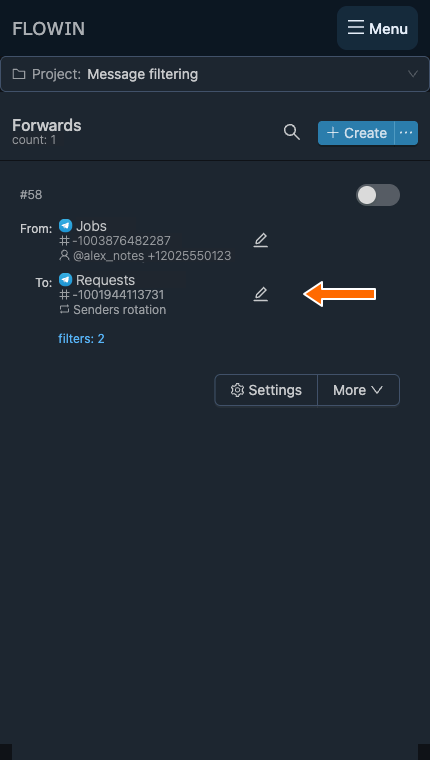
Editing the forward's destination. 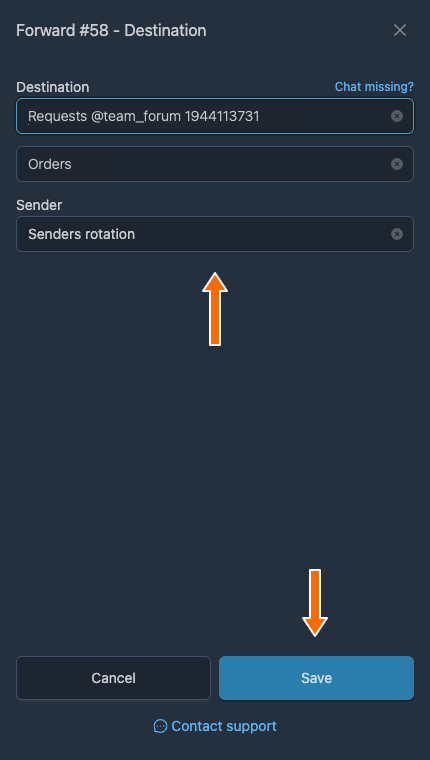
The “Senders rotation” option in the destination settings. On the “Filters” page, click “Create”, enter the label
Delivery:in the “Search” field, and select “Allow”. Create the filter and apply it to the forward you prepared.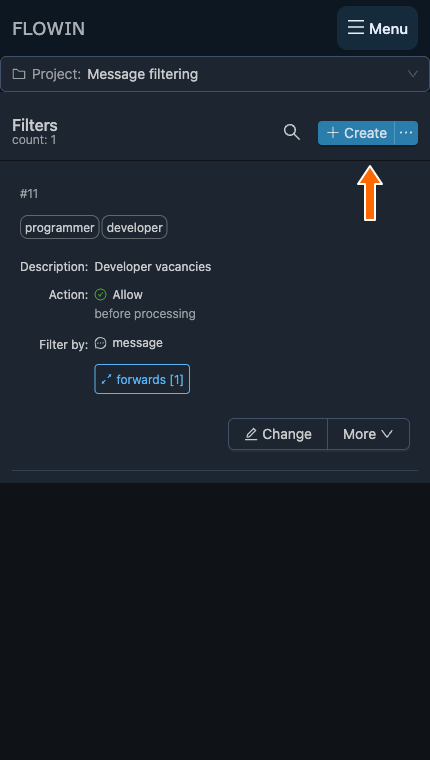
Creating a filter to select a sender. 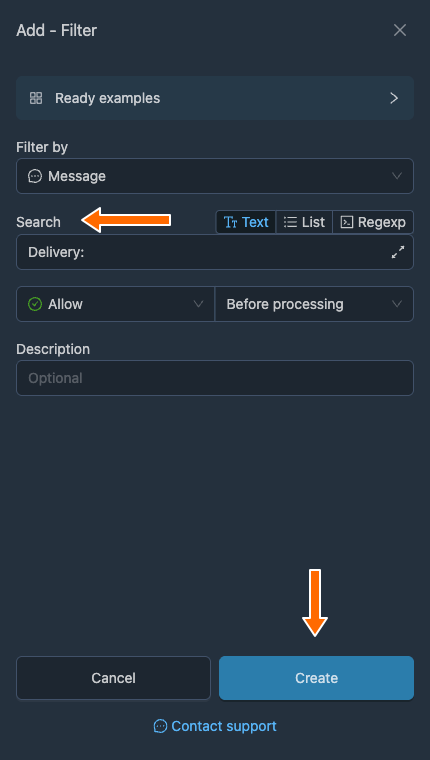
An allow filter for the “Delivery:” label. 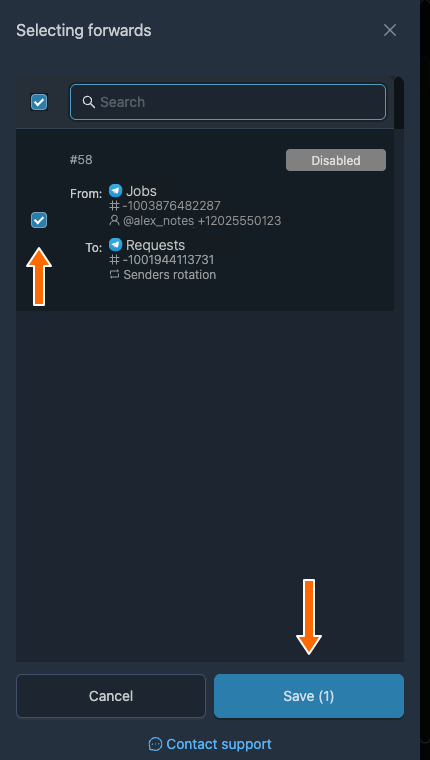
The forward with “Senders rotation” selected. Open “More” → “Apply” for this filter and select “Senders”, select the “Alex” account, and click “Save”. In the same way, create a second filter for the label
Payment:, link it to the same forward, and select “Payment helper” as the sender.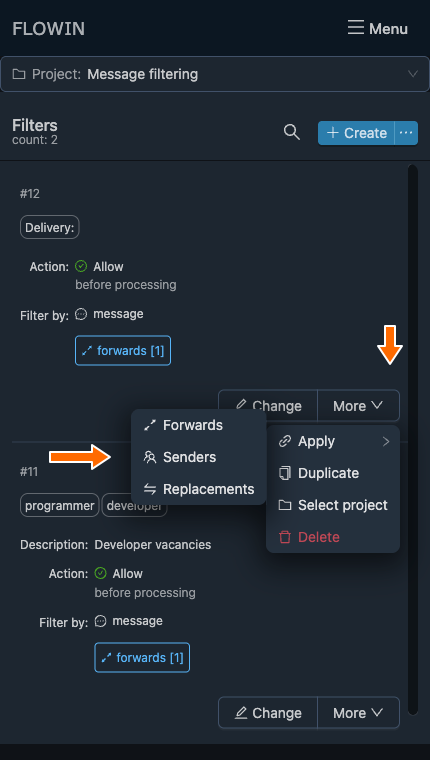
“Senders” in the Apply menu. 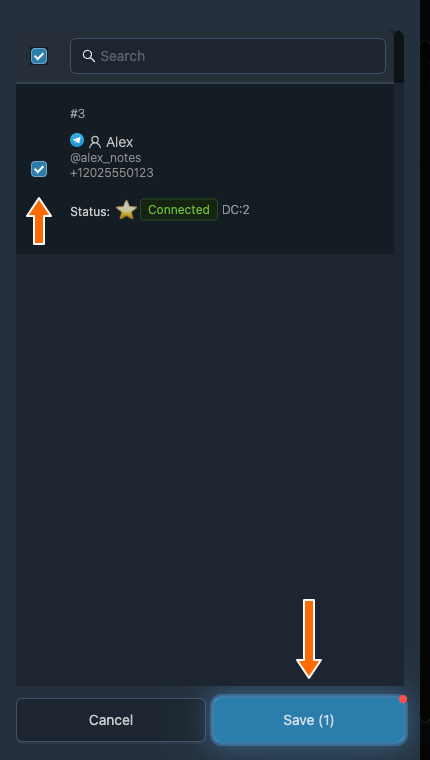
The account that will send matching messages. 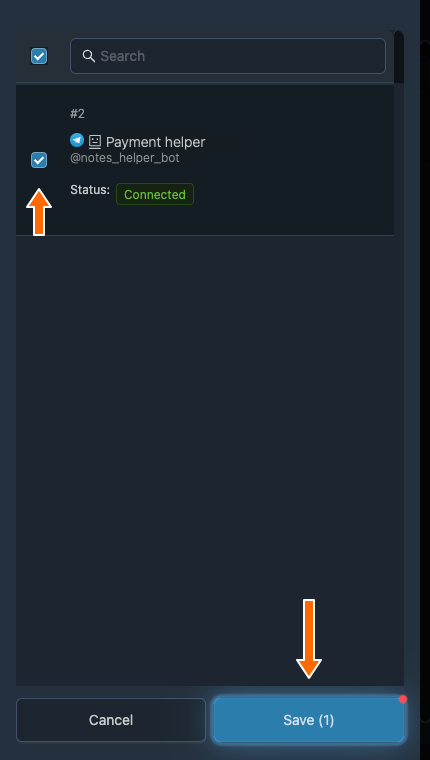
The second filter for the “Payment:” label and a different sender. Alex sends this request: “Delivery: order #1042 is delayed.” Payment helper sends: “Payment: an invoice is needed for order #1043.” The request “Return: order #1044 was unsuitable.” does not pass either sender filter and is not forwarded.
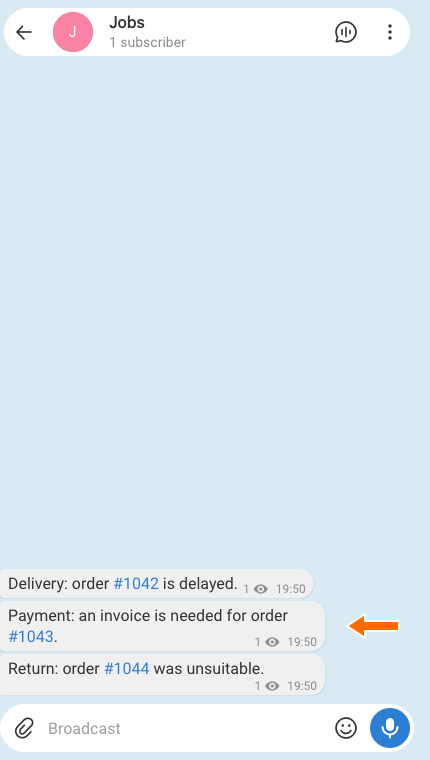
Example requests about delivery, payment, and a return. 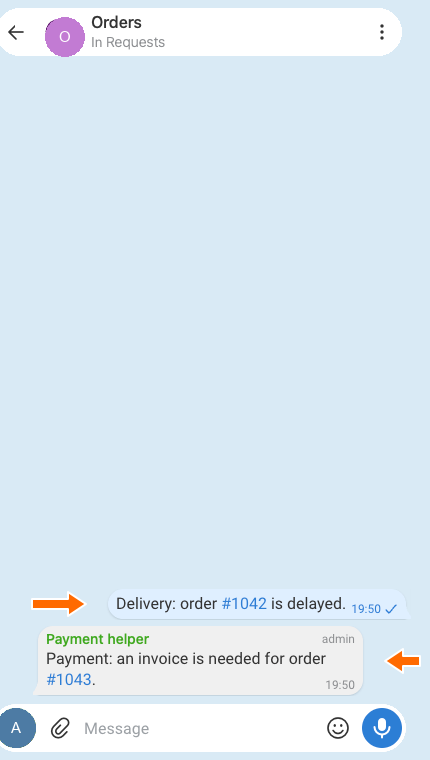
Two messages forwarded by the selected senders.
Available filter actions
The “Change” button with the pencil icon opens the filter's main settings. Other actions are available in the “More” menu:
- “Duplicate”: create a copy of the filter with the same settings.
- “Select project”: add the filter to a project.
- “Delete”: delete the filter.
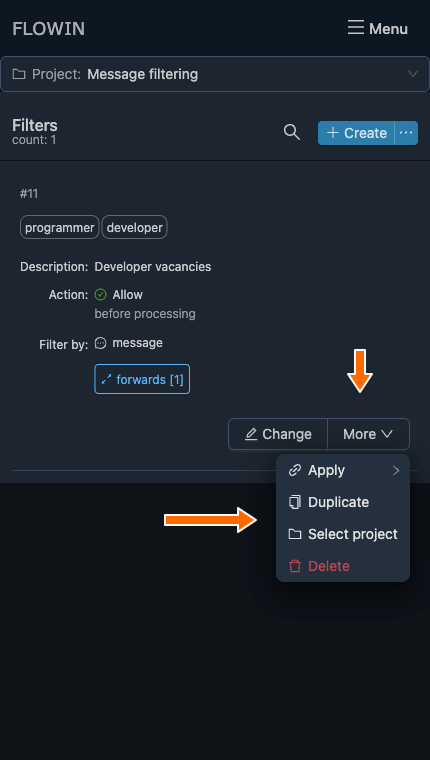
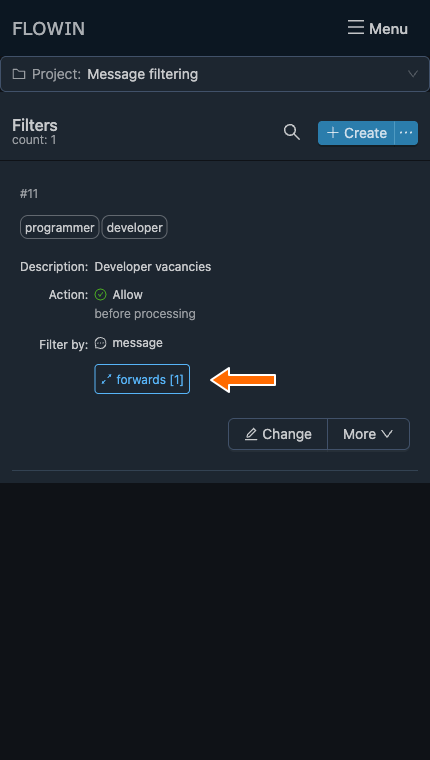
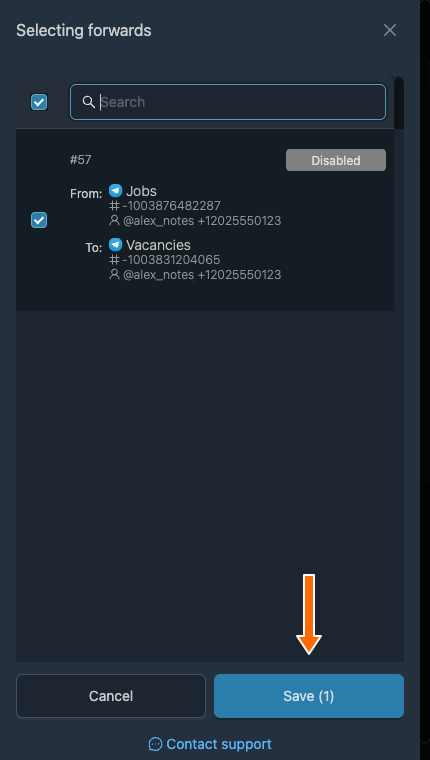
The “Forwards [number]” button shows the number of linked forwards. Click it to change the selection, then save it.
Frequently asked questions
How do I set up a word filter that matches any of the words?
Select “List” mode, enter the words in the “Search” field separated by commas or new lines, and select “Allow”. One match is enough. If you need two required conditions, create two allow filters and link both to the forward. This rule applies to message filters; account selection is covered separately in “Filtering senders”.
Why does a word filter match part of another word?
“Text” and “List” modes search for a sequence of characters, including within a longer word. For example, “cat” will match “cats”. Letter case is ignored. To search for a whole word only, use “Regexp” mode with word boundaries and test examples that should and should not pass the filter.
Can I select messages by keywords in another language?
Yes. Enter keywords in the language you need in the “Search” field. The filter checks messages from your forward's sources and searches for the exact text you specified. It does not automatically translate words or find synonyms: list the alternatives you need in “List” mode.
How do I select messages with photos or videos?
Select “Media” in the “Filter by” field, “List” mode, and the “Allow” action. In the “Search” field, enter photo for photos, video for videos, or photo, video for both. Keep in mind that the search also checks the file name and extension: a match in an attachment's name can also allow the message through. Words in the caption are checked using the “Message” criterion.
Can I check the text after translation or AI processing?
Yes. For the “Message” criterion, select “After processing”. The filter will check the result of translation and AI processing, but before replacements set to “After processing”. This option is also available for the “Buttons” and “Media price” criteria. All other criteria are checked before processing. The filter itself does not change the text.
How do I add a button only to matching messages?
Link a filter to the button being added. If a message does not pass this filter, the button will not be added, while the message itself can still be forwarded. If you link the filter to a forward instead, it will decide whether to send the entire message. A button's filter does not remove buttons that were already in the original message.