


Callback buttons in Telegram are buttons that send a request to a bot when clicked. The bot’s response appears in a pop-up window.
Along with the request, the bot receives information about who clicked the button. It can therefore respond differently to each user, for example by inserting their name into the response.
FLOWIN lets you automatically add callback buttons to forwarded messages, move part of the text into them, copy existing buttons, and collect click statistics.

What callback buttons are for
You can hide important message details in a callback button. For example, in an investment channel, you can leave the trade idea and stock name in the message and show the buy or sell price, stop-loss, and take-profit only after a click. If someone automatically copies only the message text, these conditions will not be included in the copy.
To get the complete signal, the reader needs to click the button. FLOWIN records the click, and the statistics show who opened the details and when. This helps identify people who automatically collect your content. The response itself can also be copied, so the button makes copying harder but does not prevent it.
Album limitation
Callback buttons cannot be added to a regular album containing several photos or videos.
Generating a callback button
In “Generating” mode, FLOWIN adds a new button to the forwarded message. You set its label and choose what to show when it is clicked: a predefined response or a passage from the message itself.
You will need an active forward in “Copy” mode. Select a bot connected using a token as the sender, because only bots can send messages with callback buttons.
For this example, we will use a stock signal for a fictional company. We will move the trade conditions from the “Details” line into a “More details” button:
Example investment signal
Vector shares. Idea: buy on a breakout above resistance.
Details: buy at ₽150; stop-loss ₽145; take-profit ₽165.
Open @flow_in_bot, send the
/startcommand, and click “Control panel”.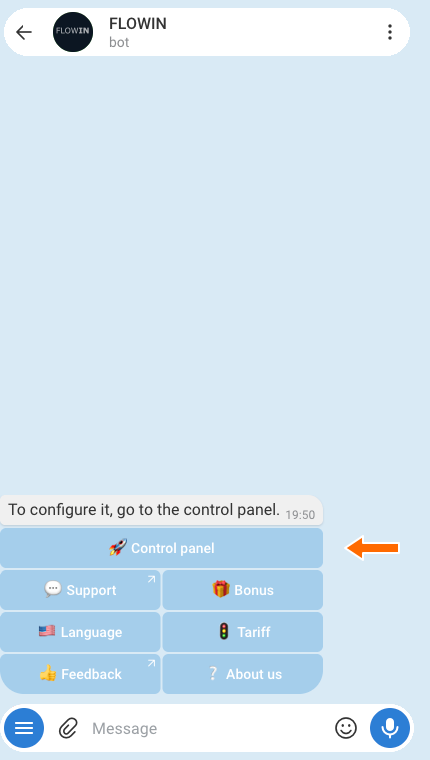

Accessing the control panel through @flow_in_bot. Open “Menu” → “Buttons” → “Cb buttons”. Click “Create” and select “Generating”.
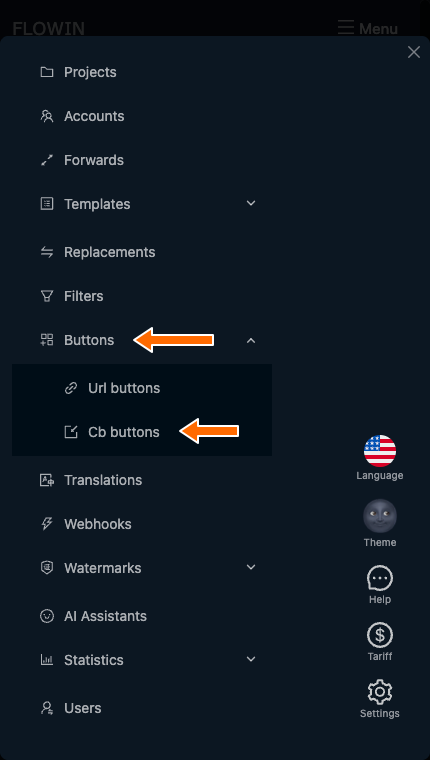
The “Cb buttons” section in the FLOWIN menu. 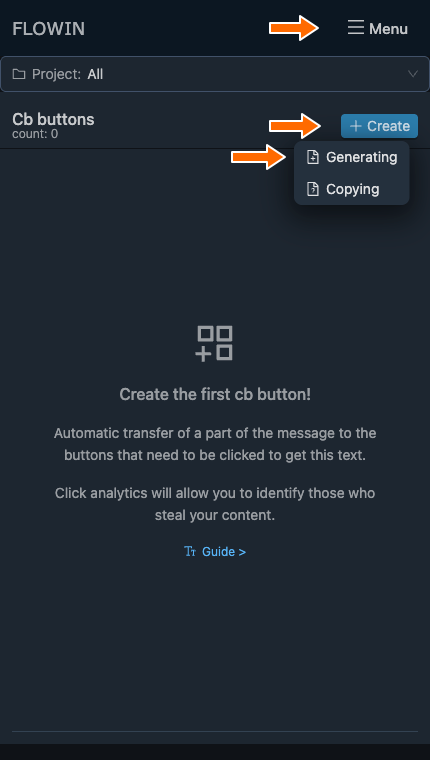
Creating a button in “Generating” mode. Enter “More details” in the “Label” field. In the “Content” field, paste
<regexp>(?<=Details: ).*$</regexp>. This pattern selects the text after “Details: ”. Click “Create”.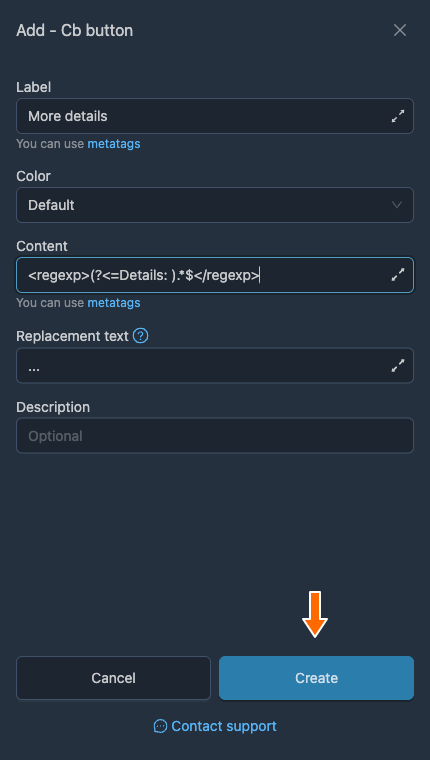
The button label and content pattern. Click “Apply” for the button you created. In the “Selecting forwards” window, select the forward you need and click “Save”.
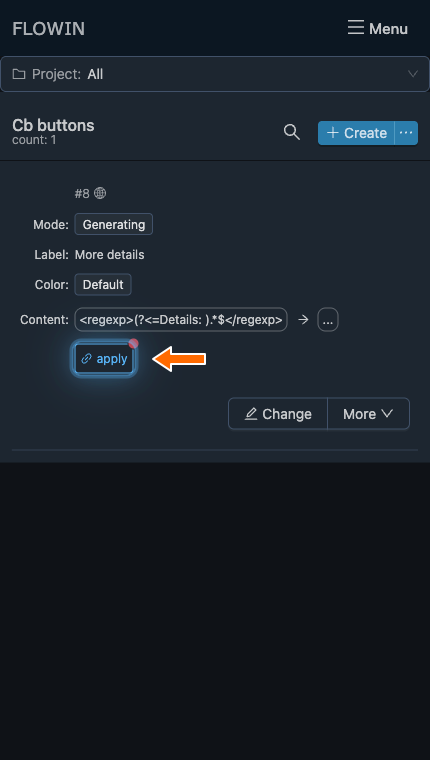
Applying the new button to a forward. 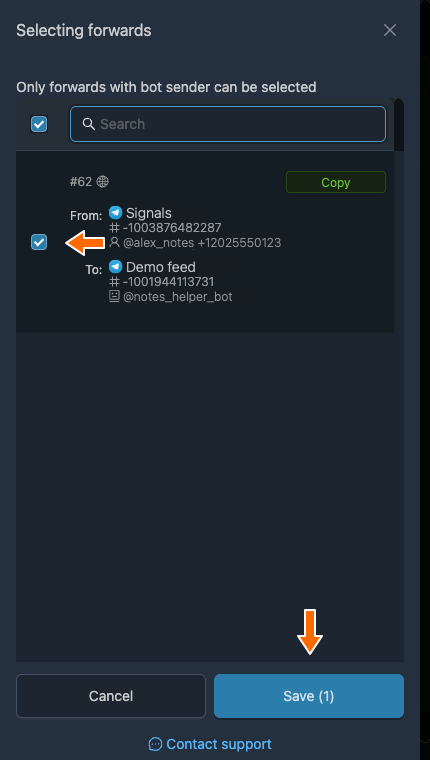
Selecting a forward with a bot as the sender. Send the example to the source chat. In the destination chat, an ellipsis will appear in place of the trade conditions. Click “More details” to see the buy price, stop-loss, and take-profit.
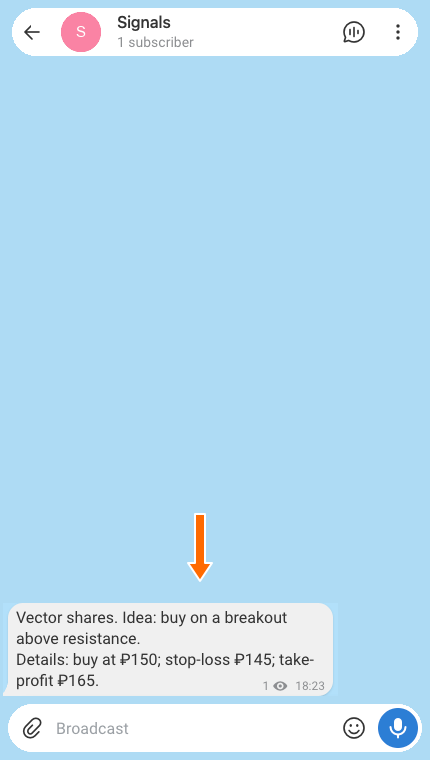
The original signal with the buy price, stop-loss, and take-profit. 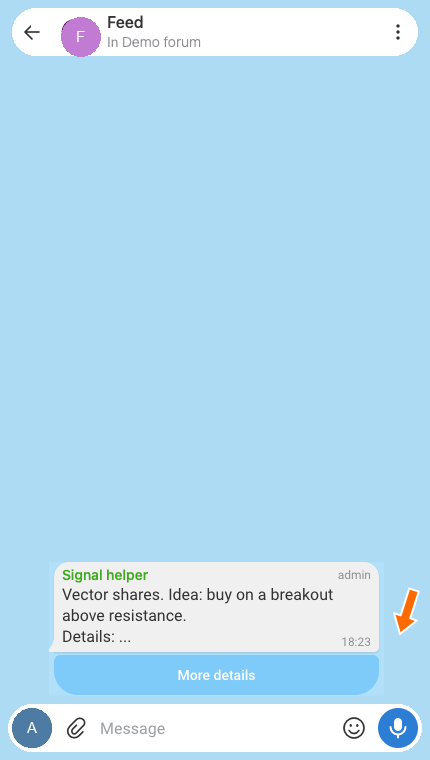
The trade conditions have been moved into the “More details” button. 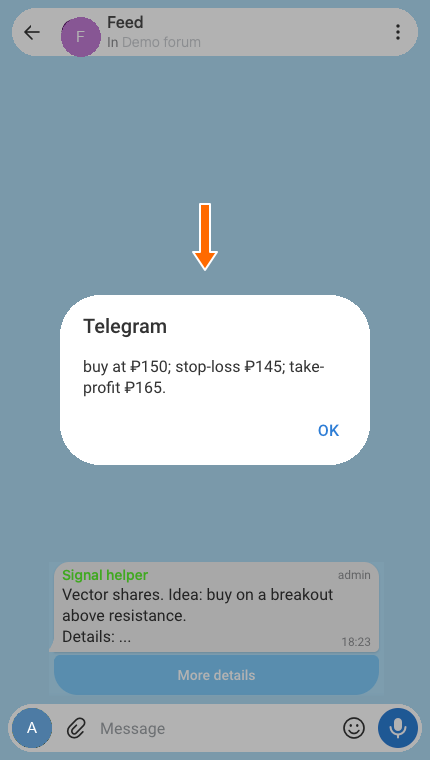
Clicking “More details” shows the text that was moved.
Copying existing callback buttons
Use “Copying” mode when the original message already has a callback button. FLOWIN reads its response and adds a button with the same label and text to the forwarded message.
Copying also requires a forward in “Copy” mode with a bot connected using a token as the sender. The listener, which is the account that reads messages in the source chat, clicks the original button. Make sure the button returns a text response to that account.
The response readers will see
FLOWIN saves the response that the original bot showed to the listener. In the copy, this text will be the same for all readers, even if the original button gave each person a different response. Other button actions and the conversation with the bot are not copied.
Open “Menu” → “Forwards” and click “Settings” for the forward you need.
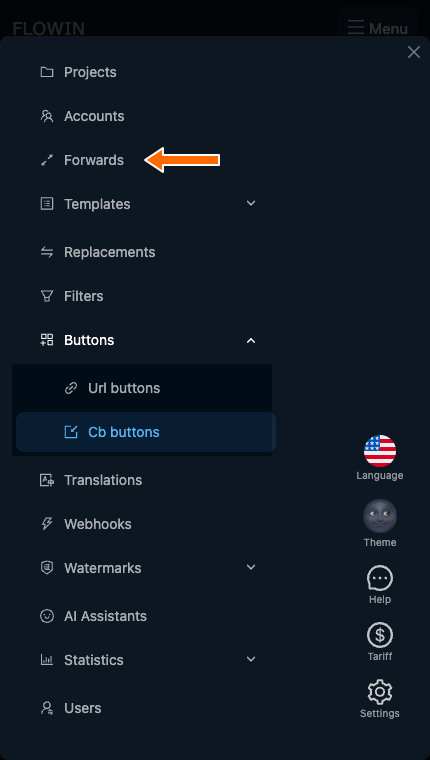
Opening the list of forwards. 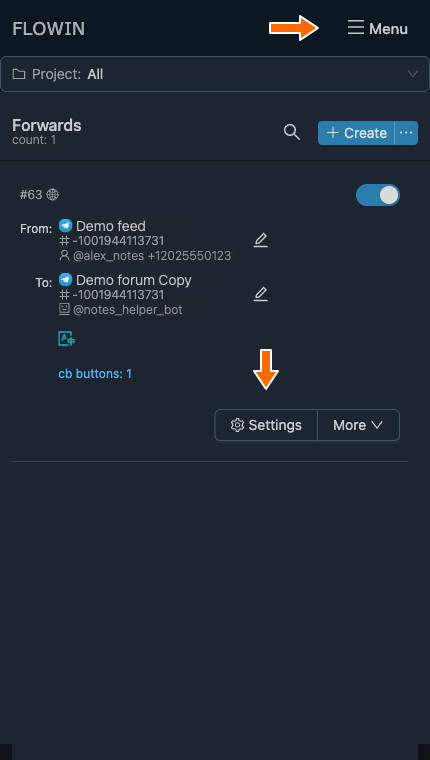
Opening the settings for the required forward. In the settings window, open the “Buttons” tab. Under “Buttons reading”, enable “Cb buttons” and click “Save”.
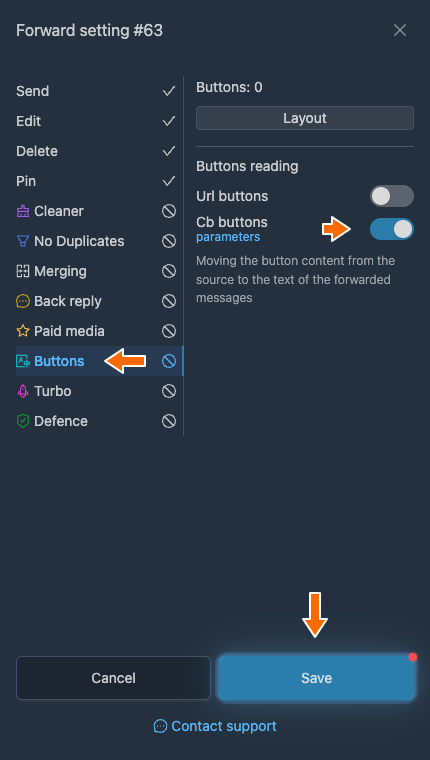
Reading callback buttons in the forward settings. Open “Menu” → “Buttons” → “Cb buttons”. Click “Create” and select “Copying”.
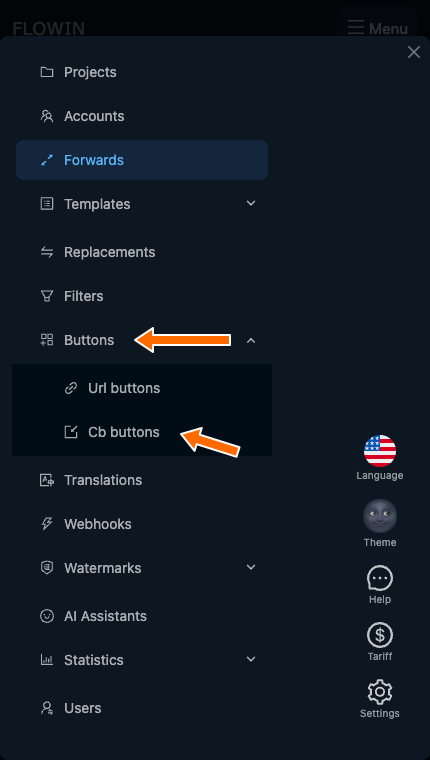
Opening callback buttons to set up copying. 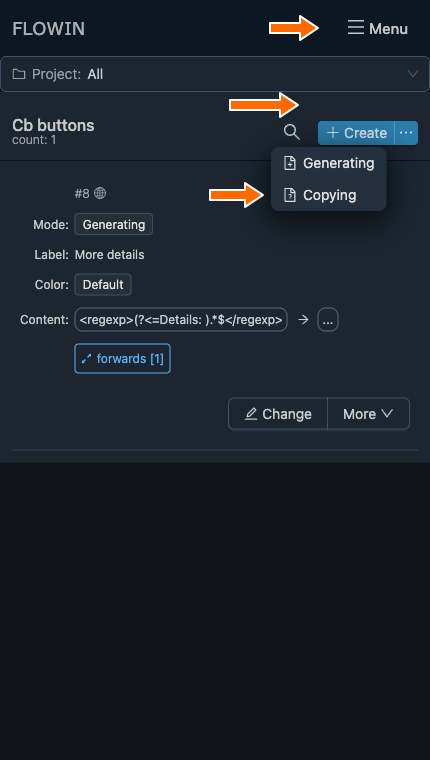
Setting up “Copying” in “Cb buttons”. Click “Create” in the window that opens.
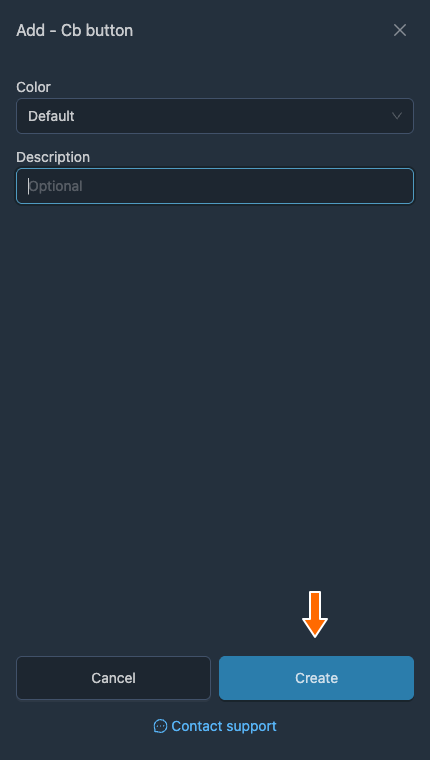
Creating a “Cb buttons” entry in “Copying” mode. Click “Apply” for the entry you created in “Cb buttons”. In the “Selecting forwards” window, select the forward with button reading enabled and click “Save”.
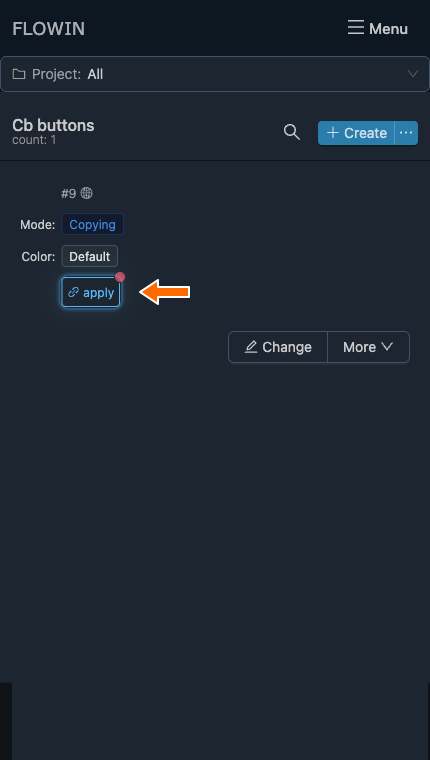
Applying copying to a forward. 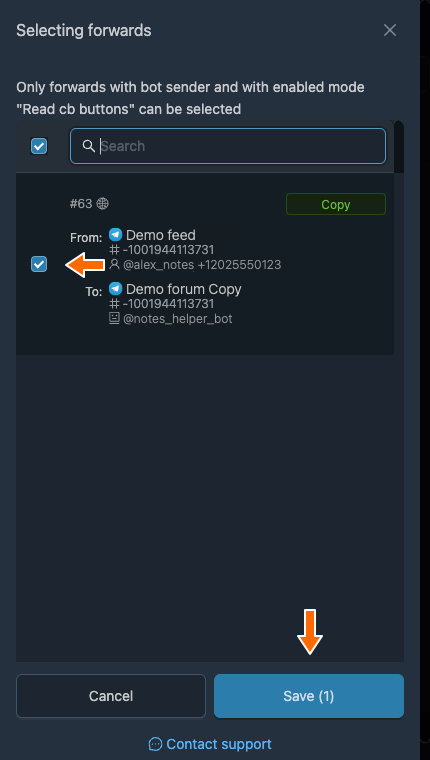
Selecting a forward with button reading enabled. Send a new signal with a button to the source chat. In the destination chat, open the copied button: its label and trade conditions should match the original.
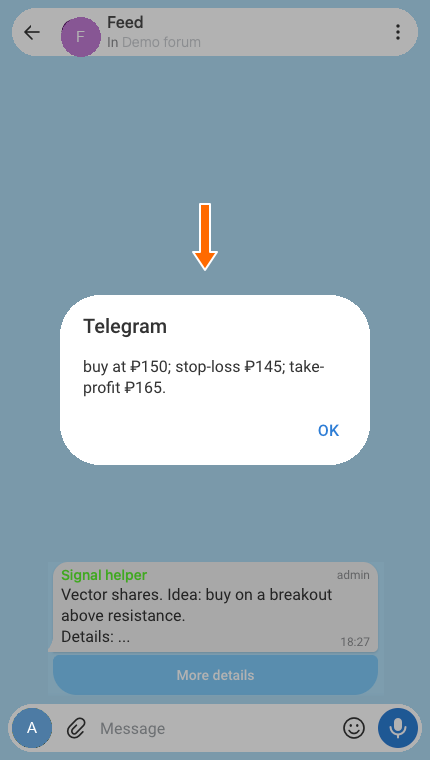
The original button and its text response. 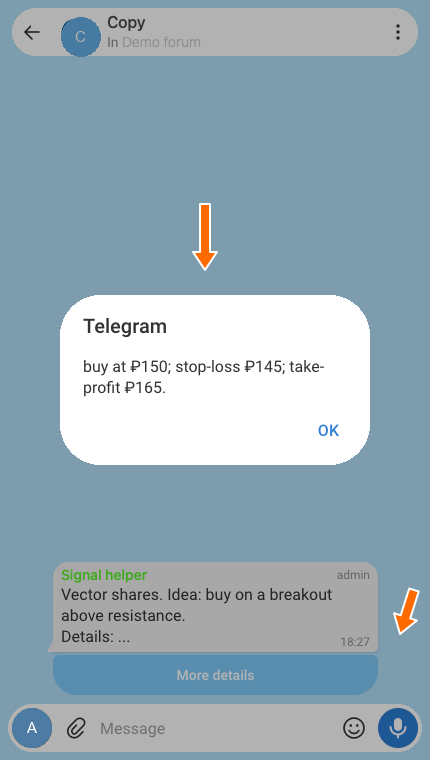
The copied button shows the same response.
How to change a callback button
To change a button you have already created, open the “Cb buttons” list.
Click “Change” for the button you need.
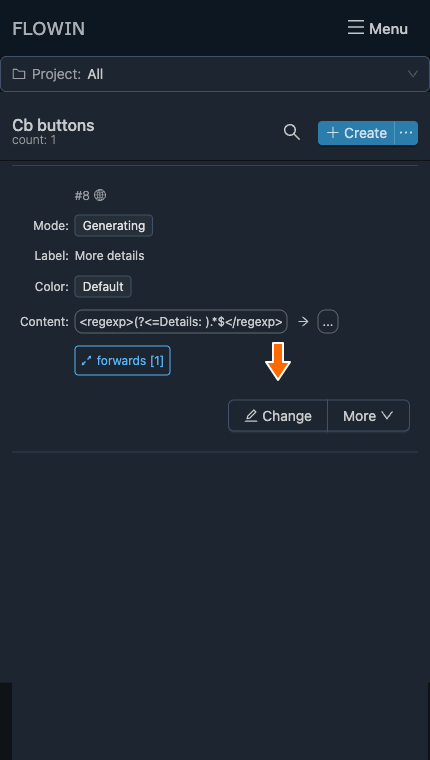
Opening the button’s main settings. Change the fields you need and click “Save”. Check the updated information in the list.
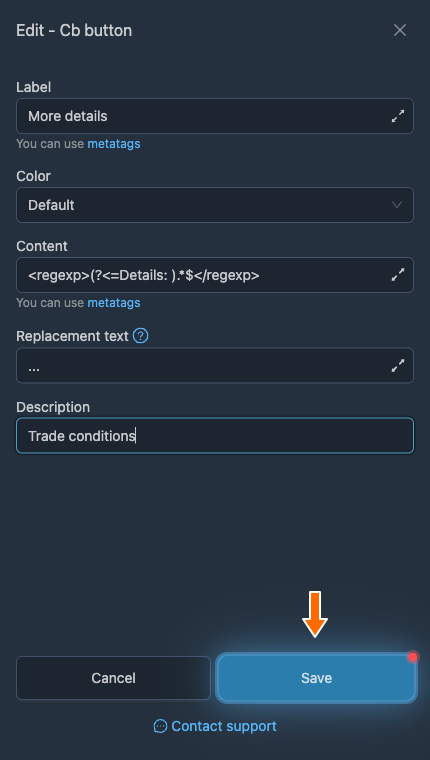
Saving the updated description. 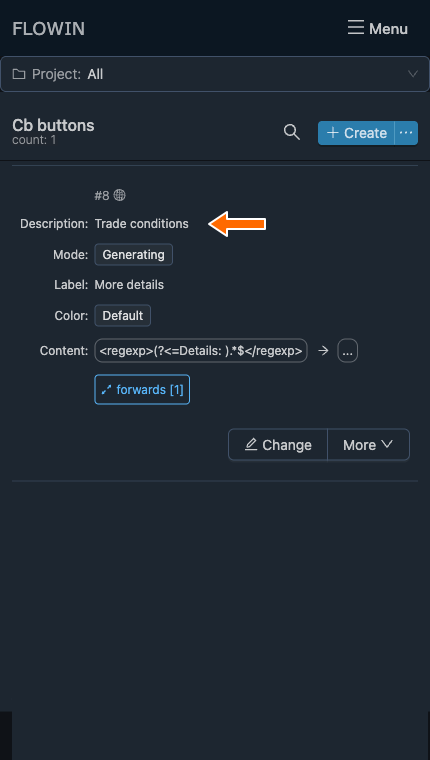
The new description in the button list.
Callback button settings
All five fields described below are available in “Generating” mode. In “Copying” mode, you can change only “Color” and “Description”, because the label and content come from the original button.
Label
Enter the text that will appear on the button, for example “More details”. This field is required.
You can use meta tags to insert message data. For example, <src-chat-name> inserts the name of the source chat.
Color
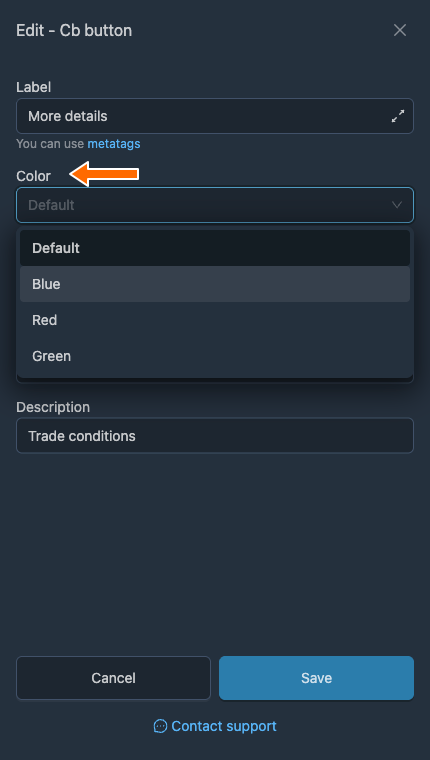
Choose one of four options: “Default”, “Blue”, “Red”, or “Green”. With “Default”, a new button gets Telegram’s standard color, while a copied button keeps its original color.
Content
This field sets the response the reader will see after clicking the button. You must fill it in: enter a predefined response or a pattern to find a passage in the message.
To move part of the message into a button, enclose the search pattern in <regexp>…</regexp>. The default pattern is <regexp>\s.{20,180}$</regexp>: it selects the last 20 to 180 characters of the message after a space or line break. If the response is empty, FLOWIN will not add the button.
If you enter a plain-text response without <regexp>, the message content stays unchanged. You can add the meta tags <clicker-name> and <clicker-id> to the response. FLOWIN replaces them with the name and Telegram ID of the person who clicked the button. For example, Hello, <clicker-name>! becomes a greeting with the reader’s name.
Replacement text
This text appears in the message in place of the passage moved into the button. By default, it is replaced with an ellipsis .... If you leave the field empty, the passage is removed without a replacement. This setting does not change the message if “Content” contains a predefined response without a search pattern.
Description
You can leave a note here about what the button is configured for. The field can be left empty: it does not affect how the button works.
How to select messages for a button
To add a button only to certain messages, attach a filter to it, for example for the word “shares”. Messages without this word will still be forwarded, but without the button. If you attach that filter to the forward itself, messages without the word “shares” will not be sent. The setup is described in the filtering guide.
Other button actions
Each entry in the “Cb buttons” list has a “More” menu next to it. It offers the following actions:
- “Apply” opens the selection of forwards where the button will be used.
- “Duplicate” creates a copy of the entry and its settings.
- “Select project” adds the button to a project.
- “Delete” removes the entry from the “Cb buttons” list.
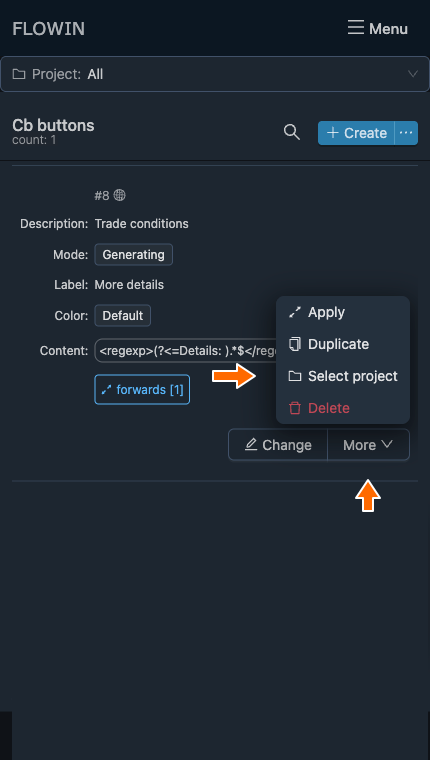
You can view the forwards already selected through “Forwards [1]”. The number in brackets shows how many there are. In this window, you can add forwards or remove those that no longer need the button.
How to view click statistics
Analytics shows who clicks your buttons and how soon they open them after publication. Statistics are collected for the destination chat and include buttons from all forwards to that chat.
Open “Forwards” in the control panel menu. For the forward you need, click “cb buttons”, which shows the number of entries from “Cb buttons” applied to this forward.
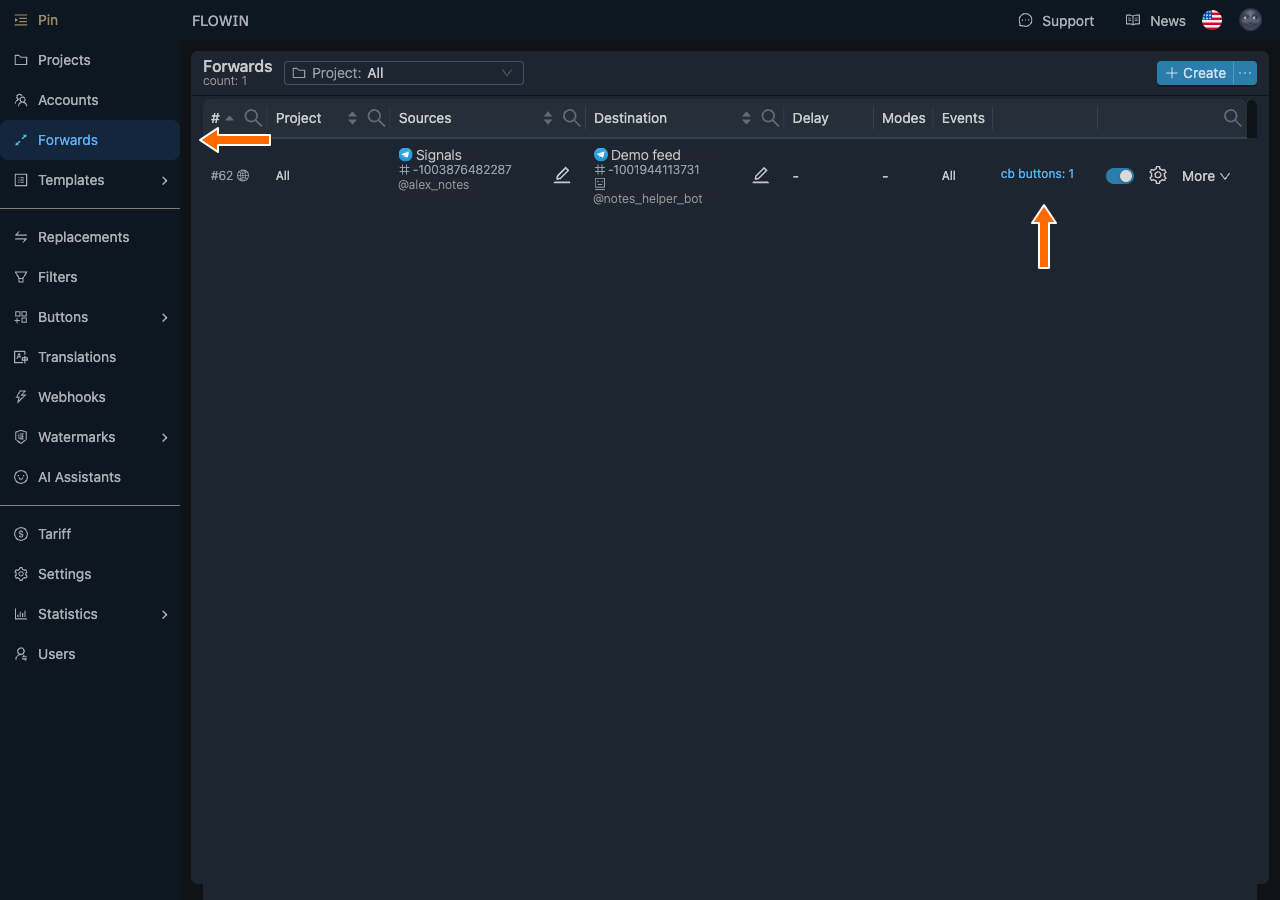

Opening click statistics from a forward. In the “Last 10 buttons” list, select 10, 20, or 30. Statistics will appear for each user: their name, Telegram ID, and clicks.
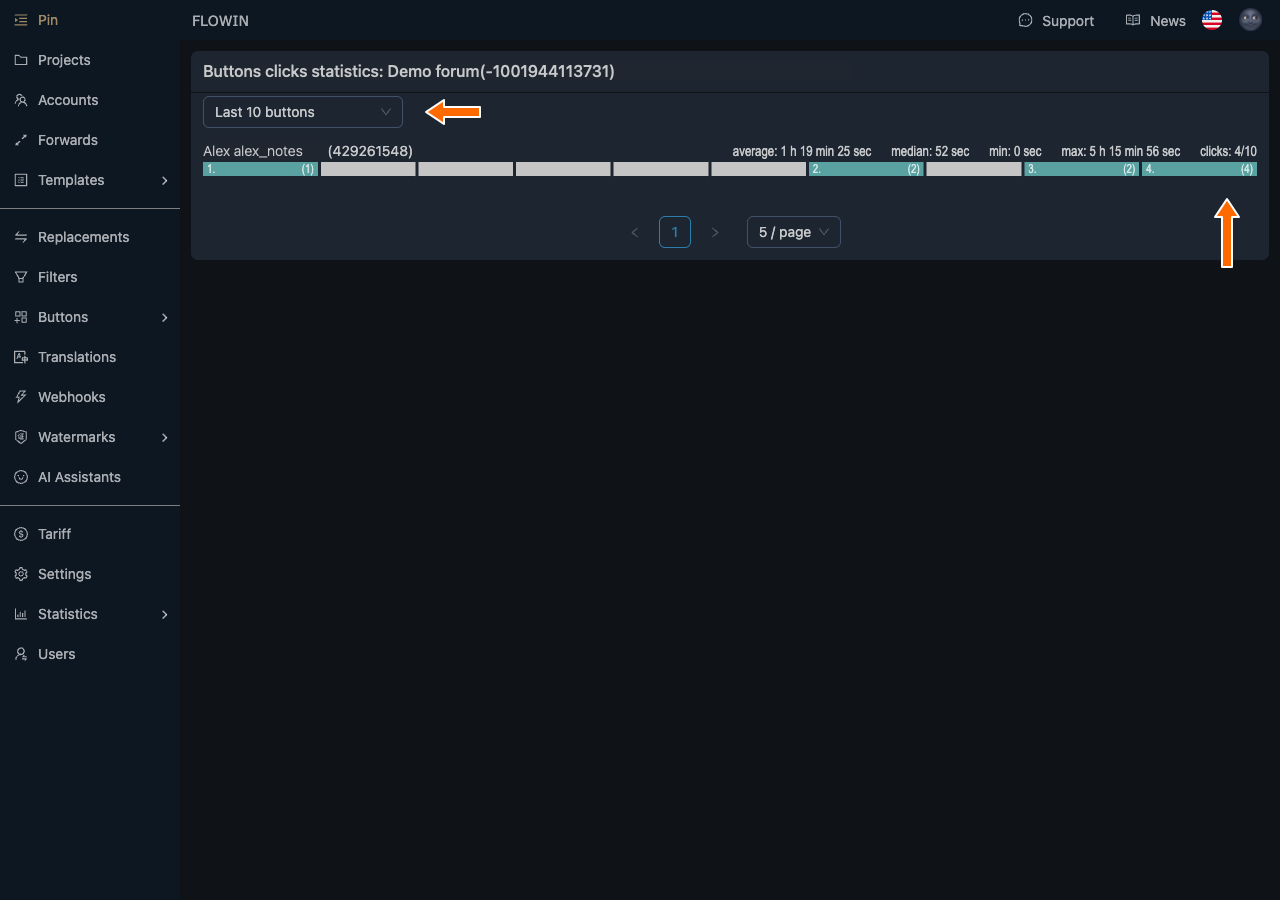
User clicks and the time before the first click.
How to read the metrics:
- The “clicks” column shows how many different buttons the user has clicked. For example, 3/5 means they clicked 3 out of 5 buttons. Repeated clicks do not increase this number.
- “average” and “median” show how much time typically passes before the first click. The median is less affected by individual clicks with a long delay.
- “min” and “max” show the shortest and longest delay before the first click.
- In the row of buttons, color highlights those the user has clicked. The number shows the order of the first click, and the number in brackets shows how many times they clicked that button.
If one user opens almost every new signal after the same short delay, they may be collecting them automatically. Compare the timing of their clicks with the appearance of your signals in another channel. Fast clicks alone do not prove copying.
Frequently asked questions
What is the difference between an inline button and a callback button?
Inline buttons appear below a message in Telegram. Clicking one can, for example, open a link or send a request to a bot. A callback button is the second type: in FLOWIN, it shows a text response. If you need to open a website or channel, use a URL button.
How does a predefined response differ from moving part of a post into a button?
Predefined text in the “Content” field sets the button’s response and does not change the post itself. A pattern inside <regexp>…</regexp> tags takes a passage from the message and moves it into the response. That passage is replaced with the value of the “Replacement text” field, which is an ellipsis by default. Both options are configured in the content settings.
Will a copied button keep the original bot’s personalized responses?
No. FLOWIN saves the text that the original bot showed to the listener, which is the account reading the source chat. Everyone reading the copy will see that saved response, even if the original bot gave each person a different response. The conversation with the bot and other button actions are not copied.
Why was the button not added when the pattern did not find the required passage?
If the response is empty or contains only spaces after the “Content” field is processed, FLOWIN does not create a button. This happens when the field contains only a pattern and there is no matching passage in the message. Check the pattern against the text you are forwarding. Also bear in mind the limitation: callback buttons cannot be added to regular albums containing several photos or videos.
Does clicking again increase the “clicks” count?
No. The “clicks” column counts the different buttons the user has clicked. For example, 3/5 means three out of five buttons, even if one of them was clicked several times. Repeated clicks are shown separately: the number in brackets for each button shows how many times it was clicked. Read more about the metrics in the statistics section.
Can fast clicks prove automatic copying?
No. The same short delay before each click may be a reason to check where your content appears, but it does not prove anything on its own. Compare the clicks with the appearance of your material in another channel. The button makes it harder to copy just the post’s text, but its response can also be copied.