


FLOWIN lets you set up automatic translation of all forwarded messages in Telegram into other languages. You can choose “Google Translator” or “Yandex Translator” as the translation service.

Translation options for other languages
You can add the translation at the beginning, at the end, or in place of the original text. You can also set exceptions for words or phrases that the translation service will ignore. The service can preserve text styles and formatting during translation.
Channels in different languages
You do not need a separate translation bot to automatically translate forwarded messages in FLOWIN. This makes it easier to run copies of channels in many languages for different countries at the same time.
Creating an automatic translation
Setting up automatic translation of messages and posts in Telegram is straightforward. Before creating a translation, make sure you already have forwarding set up.
Copy mode
Translation applies only to forwards in “Copy” mode. In “Repost” mode, the message text cannot be changed.
In this example, we translate news from Russian into English:
Open @flow_in_bot, send the
/startcommand, and click “Control panel”.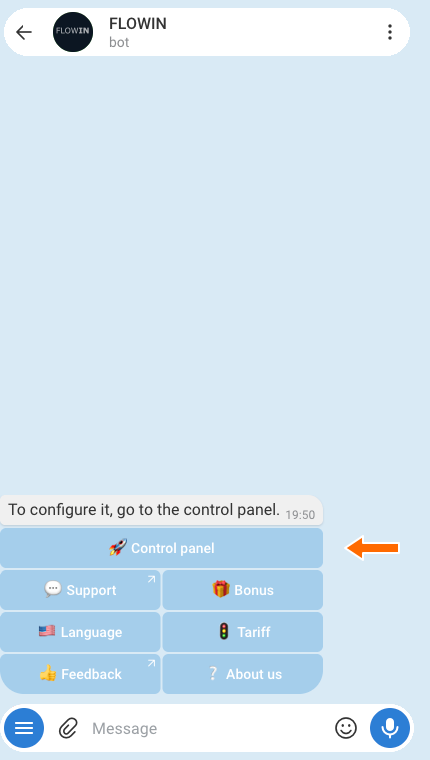

Accessing the control panel through @flow_in_bot. In the control panel, open “Menu” → “Translations” and click “Create”.
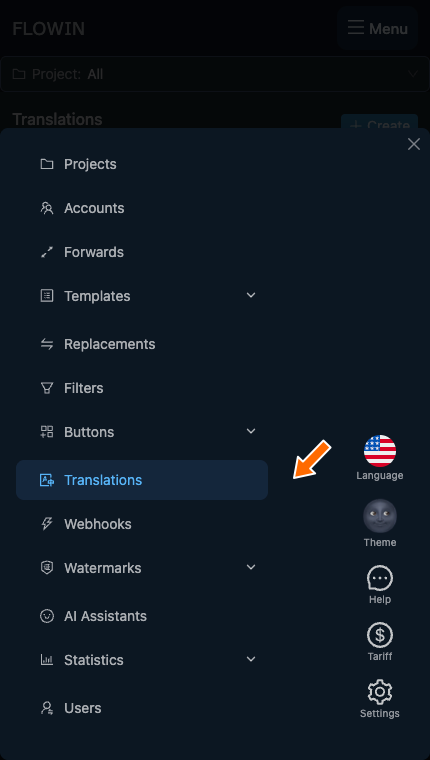
The “Translations” section in the menu. 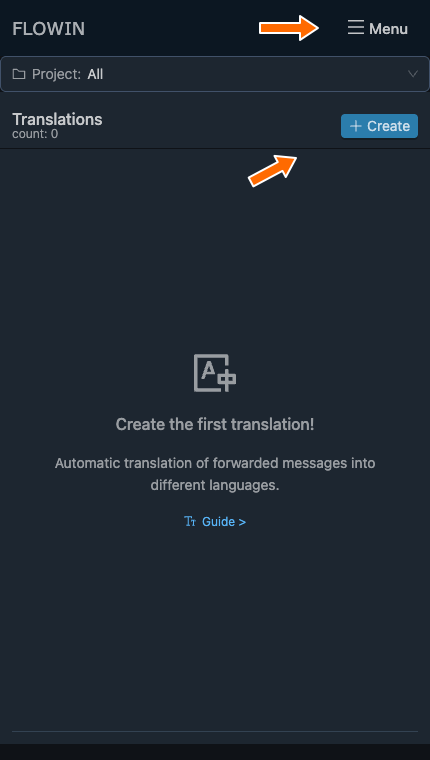
Creating the first translation. In the window that opens, choose the source language on the left and the target language on the right. For our example, select “Russian” → “English”. Click “Create”.
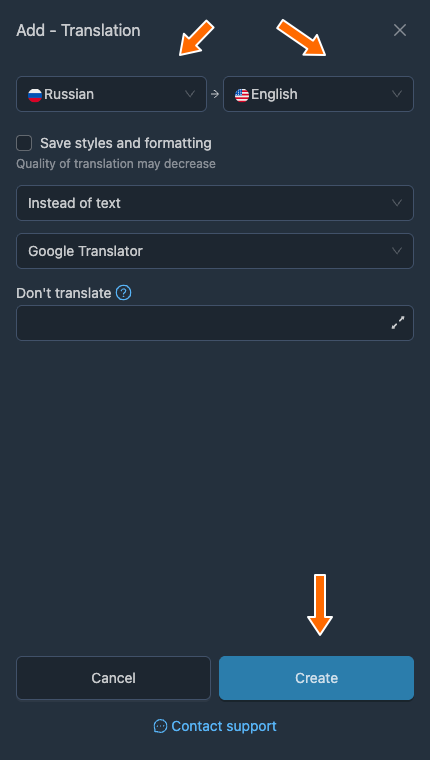
The source language on the left and the target language on the right. Click “Apply” next to the translation you created. In the “Selecting forwards” window, select the forward you need and click “Save”. The number in parentheses on the button shows how many forwards are selected.
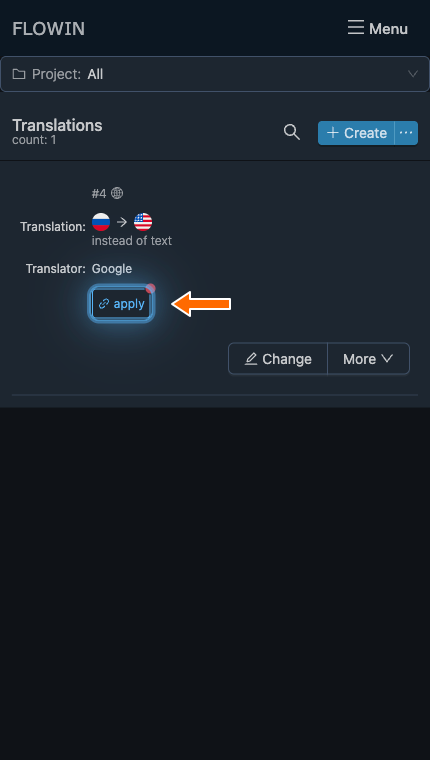
Applying the new translation. 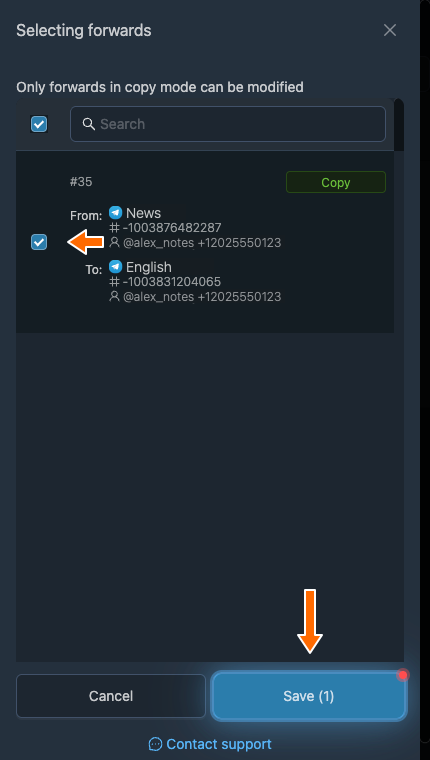
Selecting a forward and saving. The list will show the translation settings and a “Forwards [1]” button. If the forward is disabled, enable it on the “Forwards” page. Send a new message to the source and check the destination: the Russian text should appear in English.
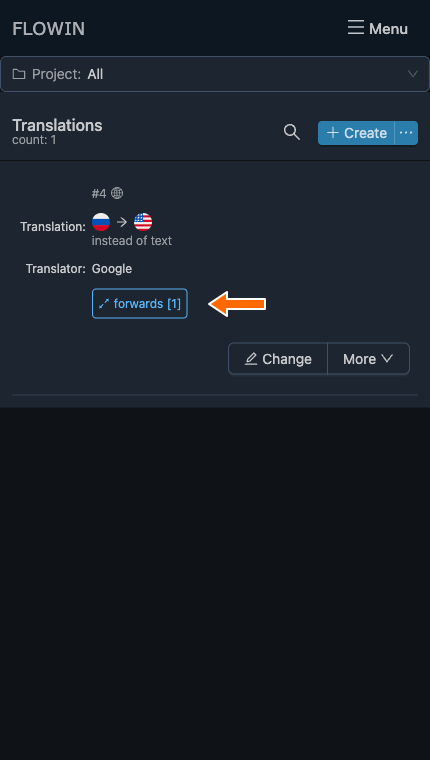
The translation is linked to one forward. 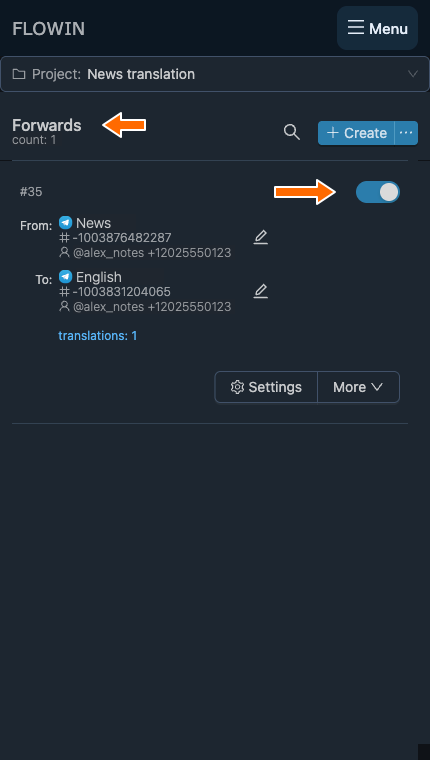
An enabled forward in Copy mode. 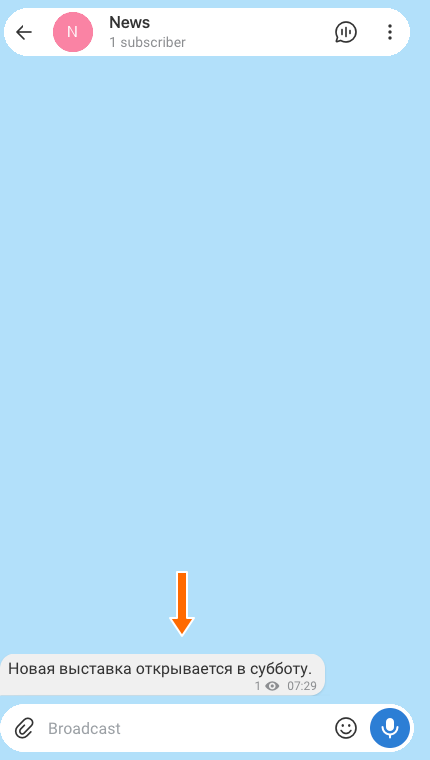
The original message in Russian. 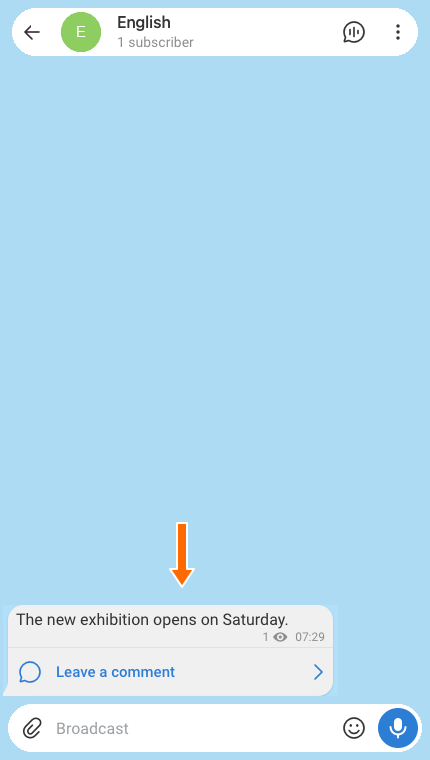
The translation into English.
FLOWIN will now automatically translate all messages and posts in the selected forwards.
Translation settings
Let’s look at the settings and features using the translation we created.
How to change and save a translation
Click “Change” next to the translation you want to edit. A window will open with all its settings.
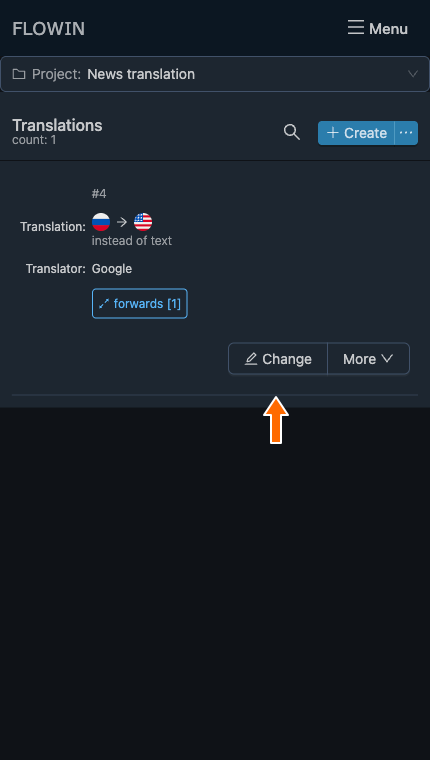
The button for changing a translation. 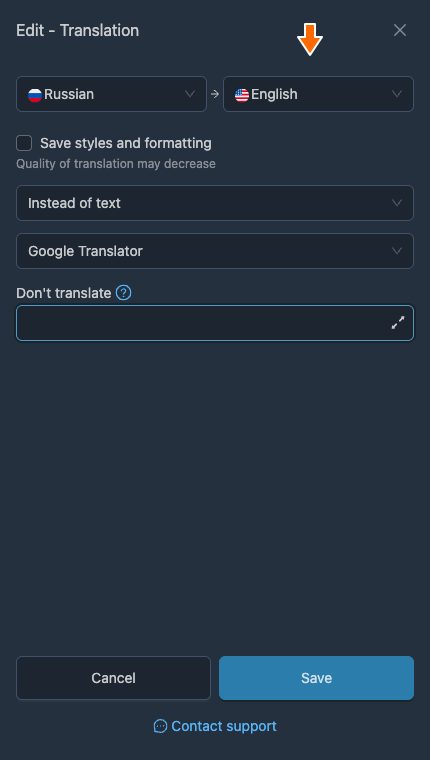
Settings for an existing translation. Change the settings you need and click “Save” at the bottom of the window. Once the window closes, check the new value in the translation row. For example, selecting “After the text” will make that position appear in the list.
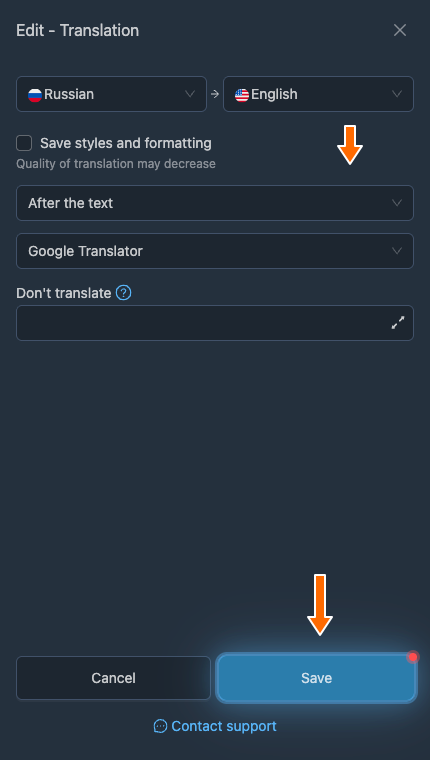
Saving the selected position. 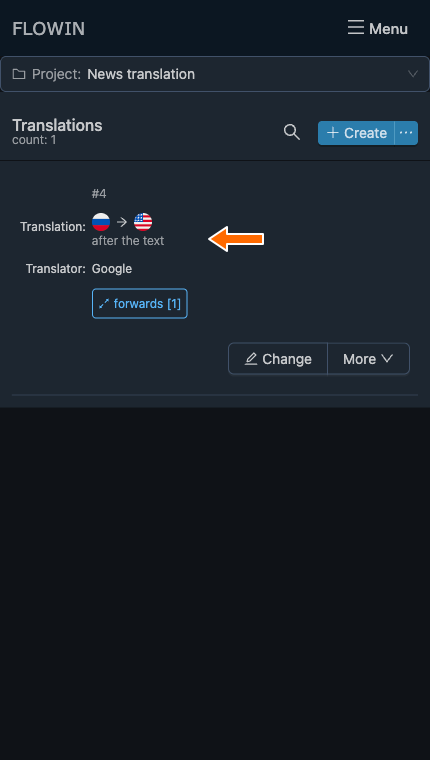
The new position in the translation list.
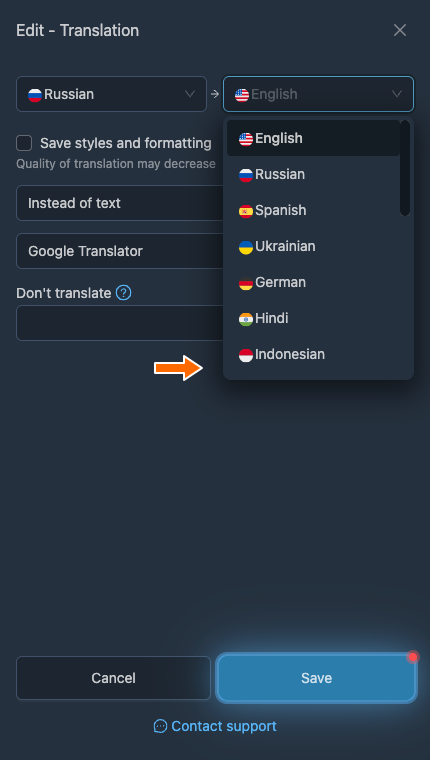
Languages
Lists for selecting the source language and the language to translate into.
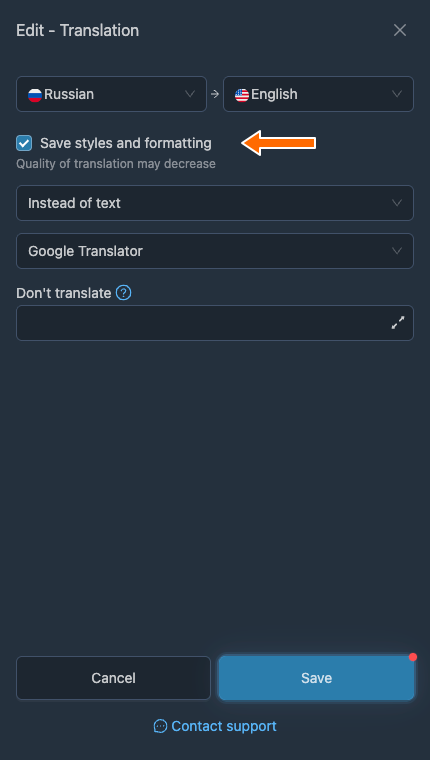
Save styles and formatting
With this option enabled, the service tries to preserve the original text’s styles and formatting. Translation quality may decrease slightly.
Tip
If formatting matters, check the translation of a message with the emphasis you need. For Google, this option is unavailable when translating into Kazakh or Uzbek.
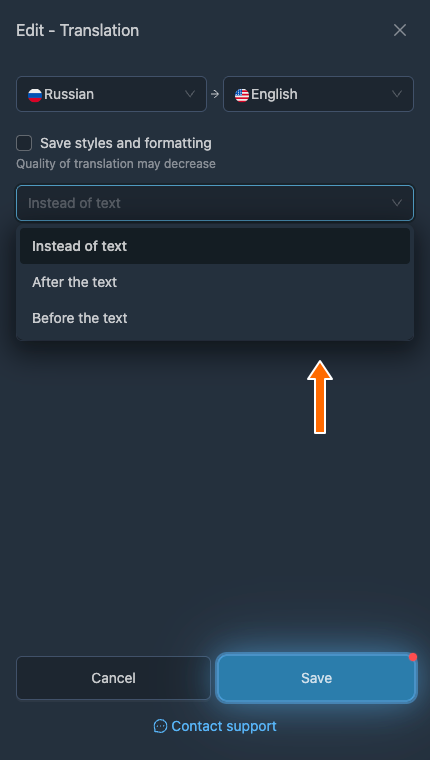
Translation position
The position of the translation relative to the original text: “Instead of text”, “After the text”, or “Before the text”.
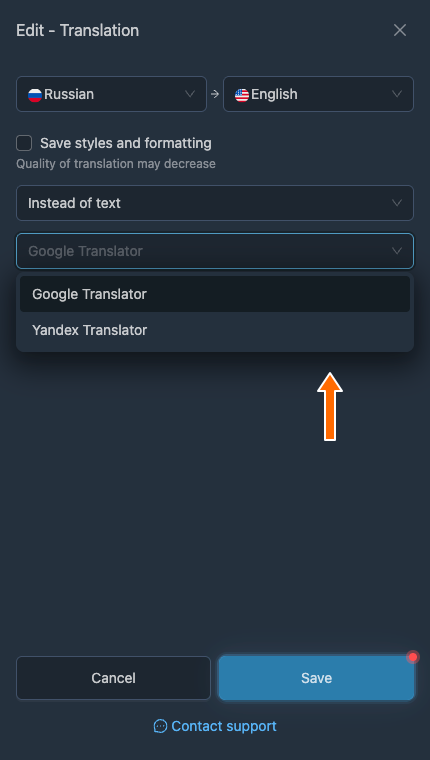
Translation service
Choose a translation service: “Google Translator” or “Yandex Translator”.
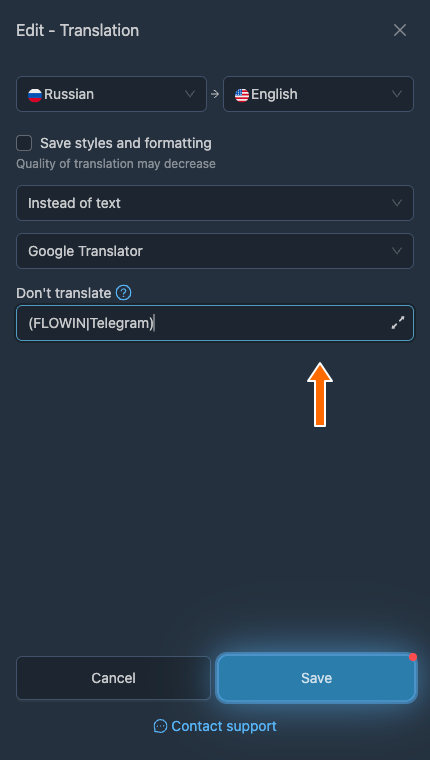
Don't translate
A field for a regular expression that specifies words or phrases that do not need to be translated.
For example, the expression (FLOWIN|Telegram) preserves these names. For more on writing expressions, see the article on regular expressions.
Available actions for translations
Each translation has a “Change” button for editing its main settings. The “More” button opens an actions menu:
- “Apply”: select the forwards that need translation.
- “Duplicate”: copy the translation settings.
- “Select project”: add the translation to a project.
- “Delete” deletes the translation settings.
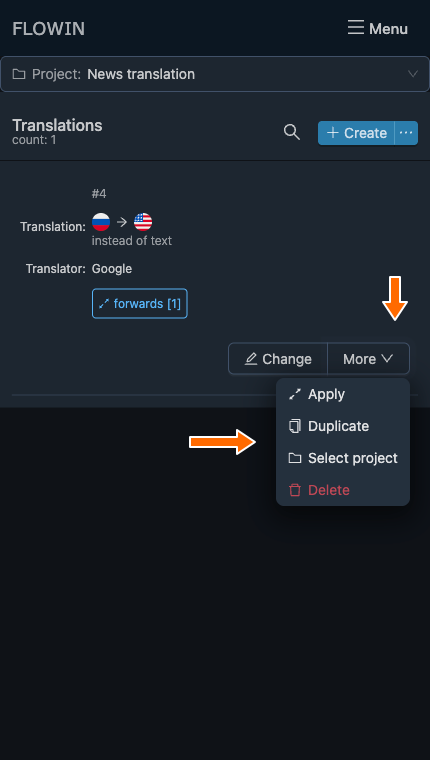
The “Apply” button also appears in the row of a translation that is not linked to any forwards. Once it is linked, the button changes to “Forwards [N]”, where N is the number of forwards. Both buttons open forward selection.
Frequently asked questions
How is this different from the “Translate” button in Telegram?
The button in Telegram helps you read a message in another language in your own app. FLOWIN translates the text when forwarding it and sends the result to the selected chat or channel. This method is useful when you need to publish a translation for readers, rather than just read it yourself.
Do I need a separate translation bot for a Telegram channel?
No. To translate forwarded messages, just create a translation in FLOWIN and apply it to the forward you need. Forwarding itself must already be set up: the account connected to FLOWIN reads the source and sends messages to the destination. A separate bot to translate the text is not required.
Can I keep the original alongside the translation?
Yes. In the translation settings, choose “After the text” or “Before the text”. The message will contain both the original and the translation. “Instead of text” keeps only the translation. All three options are shown in the “Translation position” section.
How can I keep a company name from being translated?
Enter it in the “Don't translate” field using a regular expression. For example, (FLOWIN|Telegram) preserves both names. Without additional flags, matching is case-sensitive: this expression does not cover the spelling flowin. Test the exception with a message that uses the spelling found in the source.
Will bold text and other formatting be preserved?
To preserve formatting, enable “Save styles and formatting”. The result depends on the translation service, so test a message with the emphasis you need. For Google, this option is unavailable when translating into Kazakh or Uzbek. Exact preservation of all formatting is not guaranteed.
Will text inside a photo be translated?
No. Translation processes the message text, including a photo caption, but does not recognize or replace text within the image itself. If a photo has no text caption, there is nothing for this setting to translate.
Why are messages being forwarded without translation?
Creating a translation does not automatically link it to a forward. Check the translation’s link to the forward and the forwarding mode: it must be “Copy”. If a filter is linked to the translation, the message must meet its conditions. After saving, test a new text message in the source; a photo without a caption is not suitable for this check.