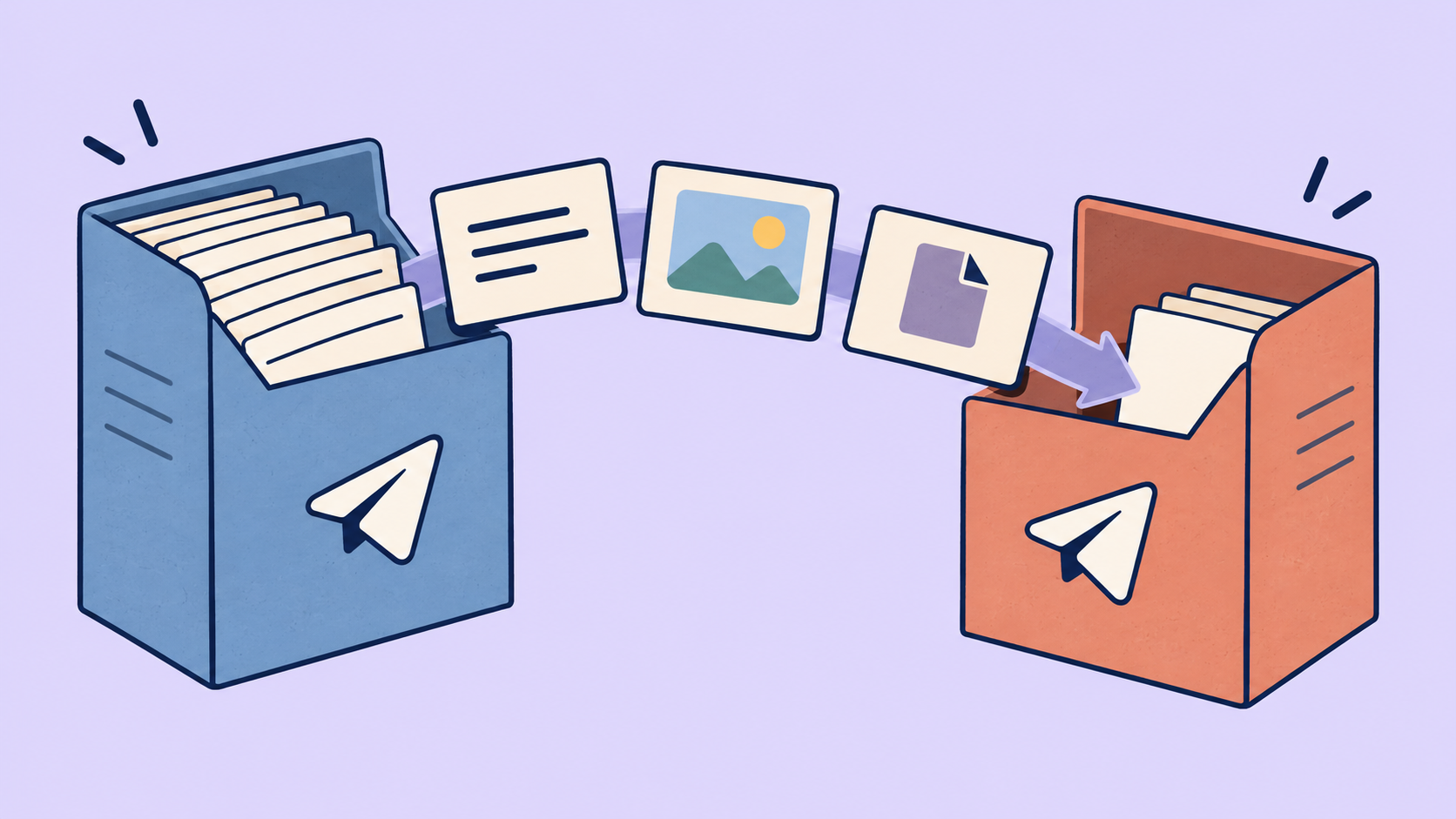
FLOWIN lets you copy posts from one Telegram channel to another, including photos, videos and files. This is useful when moving to a new channel or keeping a copy of an archive. The original messages stay where they are.
How channel copying works
To copy posts, you create a forward: select the source channel and the channel that will receive the copies. Once created, the forward is active and processes new posts in real time as they are published in the source.
Old messages
Posts that have already been published are not copied automatically. To copy them, you need to start history forwarding separately and select a period. Once it finishes, the forward will continue to process new posts.
In “Copy” mode, posts are published on behalf of the sender, while “Repost” mode retains attribution to the original author. Subscribers, the channel address and its settings are not copied.
What you need before forwarding
To forward old messages, you need an account connected to FLOWIN by phone number that has access to messages in the source channel. The channel can be private if the account is already a member. The destination channel must already exist, and the account that will send the copies must have permission to post there.
Before copying the entire archive
Test copying over a short period first: the posts should arrive in the correct channel with their text and attachments. This lets you spot an incorrect destination or a settings error before copying the entire archive.
How to forward all messages to another channel
In this example, we copy posts from the “City Events” channel to “Events Archive”. First, we will create a forward, then start forwarding old messages.
Open @flow_in_bot, send the
/startcommand, and click “Control panel”.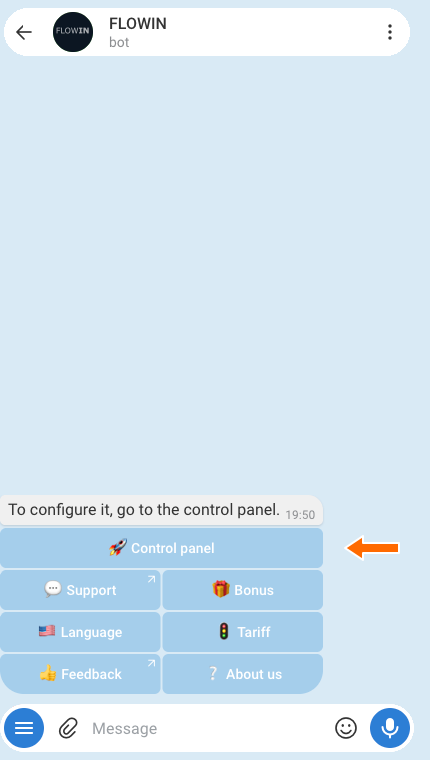

Accessing the control panel through @flow_in_bot. In the control panel, open “Menu” → “Forwards” and click “Create”.
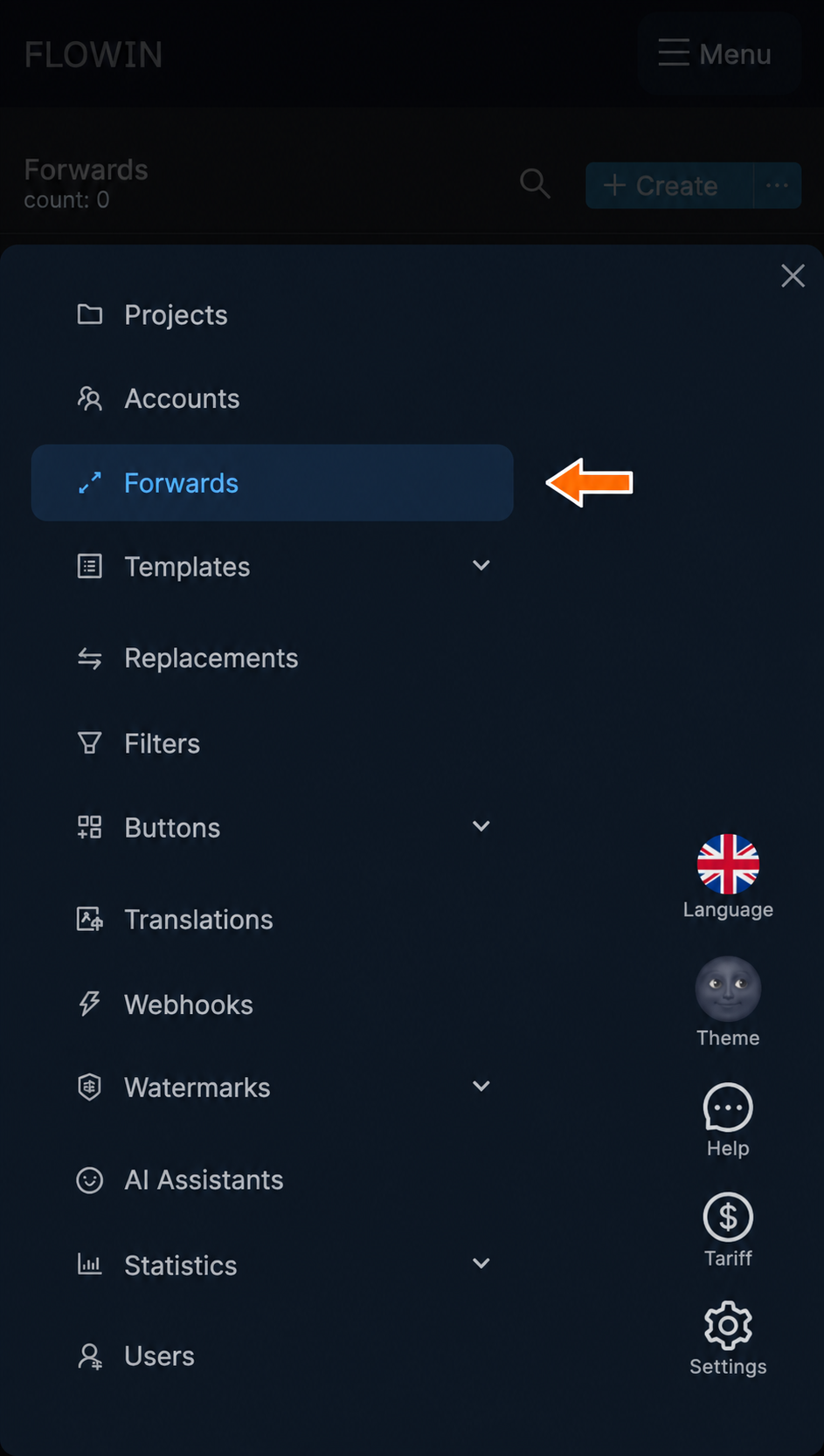

The “Forwards” section. 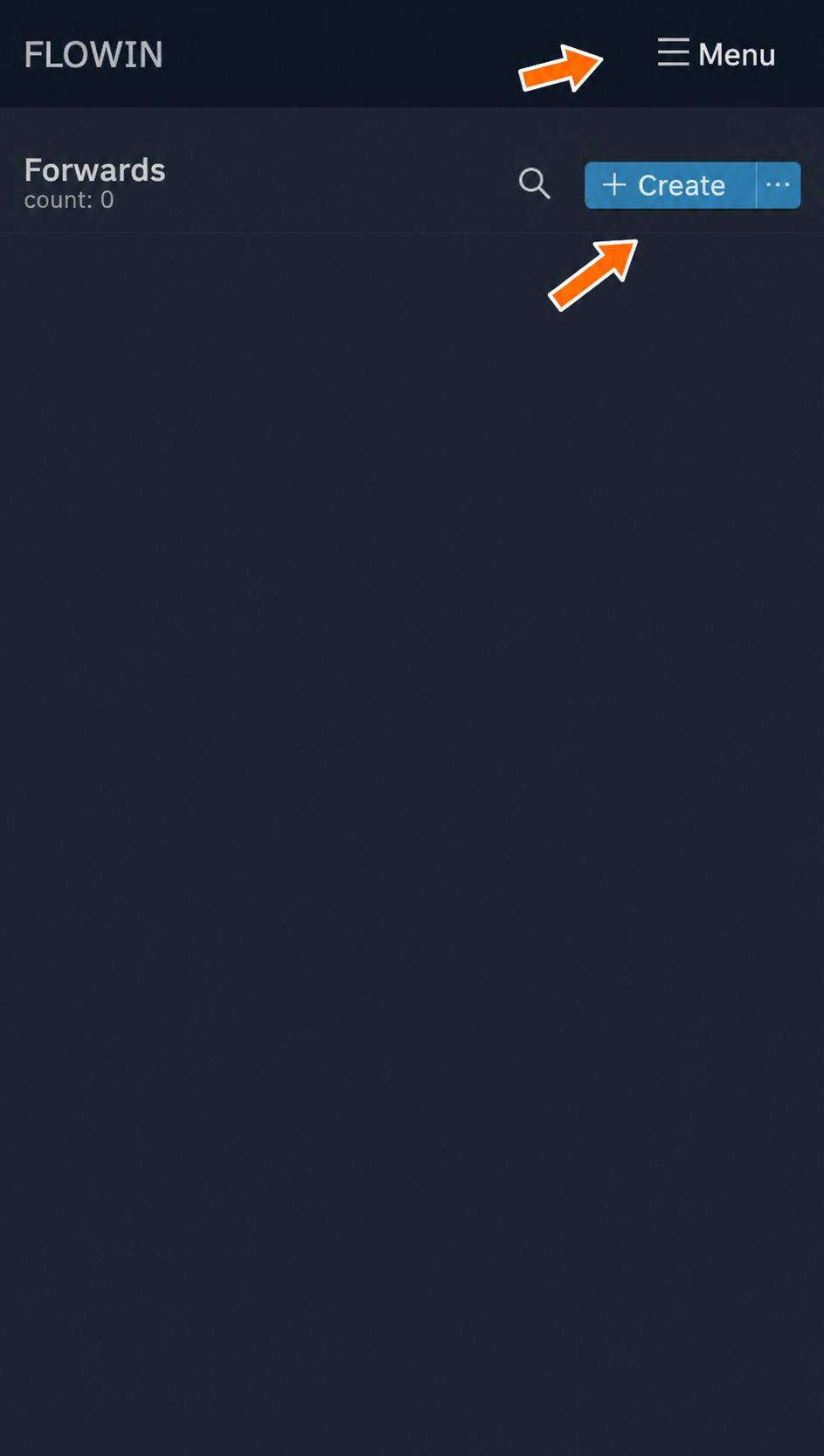
Creating a forward. In the “Source” field, select the channel whose history you want to copy. If multiple accounts are available, use the “Listener” field to select an account connected by phone number that has access to this channel.
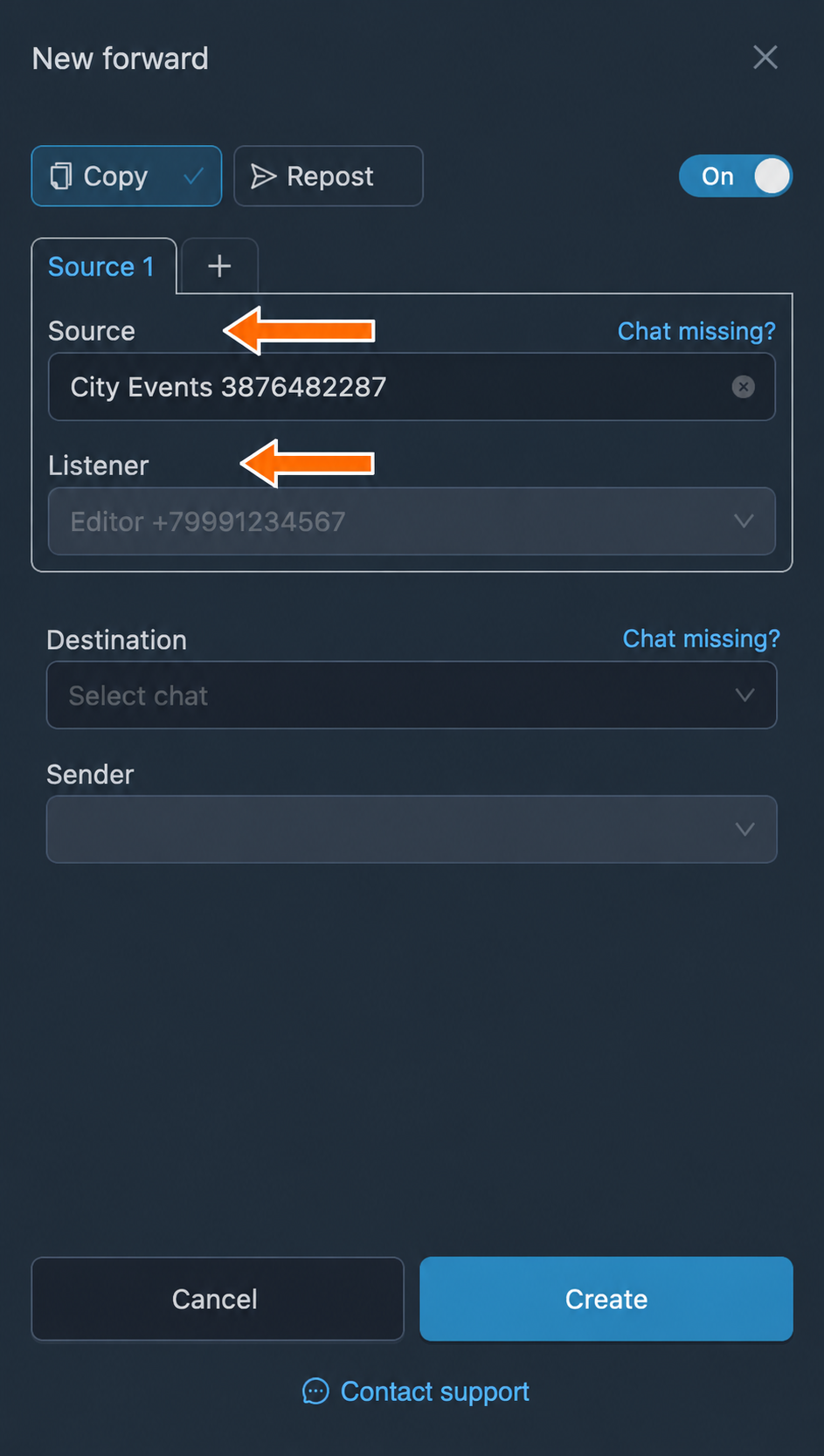
The source and the account used to read its history. In the “Destination” field, select the channel for the copies. If multiple senders are available, use the “Sender” field to select an account with permission to post there. Click “Create”. The forward will start processing new posts.
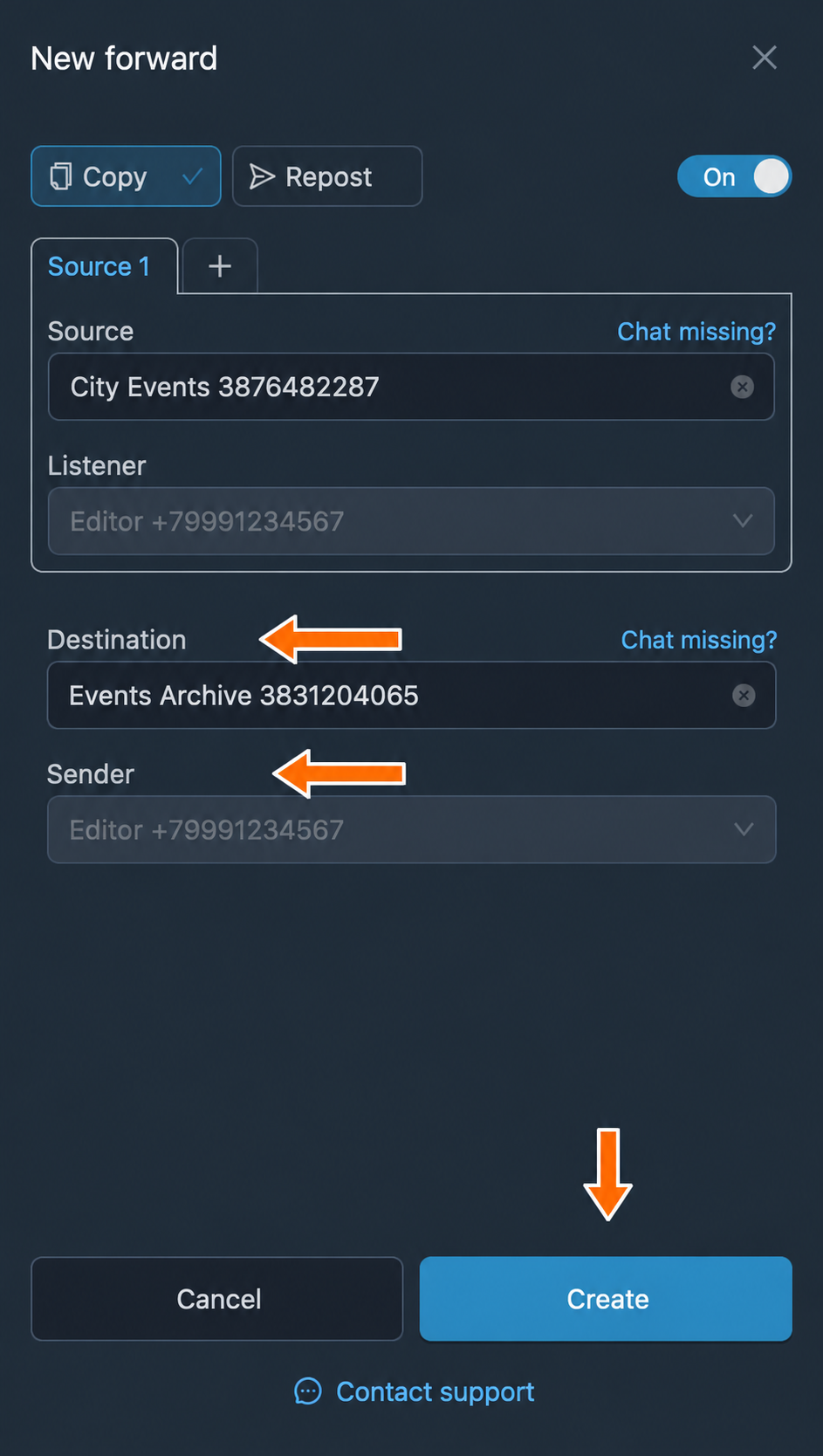

The channel for the copies and the sender. To copy old messages, open “More” → “Old messages” → “For the period” in the row of the forward you created.
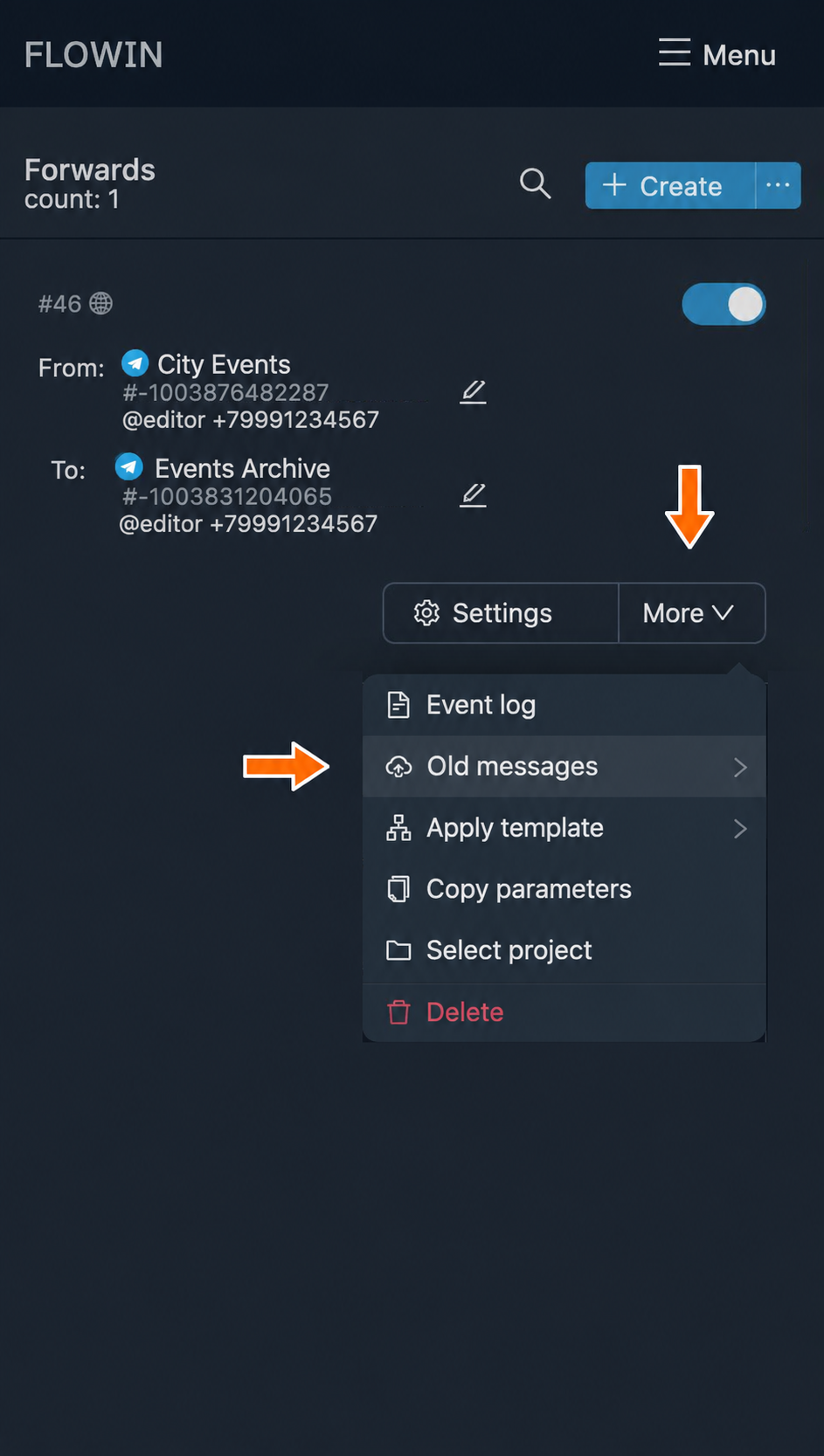
The menu for the forward you created. 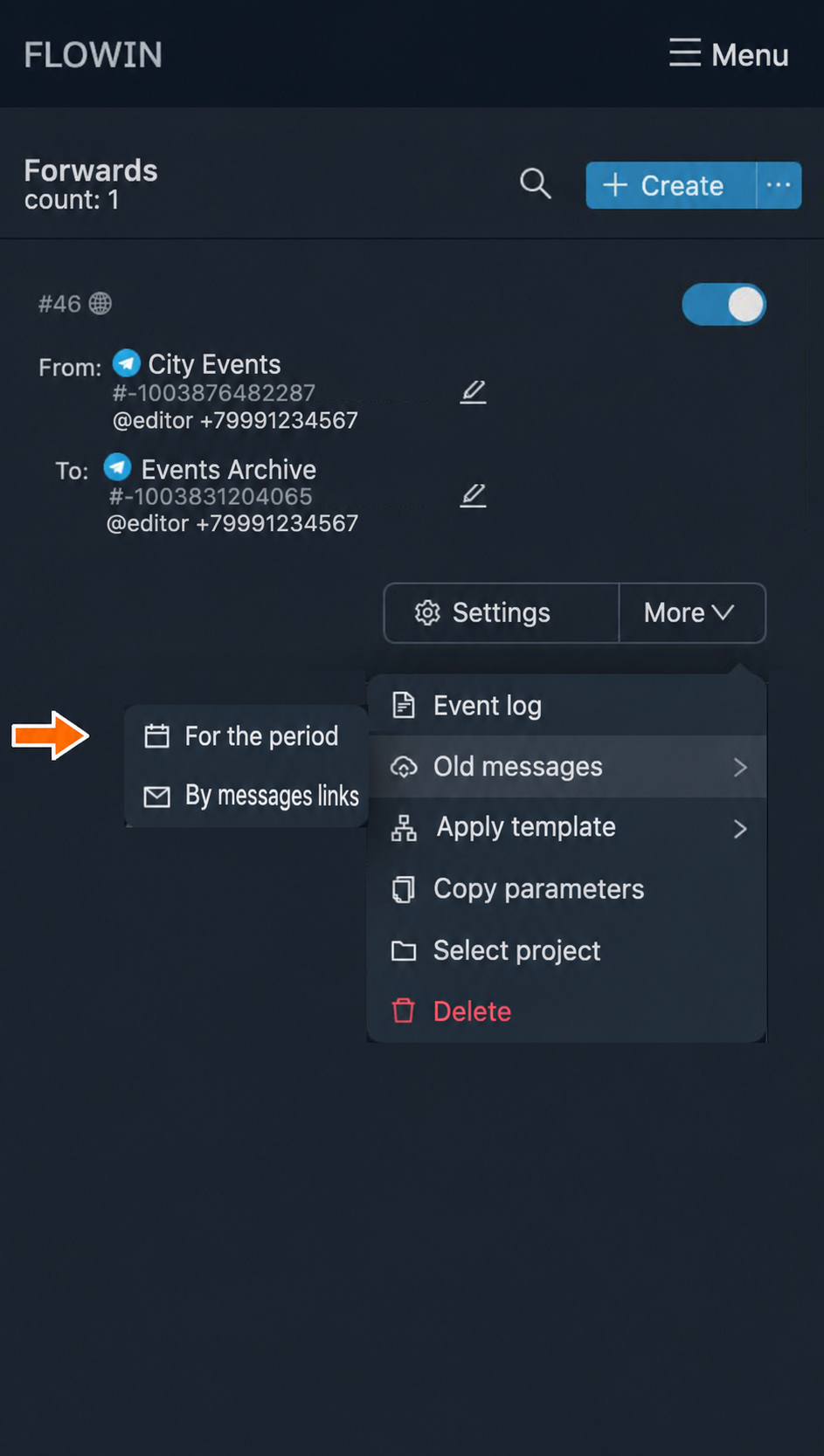
Starting history forwarding. Set the start and end dates in “Date range” mode. To copy all posts in the channel, select a range from the first available message to today. Click “Start”. The time needed to forward the messages depends on the number of messages, attachment sizes and Telegram limits.
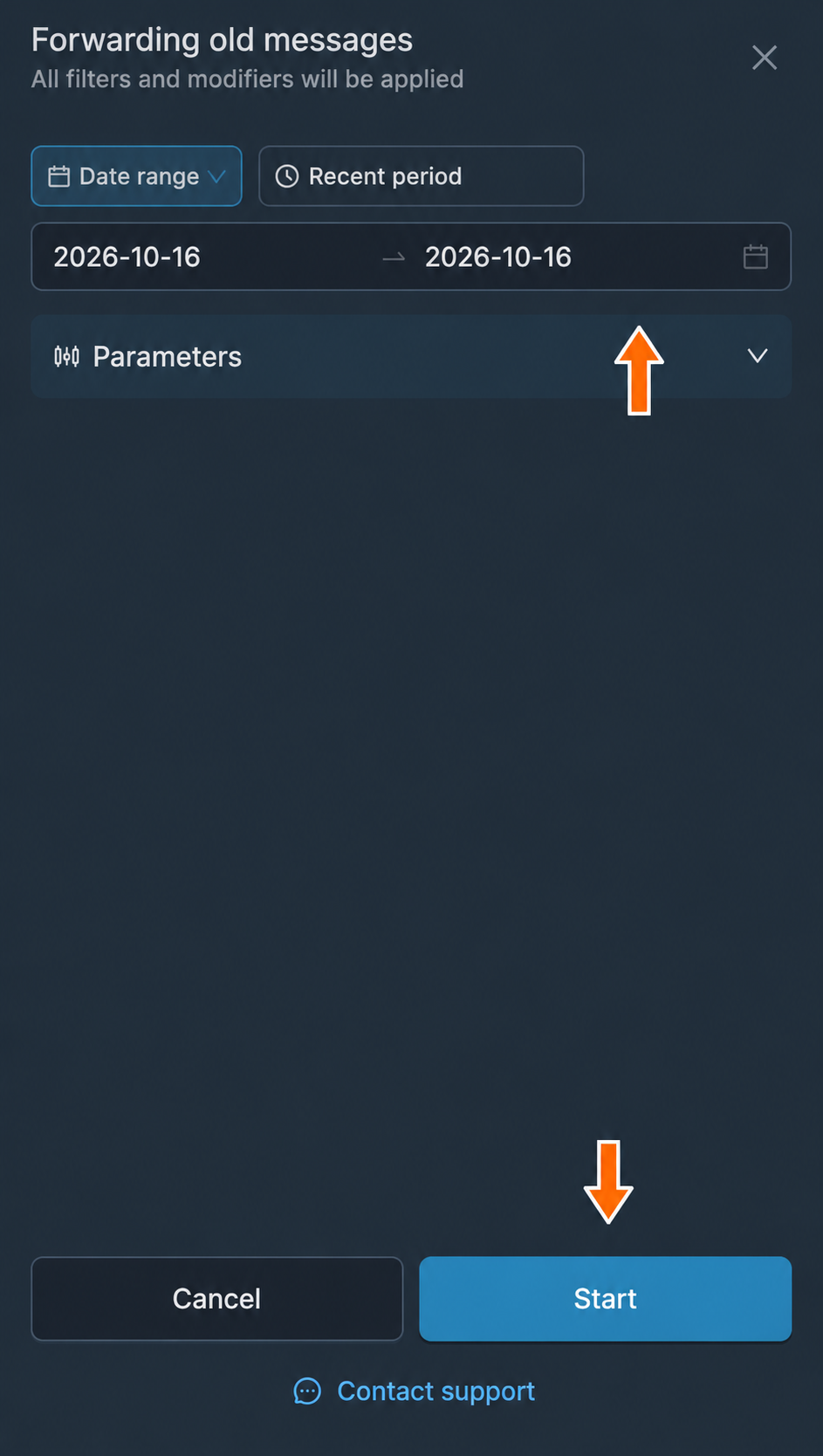
The dates of the posts to forward. Wait for history forwarding to finish and open the destination channel in Telegram. Compare the copied posts with the originals: check the text, attachments and message order. Old posts are forwarded from oldest to newest.
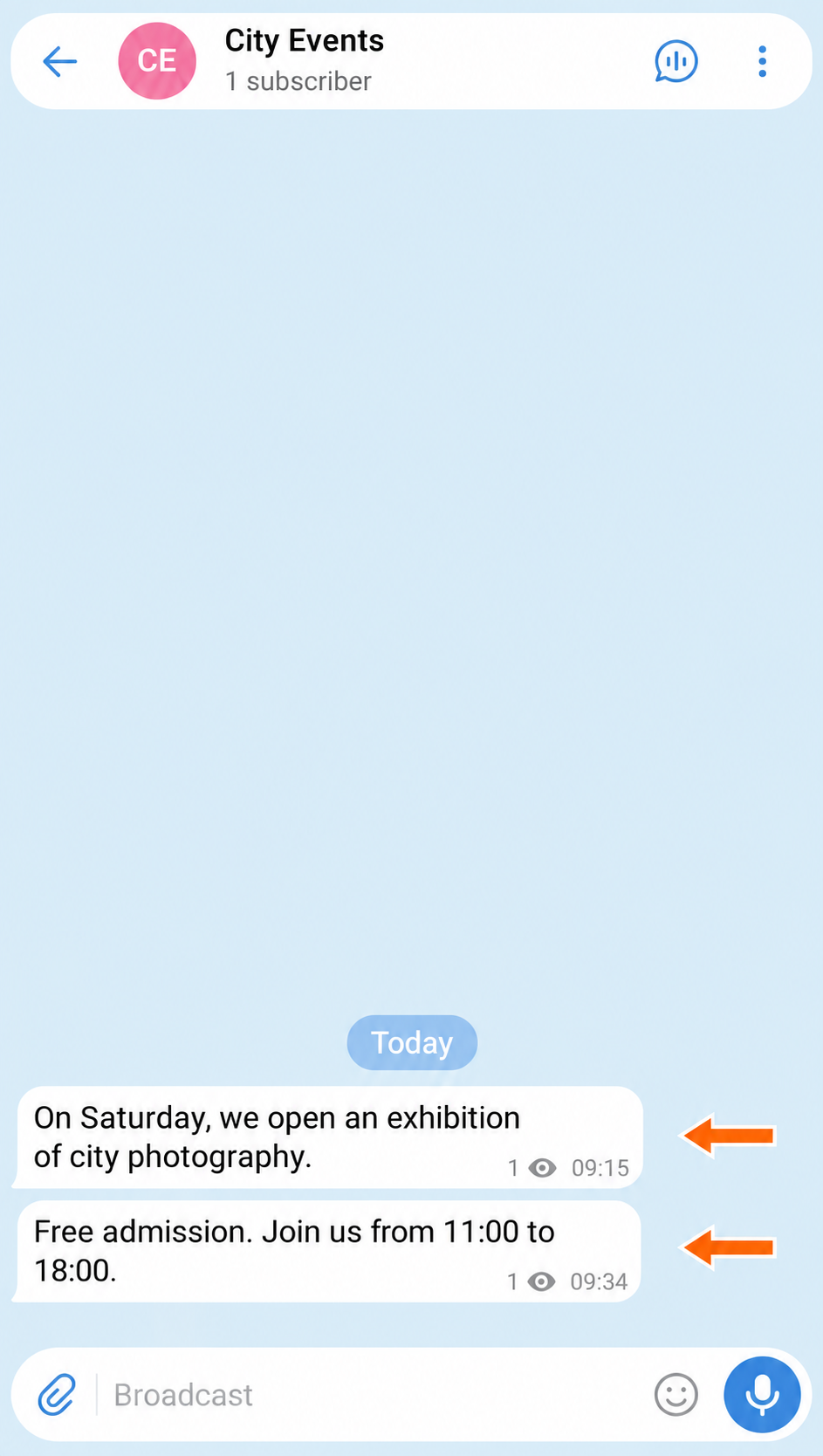
The original posts. 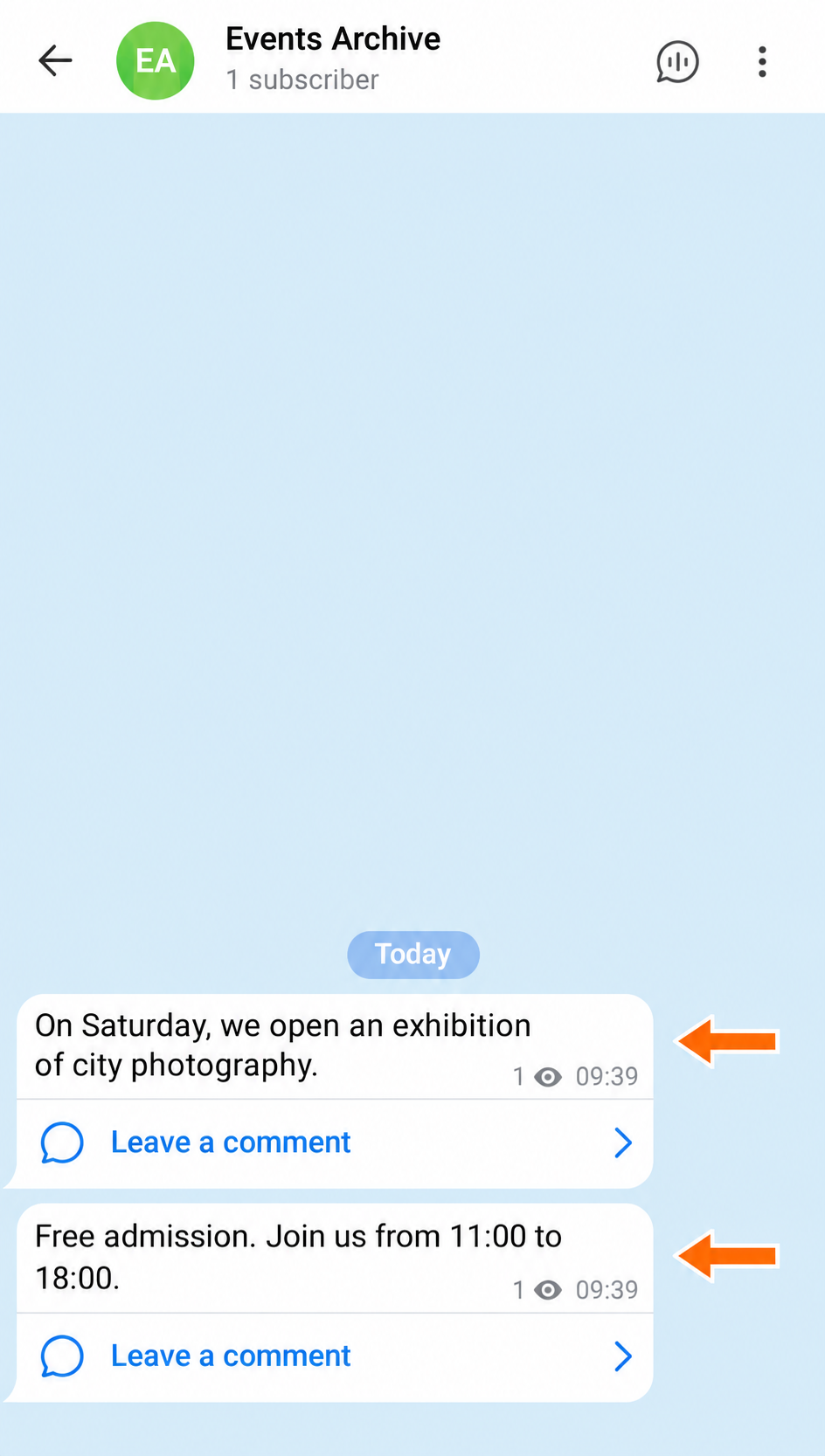

The result of forwarding.
What affects the completeness of the copy
The same filters and modifiers apply to history as to new posts. To forward all available posts in their original form, you need a forward without these filters or modifiers. Messages that have been deleted or are inaccessible to the account cannot be copied.
How to forward posts with changes
In “Copy” mode, you can replace text and links, add watermarks, translate messages and shorten text using AI. If the selected sender is a bot connected by token, you can also add buttons with links.
Frequently asked questions
Will subscribers and the channel address be copied along with the posts?
No. Only the messages are copied; subscribers, the channel address, permissions and settings are not. You need to create the destination channel in advance and give the sender permission to post there.
Which account is needed to forward the entire history?
To forward messages for a period, the “Listener” field must contain a user account connected by phone number that has access to the source channel. A bot connected by token cannot read history for a period. The sender can be a different account with permission to post in the destination channel.
Why are some old posts missing from the copy?
Check the selected period, the account’s access to messages and the forward’s filters. Filters and modifiers also apply when forwarding old messages. If a message count limit is set in the history forwarding settings, copying may stop before the end of the selected period. Posts that have been deleted or are inaccessible to the account cannot be copied.
Will the original posts remain after copying?
Yes. The forwarding process described here creates copies in the destination channel and does not delete the original posts. Once it finishes, compare the text, attachments and message order in both channels.
How do I stop forwarding new messages after copying the history?
Wait for history forwarding to finish and check the copies, then turn off the forward’s “Active” switch. Finishing this process does not turn the forward off: as long as it is active, it continues to process new posts.
How long does it take to copy a large channel?
There is no fixed duration: the time depends on the number of messages, attachments and Telegram limits. Test forwarding over a short period first. During copying, monitor progress and error messages in the forward’s event log.