


In FLOWIN, you can automatically process messages with AI before sending them to another Telegram chat or channel: rewrite text, edit photos, create illustrations and extract data from images. You write an instruction once, and it is applied to new messages in the selected forward.

How to apply an AI assistant to a forward
Before you begin, you need a configured forward in “Copy” mode, which allows you to change message content. The connection procedure is the same for all types of processing. The form screenshot shows settings for a photo, and ready-to-use tasks for different messages are provided below.
Open @flow_in_bot, send the
/startcommand, and click “Control panel”.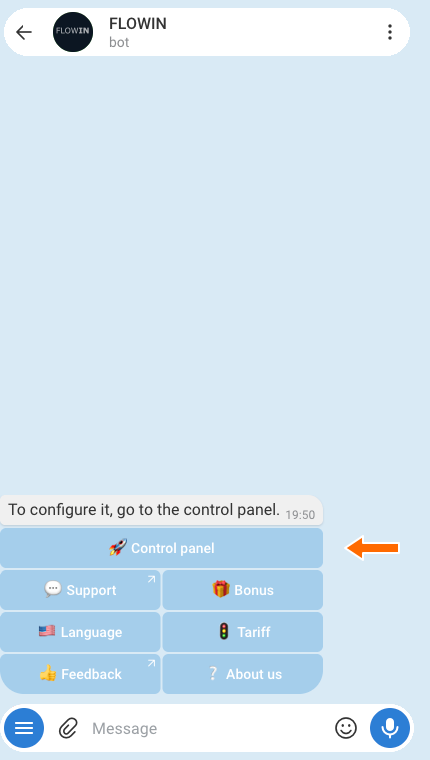

Accessing the control panel through @flow_in_bot. Open “Menu” → “AI Assistants” and click “Create”.
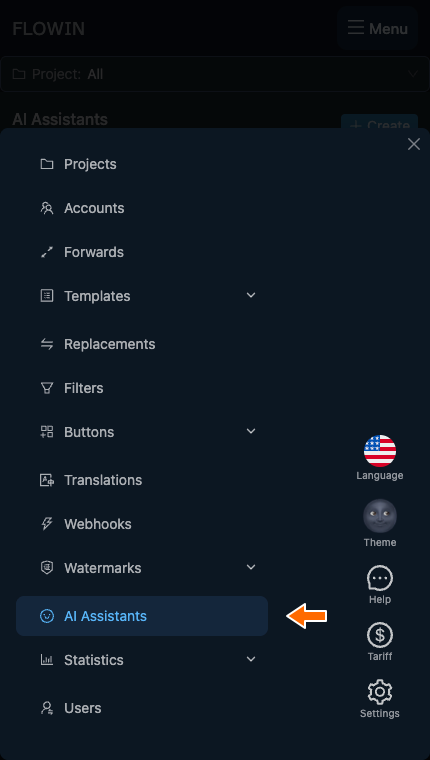
The “AI Assistants” section in the control panel menu. 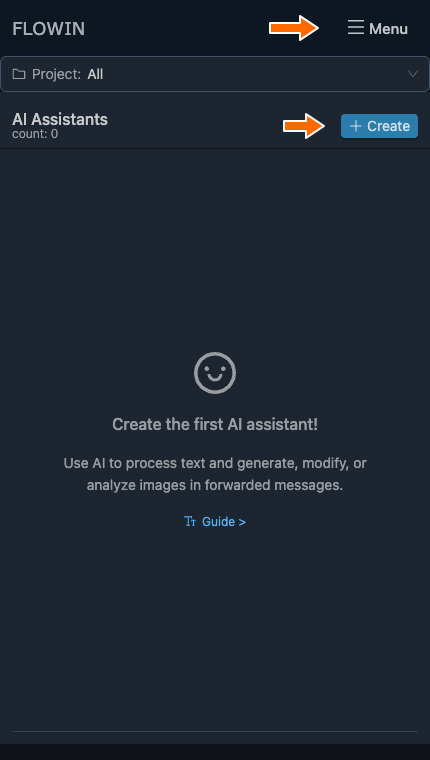
The menu and the button for creating a new AI assistant. In the “Mode” field, select the type of processing you need. In the “Task” field, describe what to do with the message. Click “Create”.
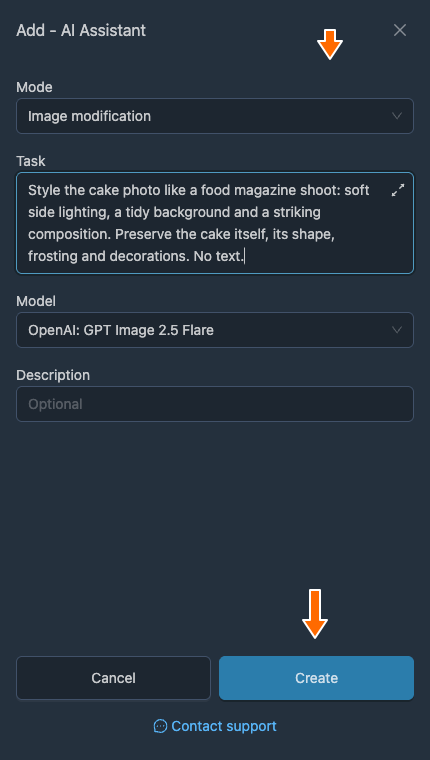
Selecting a mode, entering a task and creating an AI assistant. Click “Apply” next to the AI assistant you created. In the “Selecting forwards” window, select the forward you need and click “Save”. A “Forwards [1]” button will appear: the AI assistant is now applied to this forward and will process its new messages.
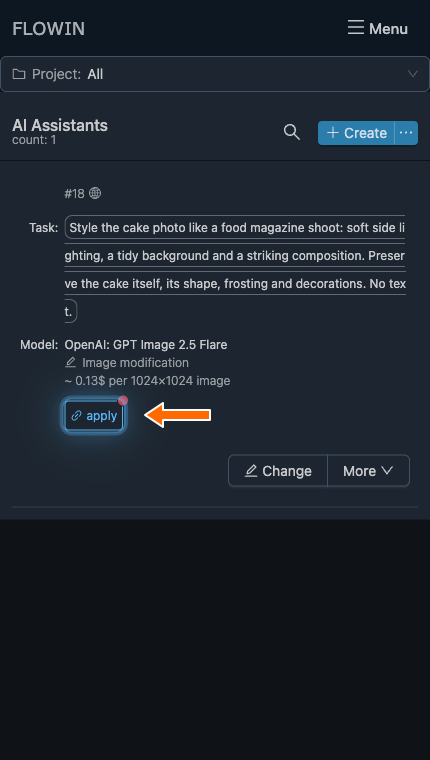
Applying an AI assistant to a forward. 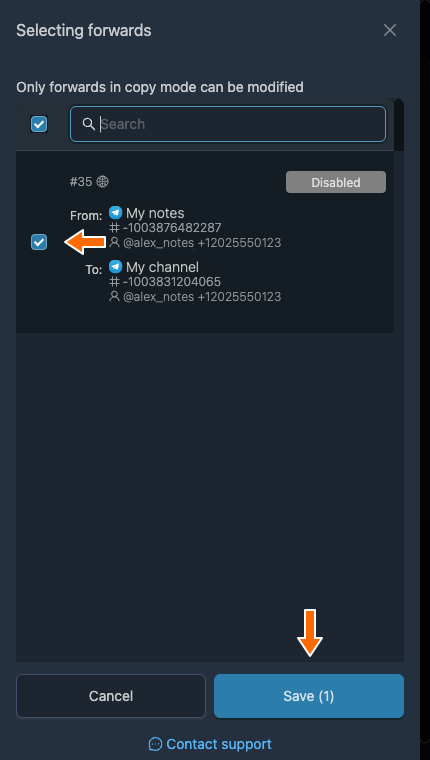
Selecting a forward for modifying photos. 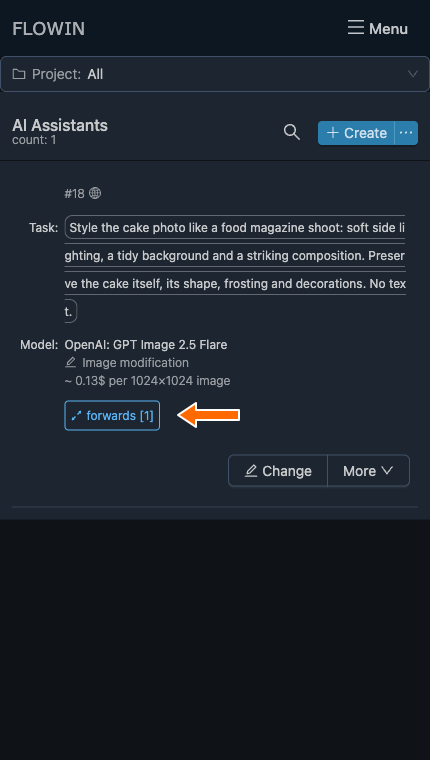
The AI assistant is applied to one forward.
Photos and text need different modes
Asking to “replace the background” in “Text processing” mode will not change the photo. For this task, select “Image modification”. The differences between all four options are described under the “Mode” setting.
Practical examples
Each example specifies the mode, task and result. To use another example with an AI assistant already applied to a forward, change the assistant’s settings.
Recalculate prices in a product description
A supplier sends product descriptions with wholesale prices, and you want them to appear in your channel with a 20% markup. Select “Text processing” mode.
Task: “In the following message, increase all prices by 20%. Do not change product quantities or other numbers. Return only the modified message, without comments.”
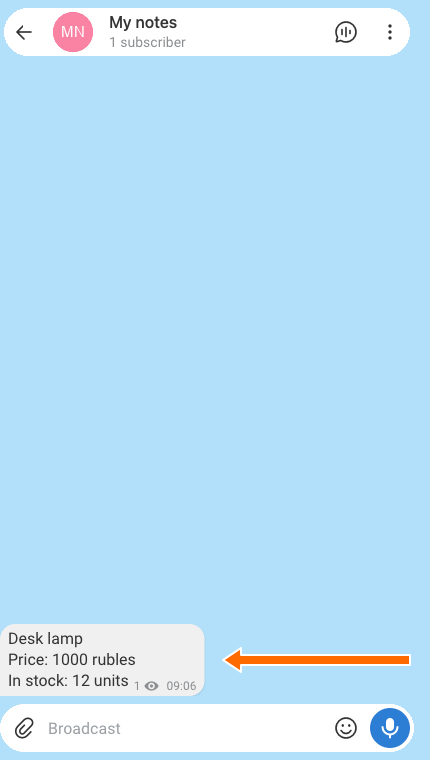
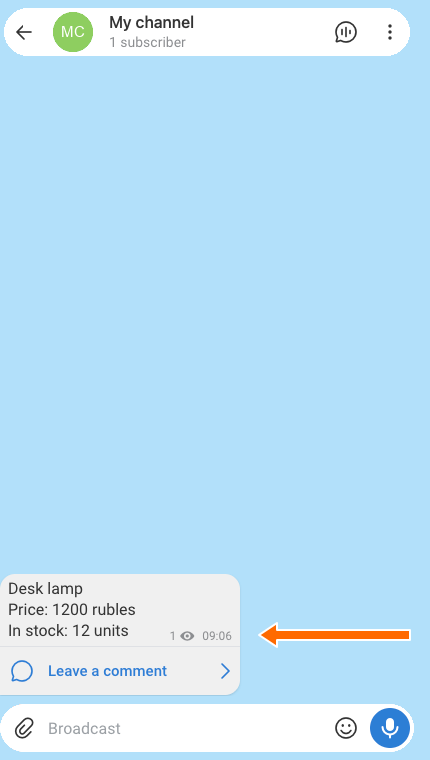
In the original message, the product costs 1,000 rubles and there are 12 units in stock. After processing, the price becomes 1,200 rubles, while the quantity stays the same.
Check the result on sample messages
Before processing real messages, check a few examples: AI can make mistakes in calculations and wording.
For other tasks, you can use instructions like these:
- “Translate the message into Chinese.”
- “Shorten the message, keeping the main point.”
- “Rewrite the message in a businesslike style.”
Style a cake photo
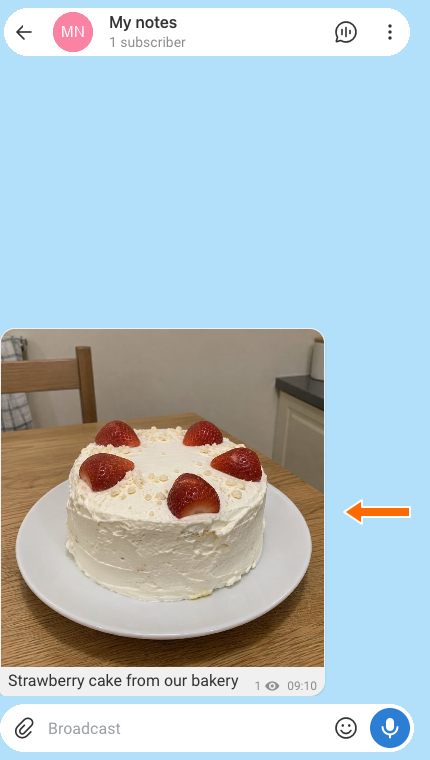
A bakery sends an ordinary photo of a cake. Your channel needs a shot with soft lighting and a tidy background, like a food magazine photo. Select “Image modification” mode.
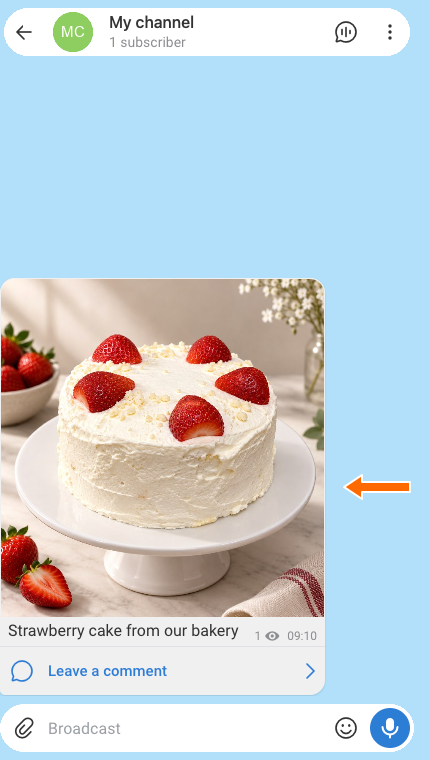
Task: “Style the cake photo like a food magazine shoot: soft side lighting, a tidy background and a striking composition. Preserve the cake itself, its shape, frosting and decorations. No text.”
A photo arrives in the source with the caption “Strawberry cake from our bakery”. The destination chat receives the processed photo with the original caption.
Check image details
AI may redraw details of the object as well as the background. For product photos, compare the shape, color, lettering and other important features before and after processing.
You can replace the background or change the color scheme in the same way. For example: “Make the image black and white, preserving the composition.”
Create a news poster
A channel publishes local news. To automatically add a themed poster to each news roundup, select “Image generation” mode.
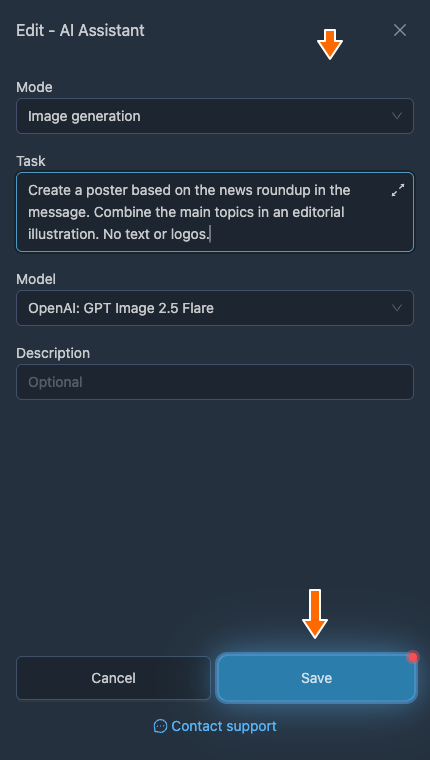
Task: “Create a poster based on the news roundup in the message. Combine the main topics in an editorial illustration. No text or logos.”
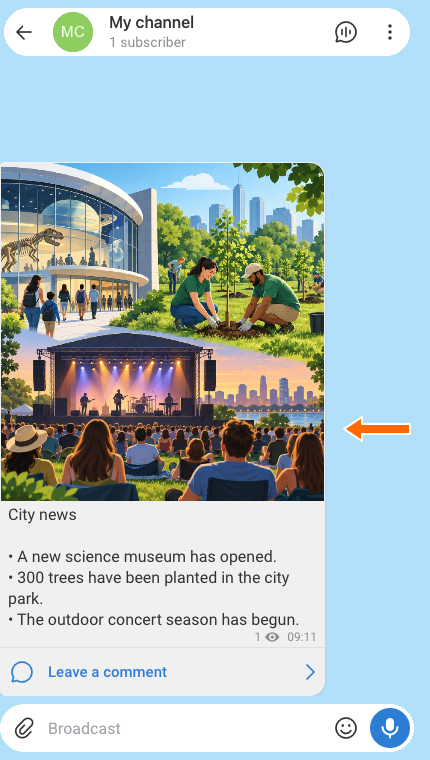
In our example, the source receives a sample roundup titled “City news”:
- A new science museum has opened.
- 300 trees have been planted in the city park.
- The outdoor concert season has begun.
The destination chat receives a poster based on these three events, with the original roundup preserved in the caption. For the next poster, simply send a new roundup: the task sets the style, while the message supplies the content.
Read a trading plan from a chart
You can add a text plan to a technical analysis chart: the ticker, trade direction, entry point, target and stop-loss. Select “Image analysis” mode.
Let’s use a practice chart for a fictional stock called DEMO. It shows a buy entry at 100 rubles, a target of 110 rubles and a stop-loss of 95 rubles. We need to transfer these labels into text and calculate the ratio of potential profit to risk.
Task: “Read the ticker, direction, entry, target and stop-loss from the chart. Calculate reward/risk. Use 6 short lines without markup. For missing data, write ‘not specified’.”
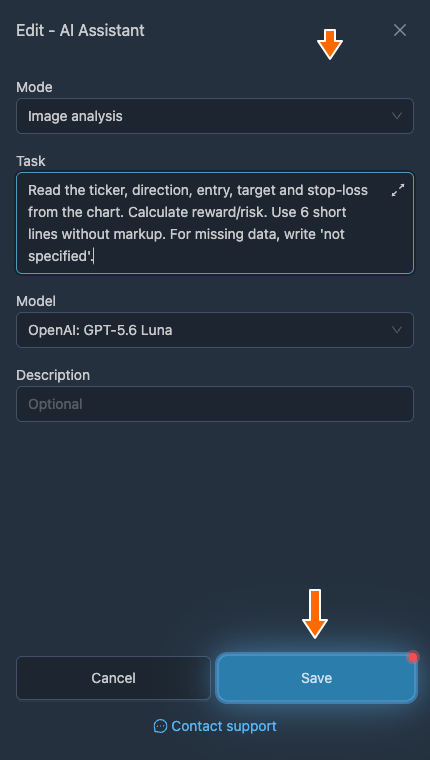
The result includes the values from the chart and a reward-to-risk ratio of 2:1: 10 rubles to the target and 5 rubles to the stop. The image and original caption are preserved, with the answer placed after the caption.
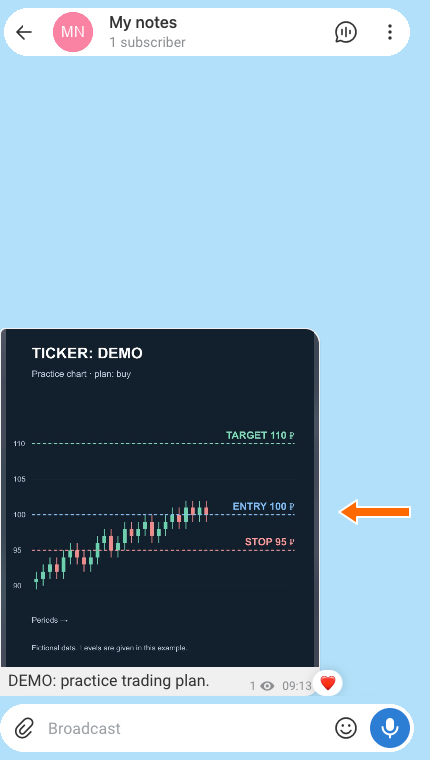
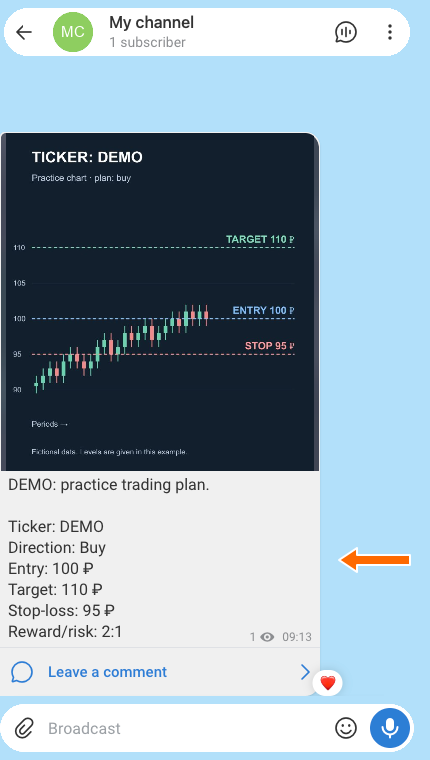
The levels in this example are marked on the chart itself. The task asks the model to read them and avoid inventing missing values. For another image, you can ask for a description of objects, text recognition or extraction of the data you need.
How to change the task and settings
Return to the “AI Assistants” list and click “Change” next to the AI assistant you need.
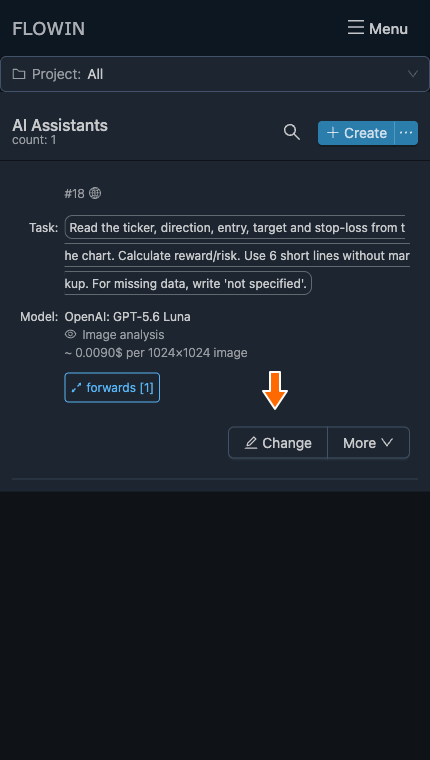
The “Change” button opens the AI assistant’s settings. Make your changes and click “Save”. The updated settings will apply to new messages.
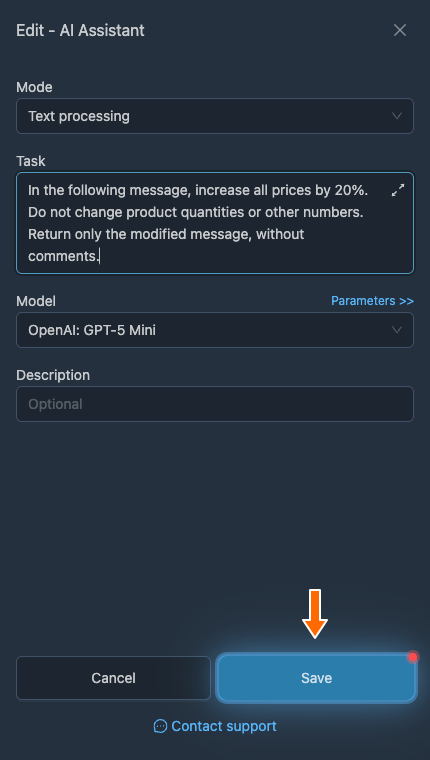
Changing the task and saving the settings. 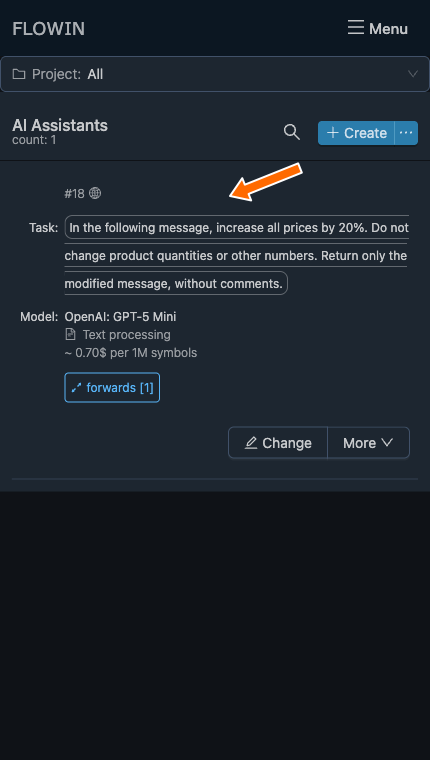
The saved task displayed in the list.
Mode
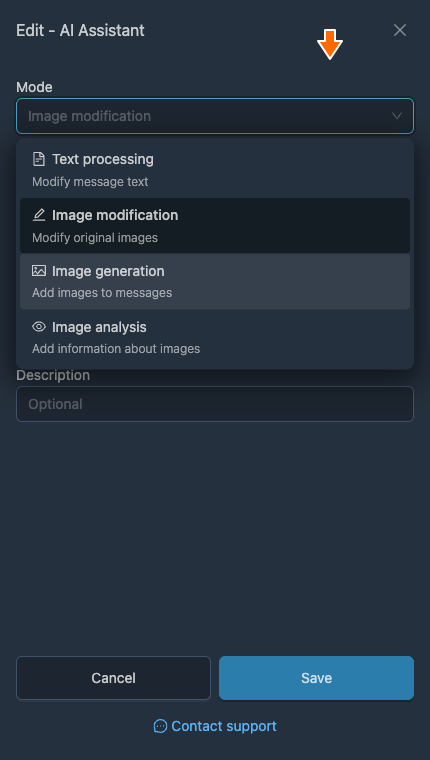
Determines what is processed and how the message changes. Four options are available:
- “Text processing” changes the message text or media caption: for example, it can translate, shorten or recalculate prices. Each message is processed separately. This mode does not combine neighboring messages into a digest or edit lettering inside a photo.
- “Image modification” edits an existing image according to the task and uses the result to replace the original. The message text is preserved and is not used as an instruction for modifying the photo.
- “Image generation” creates a new image based on the task and the message text. The original text is preserved in the caption. To generate an image while forwarding, you need a text message without photos, videos, other attachments or a link preview.
- “Image analysis” preserves the image and adds a text response after the original caption. If there is no caption, only the response will appear. The instruction comes from the “Task” field; the caption is not used as an additional task.
Modification and analysis support Telegram photos and static JPEG, PNG and WebP images sent as files. Images in an album are processed individually. Videos, stickers and PDFs are not supported in these modes.
Changing the mode changes the available models and selects the default model for the new mode. Your custom task text is preserved, so check that it suits the new type of processing.
Task
The instruction applied to each incoming message. It can specify the change you need, the style and the response format. For example, when generating a poster, the task describes the illustration’s style, while the specific news arrives in the message text.
How to write a task
Specify what to change, what to preserve and how to return the result. When working with numbers, clarify exactly which numbers to change. For images, describe the background, color or style you need, along with important features of the original object.
Model
The “Model” field offers options for the selected mode. You can search for a model by name. Different models may follow the same instruction differently, so compare them using the same messages.
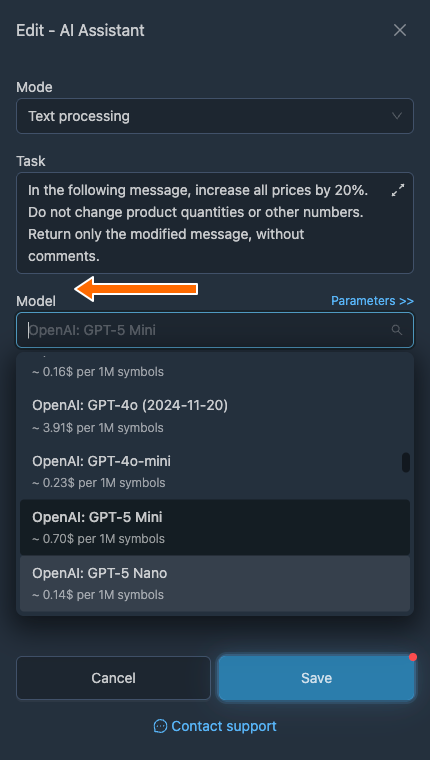
Processing cost
Each model has its own processing cost. When a message is sent to a model, the fee for that request is deducted from your virtual balance in FLOWIN.
Description
You can leave a comment in this field to help you find the AI assistant in the list later. The description is optional and does not affect message processing.
Text processing parameters
In “Text processing” mode, there is a “Parameters” link next to the “Model” field. It opens the formatting and Internet access settings. This link is not available in image modes.
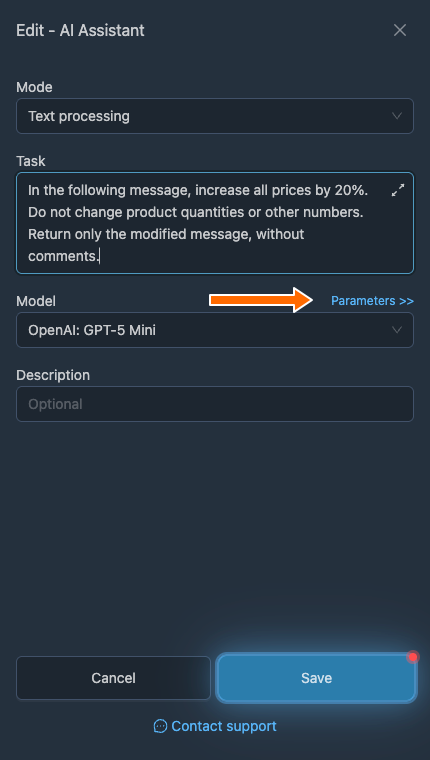
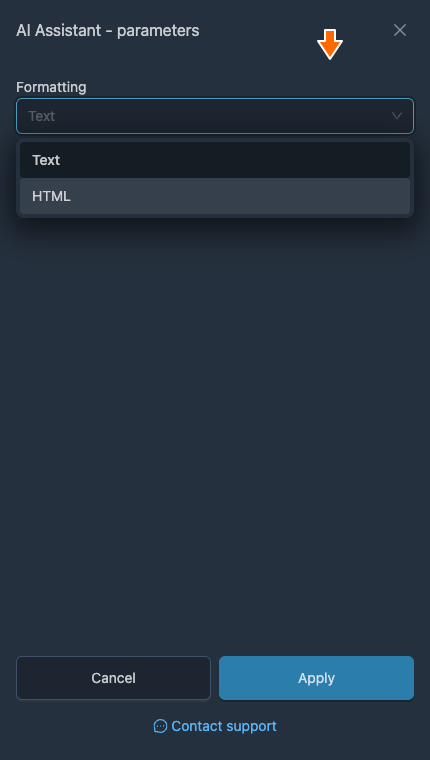
The “Formatting” field determines how text is sent to the model and how its response is processed:
- “Text” is selected by default. Styling is removed from the text being processed.
- “HTML” sends the message with markup and processes the response as HTML. This option allows supported formatting to be preserved if the model returns valid markup.
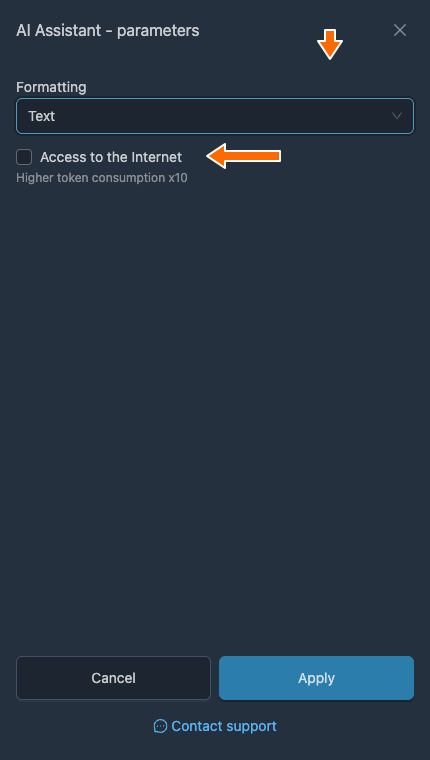
“Access to the Internet” is needed for tasks that require information from the web. It is not needed to recalculate a price or change the style of text already received.
Additional actions
The “More” menu lets you apply a saved AI assistant to other forwards, copy its settings or delete it:
- “Apply” opens the selection of forwards to process.
- “Duplicate” creates a copy of the AI assistant with its settings.
- “Select project” adds the AI assistant to a project.
- “Delete” deletes the AI assistant and its settings.
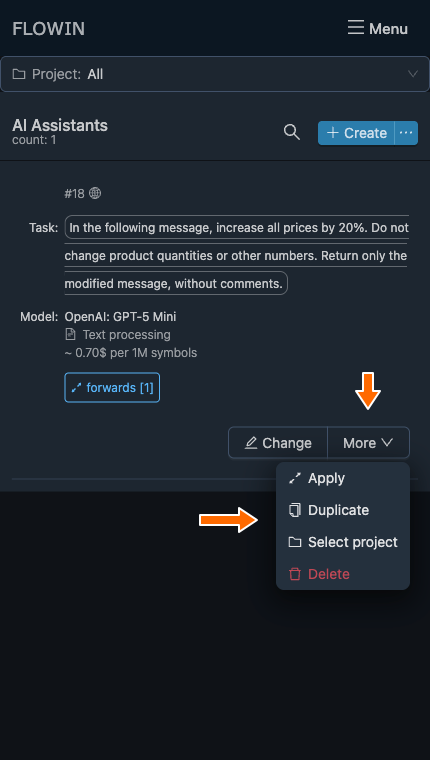
You can also open the forward selection using the “Forwards [N]” button, where N is the number of forwards. If there are no connections yet, “Apply” appears instead of the counter.
Frequently asked questions
Can I use AI to rewrite text before publishing it?
Yes. Select “Text processing” mode and describe how to rewrite the message in the “Task” field. For example: “Rewrite the message in a businesslike style, preserving the facts and numbers. Return only the finished text.” Compare the result with the original: AI may change the meaning or make a mistake, and unique text is not guaranteed.
How can I shorten text with AI and keep the main points?
In “Text processing” mode, specify the required length and the information that must not be lost in the task. For example: “Shorten the message to three sentences. Preserve the date, location and participation requirements.” Check that all important details remain in the result: an instruction alone does not guarantee they will be preserved.
Why doesn’t a request to change the background change the photo?
“Text processing” mode changes the message text or caption, but not the photo itself. To replace the background, select “Image modification” and describe the desired result in the “Task” field. In this mode, the photo caption is not used as an instruction.
How can I create an image from a description with AI in FLOWIN?
Select “Image generation”. In the “Task” field, describe the style and result you need, and provide the image’s subject matter in the message text. During normal forwarding, the message must not contain photos, videos, other attachments or a link preview. FLOWIN will add one generated image, and the original text will be preserved in the caption. See the news poster example.
Can AI change lettering and details on the product itself?
Yes. Even asking the model to preserve the object does not guarantee that it will reproduce its shape, color and lettering accurately. Compare the processed photo with the original before using the result. In “Image analysis” mode, the image itself is preserved, but you still need to check the information extracted from it.
Why did formatting disappear after AI processing?
If “Text” is selected in the “Formatting” field, styling is removed. The “HTML” option sends the message with markup and processes the response as HTML. It allows supported formatting to be preserved if the model returns valid markup. Compare the original message with the result; the setting is described under “Text processing parameters”.
Where is the fee for AI processing deducted from?
The fee for a request to a model is deducted from your virtual balance in FLOWIN. Different models have different processing costs. When choosing a model, consider both its results on your examples and its cost.