A Telegram support bot receives customer enquiries, and staff reply to them from a shared group. Customers receive replies from the bot and do not see the support agents’ personal accounts.

What a Telegram support bot is for
FLOWIN connects the bot to the support team’s group. When a customer writes to the bot, the service creates a topic for that customer and copies their messages into it. A topic works like a separate chat within the group: it holds the conversation with one customer. A staff member replies in that topic, and the bot passes the reply to the customer.
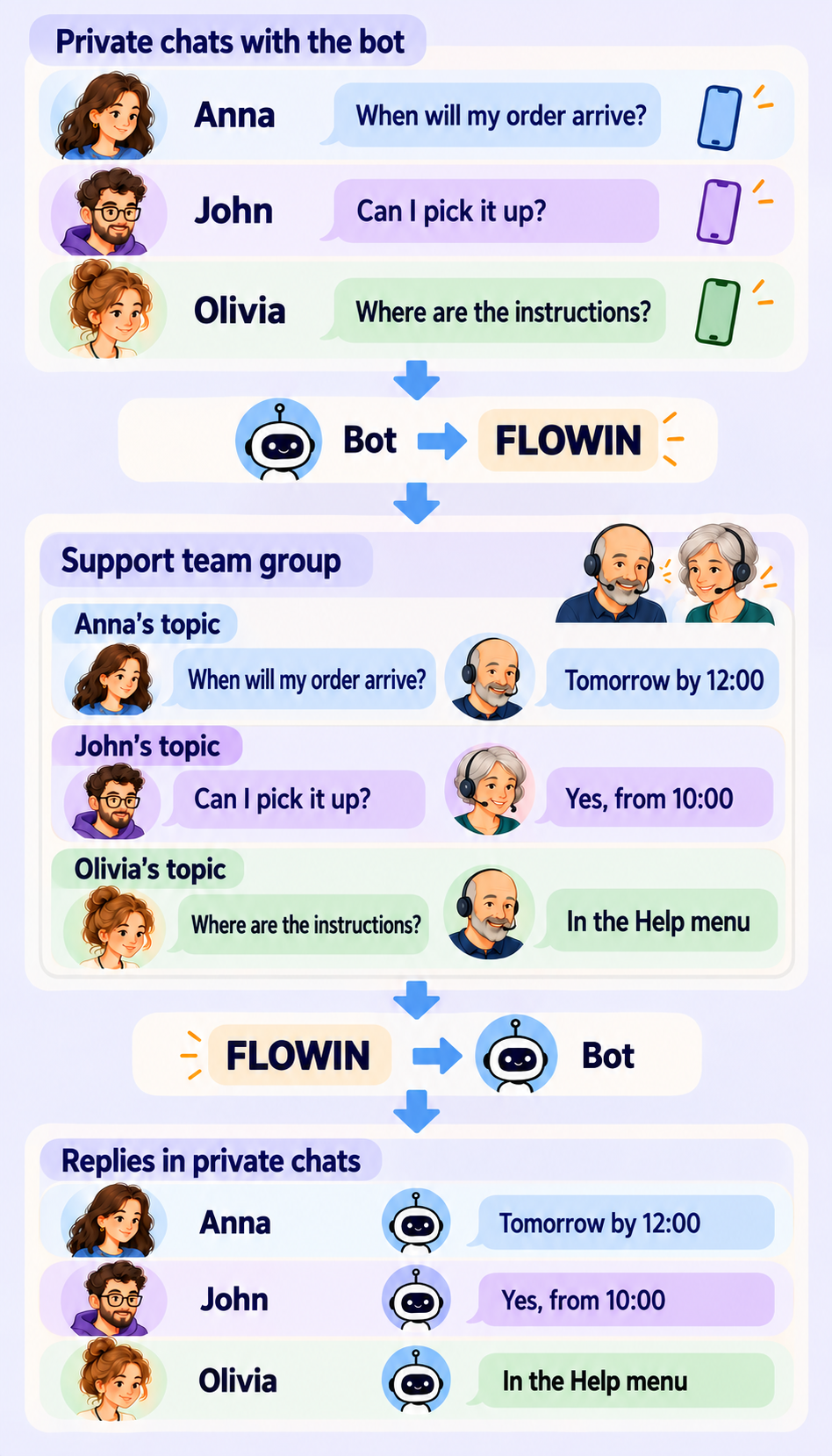
You do not need to program the bot to make this work. Support agents communicate in the familiar Telegram interface and can see the conversation history, even if another staff member started it.
What a feedback bot can do
The problems with personal chats
The conversation stays with one staff member. When staff communicate with customers from personal accounts, it is harder for their manager to check the quality of replies. Once an employee leaves, the company may lose access to the conversation.
Changing support agents. If one staff member starts a conversation and their shift ends, another needs the history to understand what has already been agreed. Without it, the customer has to explain everything again.
How the team works
| Task | How FLOWIN helps |
|---|---|
| Bring enquiries together in one place | Staff work in a shared group. Each customer has a separate topic with their message history. |
| Hand a conversation over to another agent | Another staff member can read the history in the topic and continue the conversation. |
| Keep conversations when staff change | The history stays in the company’s work group. |
| Reply on behalf of the company | The customer sees the support bot, regardless of who wrote the reply. The agent’s personal account is not shown in the message. |
| Review the support team’s work | The group shows who replies to customers, what they write and how quickly they respond. |
What to prepare before setup
You will need a bot connected to FLOWIN and a support team group with topics enabled. If you do not have a bot yet, follow the instructions for creating a bot through @BotFather and connecting a bot account using a token.
In this example, the group is called “Support team”. Only staff belong to it: all members can see the topics and customer conversations. Customers communicate with the bot in private chats.
The bot’s permissions in the group
The bot must be a member of the support team group, receive messages, send replies and have permission to manage topics. It needs the corresponding administrator permissions to do this.
Setting up a Telegram support bot
To connect the bot to the support team group, you need a forward in FLOWIN. It connects the source of messages to the place where they should be sent. For support, the source will be the bot’s private chats, and the destination will be the support team group. The listener reads incoming messages, and the sender posts them in the group. The same bot performs both roles.
Open @flow_in_bot, send the
/startcommand, and click “Control panel”.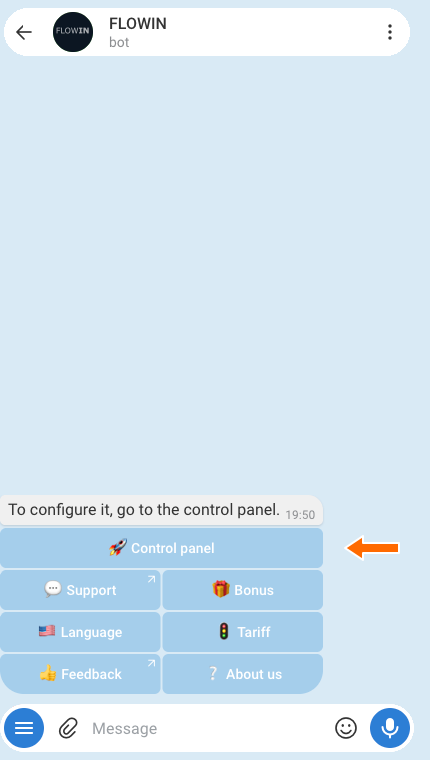

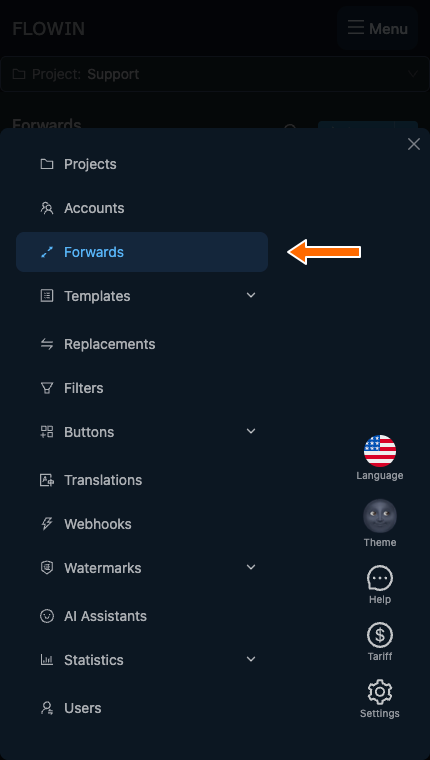
Accessing the control panel through @flow_in_bot. Open “Menu” → “Forwards” and click “Create”.
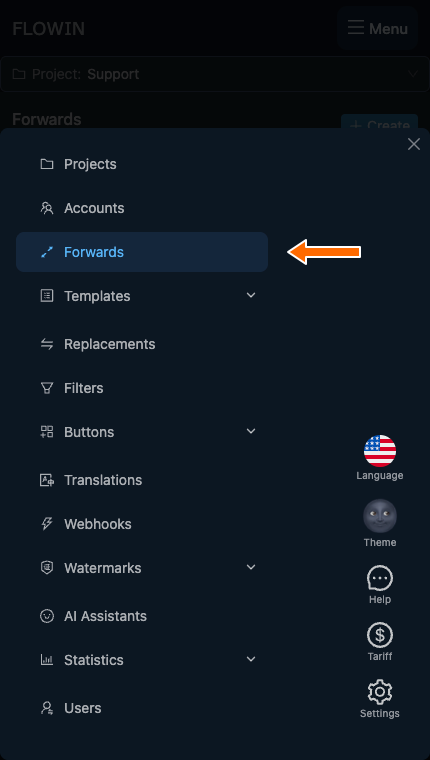
The “Forwards” section in the FLOWIN menu. 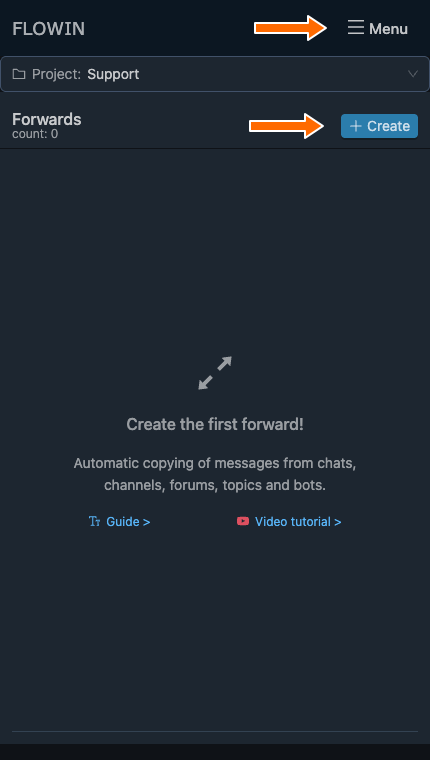
Creating a new forward. In “Source”, select “All personal dialogs”. In “Listener”, select the connected support bot. The forward will then receive enquiries addressed to that particular bot.
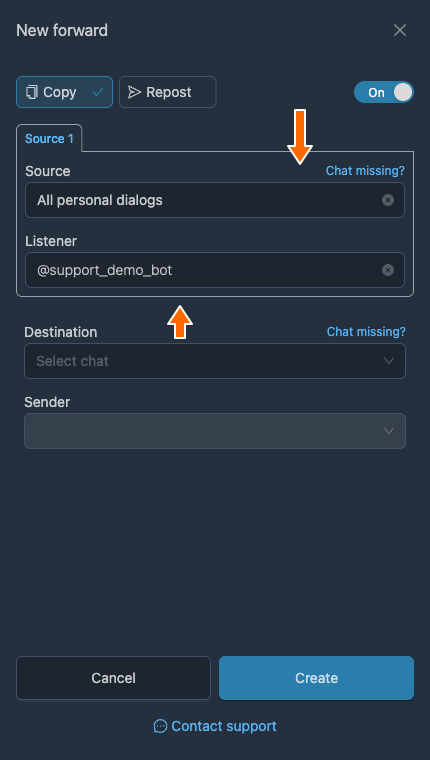
All personal dialogs as the source of enquiries. In “Destination”, select the “Support team” group, and in “Sender”, select the same bot. Click “Create”.
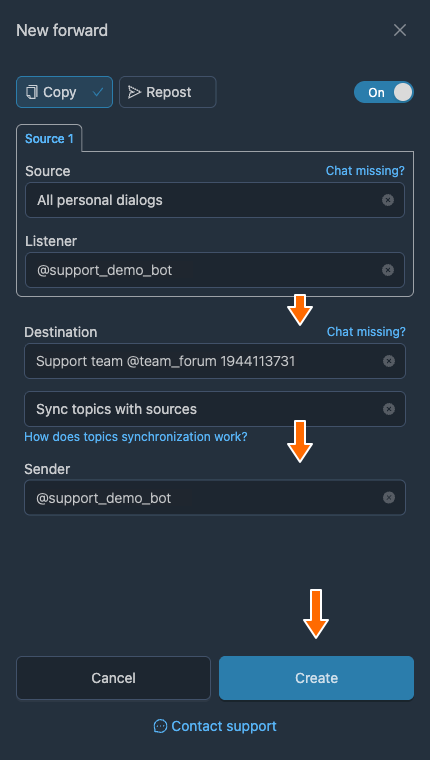
The support team group and the bot that creates topics. Click “Settings” for the forward you created. Open the “Back reply” tab, enable the switch with the same name and click “Save”. This lets you reply to customers from the group.
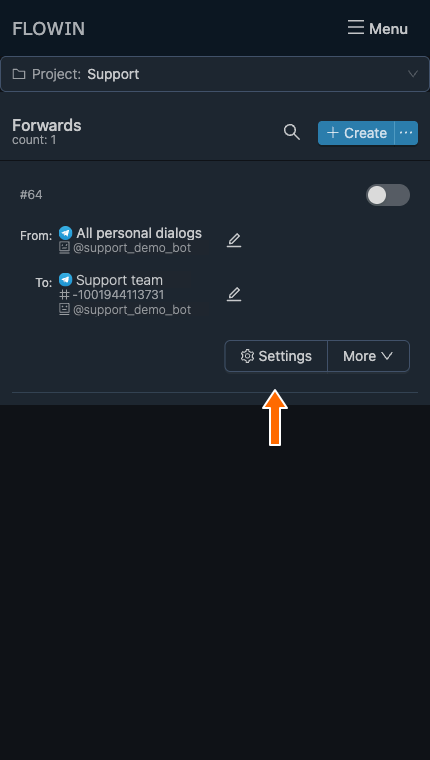
The forward’s “Settings” button. The forward must be enabled to handle enquiries. 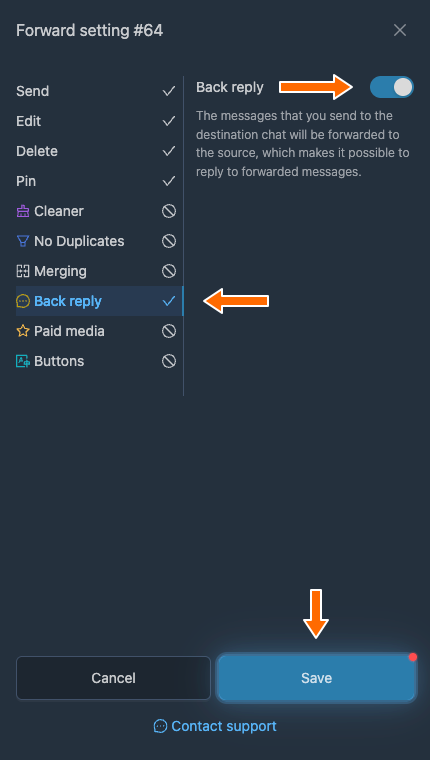
Back reply sends messages from the topic back to the customer. Open a private chat with the bot and send it a message. In the support team group, open the new topic and reply in it.
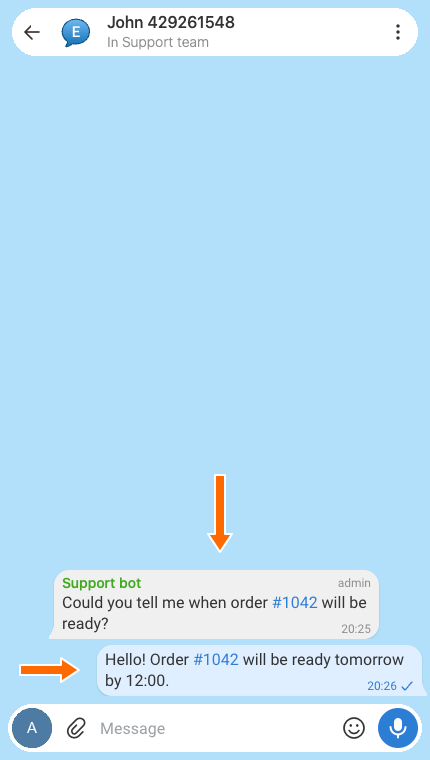
A customer’s enquiry and an agent’s reply in a separate topic. 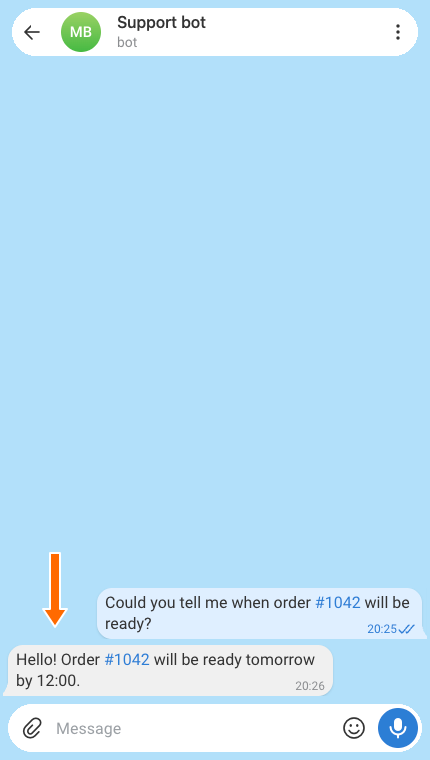
The customer receives a reply from the support bot. Further messages from this customer will go to the same topic.
Internal team discussions
A customer’s topic is for replying to that customer: when back reply is enabled, messages from it are sent to the private chat. It is better to keep internal notes and discussions about the enquiry in a separate staff chat.
Broadcasting to customers through a support bot
A feedback bot lets you both communicate with customers and send broadcasts. You publish a single message in a channel, and FLOWIN sends it to customers on behalf of the bot.
A broadcast needs a separate forward. In this example, its source will be a channel called “Customer announcements”, which the connected account can access. Every new post from it will be sent as a broadcast, so the channel should contain only announcements that are ready to send.
Who receives the broadcast
The broadcast covers all of the bot’s private chats available to FLOWIN. The customer must write to the bot first: a bot cannot start a conversation. If a customer has blocked the bot, they will not receive the message.
Open “Menu” → “Forwards” and click “Create”.
The forwards section for setting up announcements. 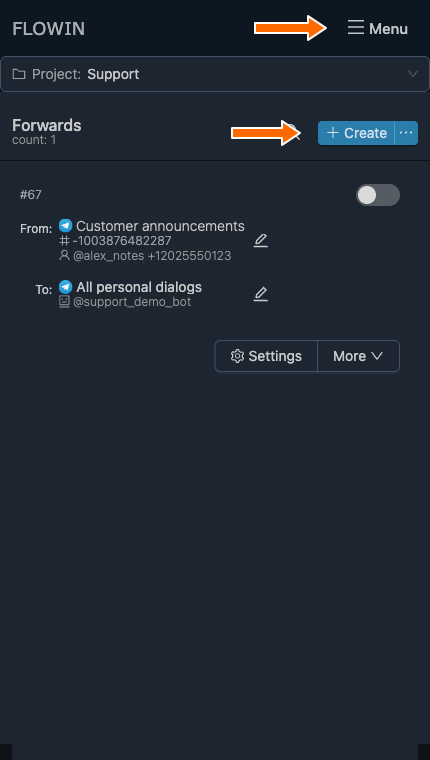
A separate forward for customer announcements. In “Source”, select the “Customer announcements” channel and check that “Listener” contains the account that reads this channel. In “Destination”, select “All personal dialogs”, and in “Sender”, select the support bot. Click “Create”.
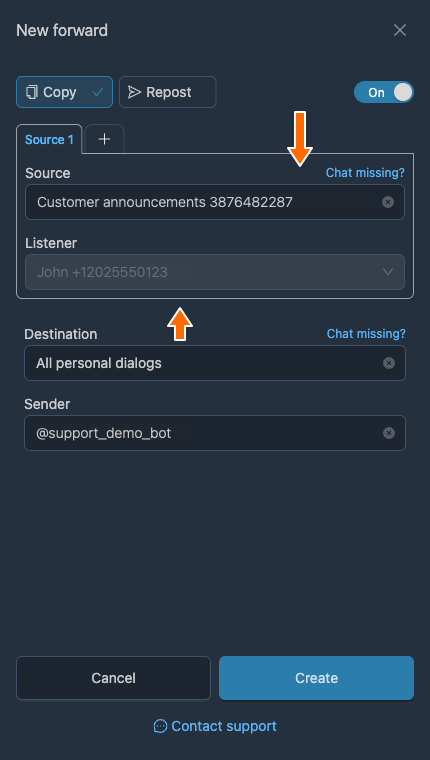
The channel where ready-to-send announcements are published. 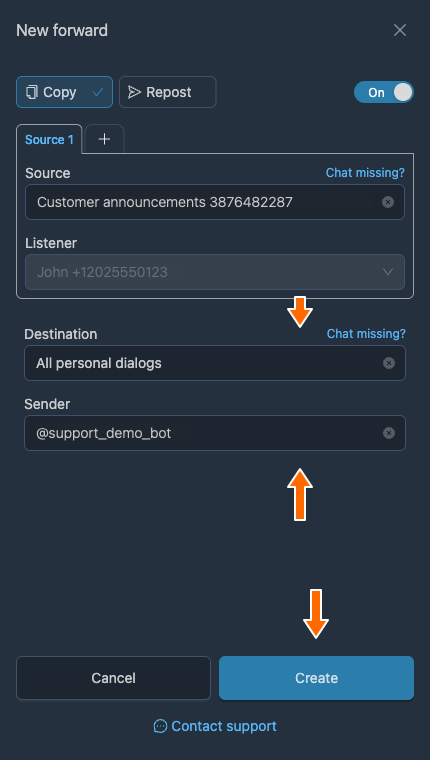
Broadcast recipients: all of the bot’s private chats. Publish an announcement that is ready to send in the “Customer announcements” channel. Check the private chat with the bot: the message should appear there.
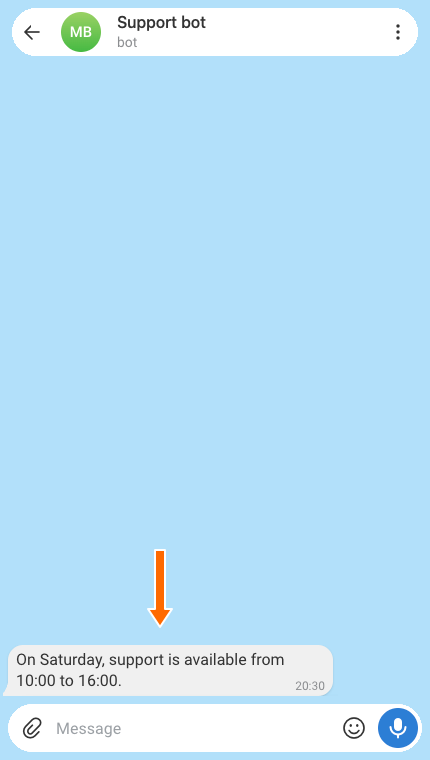
The same announcement in a private chat with the bot.
How to add the customer’s name to a message
You can address customers by name in a broadcast: each customer will receive a message with their own name. For example, “Hello, #CUSTOMER_NAME!” will become “Hello, John!” or “Hello, Maria!”.
To do this, apply a replacement to the announcements forward. It will find the placeholder #CUSTOMER_NAME in the text and replace it with the <dst-chat-name> metatag. This metatag inserts the customer’s name as FLOWIN sees it in the private chat’s name.
Open “Menu” → “Replacements” and click “Create”.
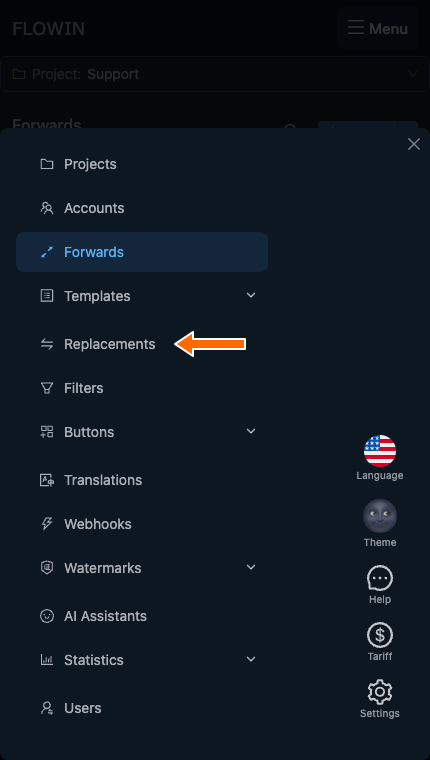
The “Replacements” section in the FLOWIN menu. 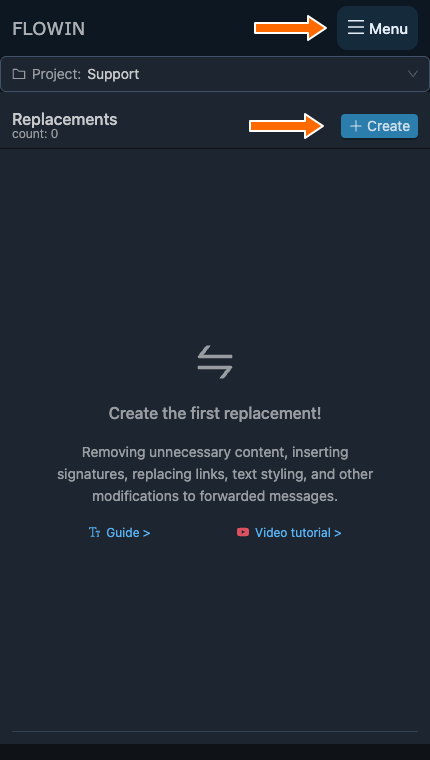
A new replacement for addressing customers by name. In “Search”, enter
#CUSTOMER_NAME, and in “Replace with”, enter<dst-chat-name>. Click “Create”.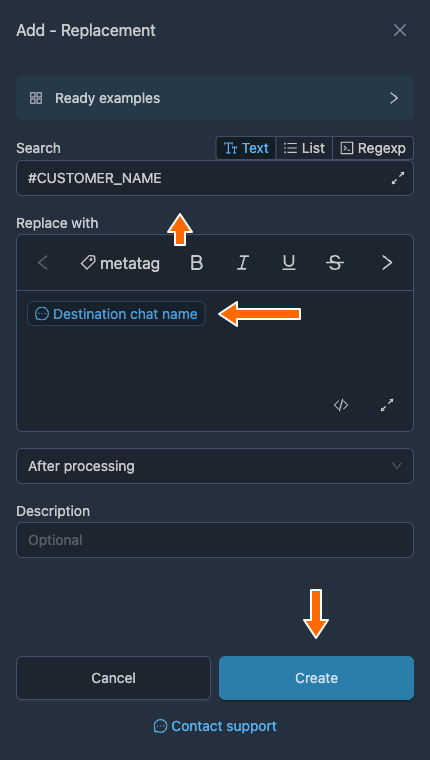
The <dst-chat-name> metatag is displayed as “Destination chat name”. Click “Apply” for the new replacement. Select the announcements forward and click “Save”.
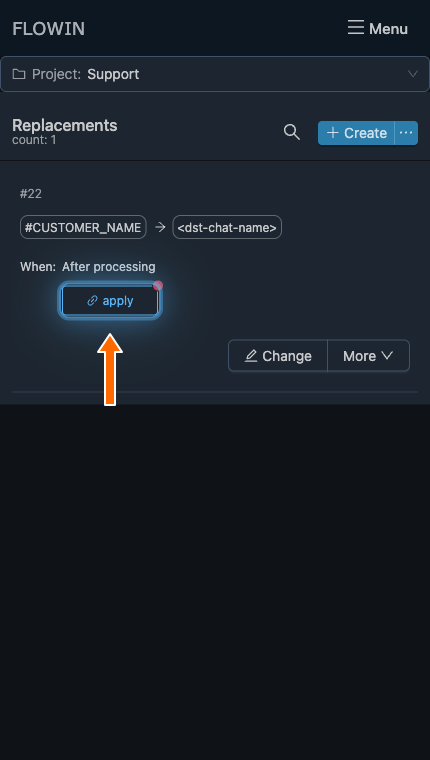
Applying the replacement to a forward. 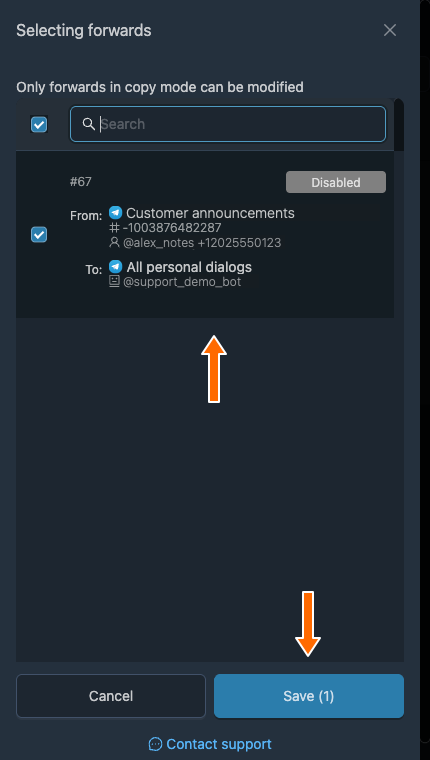
The replacement is linked to the announcements forward. Publish an announcement in the channel containing the
#CUSTOMER_NAMEplaceholder, for example: “Hello, #CUSTOMER_NAME! On Saturday, support is available from 10:00 to 16:00.” Check the message in the private chat with the bot: the recipient’s name should appear instead of the placeholder.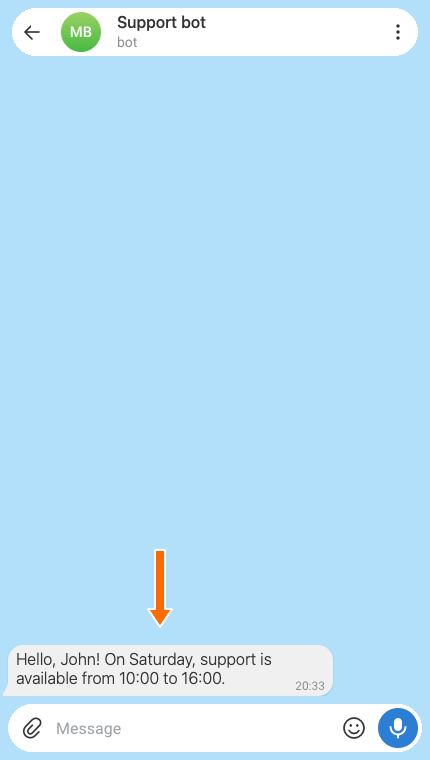
The bot has inserted the recipient’s name in the private message.
Additional features
Through webhooks, FLOWIN can send data from messages to a CRM or another system. Filtering helps select messages to forward, while watermarks let you add a text watermark or logo to media.
If customers are more used to writing to a company representative, you can connect a regular user account instead of a bot. Staff will still reply from the group, and the customer will receive messages from that account.
Frequently asked questions
Do I need a separate bot for each support agent?
No. One feedback bot receives enquiries for the whole team. Add staff to the shared support team group: they will be able to read the history and reply in customers’ topics.
Will the customer see the agent’s personal account?
When you reply from a group topic, the customer receives a message from the support bot. The staff member’s personal account is not shown in that reply. If a staff member opens a separate private chat with the customer themselves, they will be communicating on their own behalf.
Will all staff see customer conversations?
All members of the support team group can see its topics and messages. Only add staff who need access to enquiries. Customers stay in private chats with the bot and do not join this group.
Can I leave internal notes in a customer’s topic?
When “Back reply” is enabled, messages from the topic are sent to the customer. Use a separate staff chat for internal notes and discussions about the enquiry.
Can the bot write to a customer first?
No, the customer must write to the bot first. Broadcasts through FLOWIN cover the bot’s private chats available to the service. If a customer has blocked the bot, they will not receive the message.
Can a support bot be used to receive requests?
Yes. For example, a customer tells the bot which product they want to order, and an agent clarifies the details from the group topic. The request remains a conversation with the customer. A separate integration is needed to send its data to a CRM.